Page History
[  |../../index.htm#lansa/edttut01_0130.htm]
You are here:
...
In this step, you will use the Find dialog to mark all occurrences of the string currentitem.
If necessary, move the cursor back to the top of the form and at the start of the BEGIN_COM statement, by pressing Ctrl+Home.
1. Click on the Find button in  in the Home ribbon or Ctrl+F to open the Find dialog:

The The Find dialog is displayed with BEGIN_COM set as the search string.

2. Either type in currentitem or in the Find what drop-down list select currentitem
3. Click the Tag All button to mark all occurrences of the string currentitem in the source.
4. Scroll down the code. Notice how every occurrence of currentitem, is marked with a small blue circle.

Tags Tags are temporary and are not saved with the source.
Tags are shown on the Go To tab:
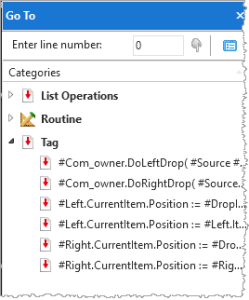
5. Click Cancel to close the Find dialog box.
[ |../../index.htm#lansa/edttut01_0130.htm]