Page History
[  |../../index.htm#lansa/frmeng01_0225.htm]
You are here:
...
In this step, you will execute your Department Maintenance form (iiiMaintDept) that you created in the previous exercise, in debug mode. The form must be compiled with debug enabled.
1. If your form iiiMaintDept is open in the editor, close it.
2. Using the Repository tab, locate your form iiiMaintDept.
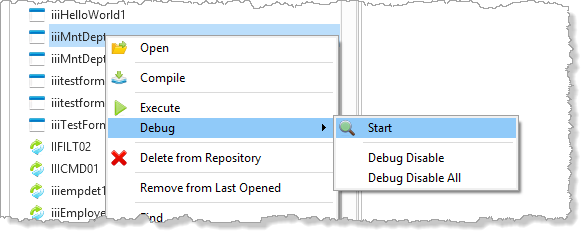
3. Right-click the form iiiMaintDept to display the context menu, and select the Debug / Start option.
Note
| Note |
|---|
| Note: Note the Debug Disable and Debug Disable All options. When testing an application involving many components, you can define which components to exclude from running in debug mode. |
4. As soon as the form is executed, it is opened in the editor:
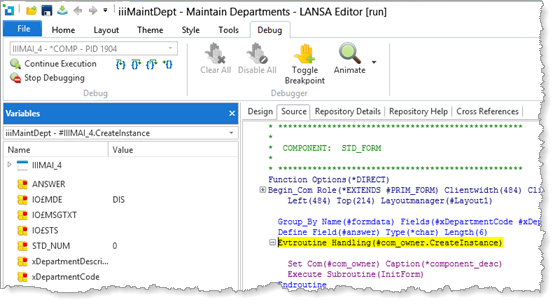
5. The first executable line is displayed and the debugger is waiting for your commands. As you can see from the above image, the form is about to execute the CreatInstance event handling routine. The next line to be executed is always highlighted in yellow.
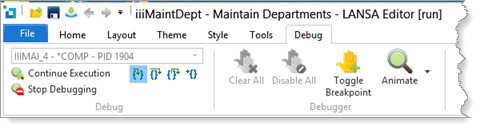
6. Notice that the Debug tab of the ribbon is displayed with a set of debug commands. You can position the cursor over these commands to display their tool tips.
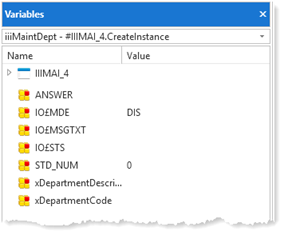
7. You should also notice that a new Variables tab has appeared. This tab lists the variables used in the form and their current value.
[ |../../index.htm#lansa/frmeng01_0225.htm]