Page History
[  |../../index.htm#lansa/frmeng01_0240.htm]
You are here:
...
In this step, you will learn how to display and change the variables in a program as it is executing.
1. Enter a department code of 1000 and click the Fetch button. When the Internal Audit department is displayed, leave the values unchanged and click the Update button. Once again, the form will stop at the start of the UPDATE.Click event and display the source in the editor.
2. Display the Variables tab to see a list of the variables in the function. It will appear something like the following:
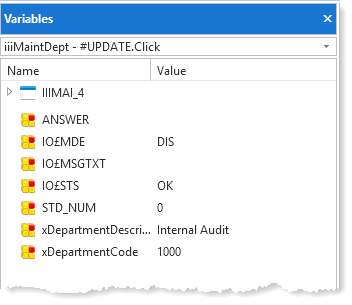
3. When debugging components, you need to be aware that many fields are components. Note that xDepartmentCode and xDepartmentDescription are shown as Component in the Type column. If you open the context menu (right mouse click) on one of these, you will not be able to change the value:
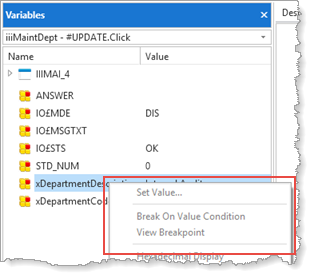
Note Note that on in the image above, the Set Value option is not available (grayed out) for xDepartmentDescription.
Try right-clicking on the ANSWER variable (which is a work field value in the form) and note that you could Set Value.
4. To change the value of xDepartmentDescription you need to expand the form component iiiMaintDept and then expand the component xDepartmentDescription, select Value, and then use the context menu as shown:
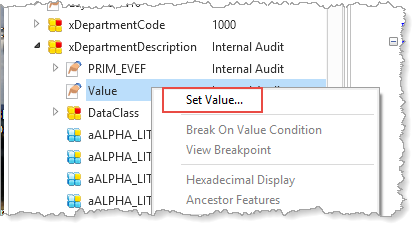
Note Note that the Set Value option is now available.
Also, notice that the Variables tab uses the form's Identifier to name the component, in this case, IIIMAI_4. The form compiled object is a Windows DLL named iiimai_4.dll, as shown:
In
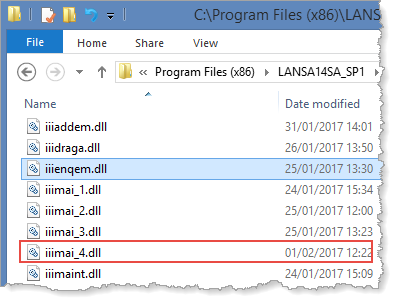
In a later exercise, this topic will be covered in more detail. In most situations, your own code can refer to the form using its Long Name, and LANSA accesses the object using its Identifier.
5. For xDepartmentDescription.Value select Set Value, and the Set Value dialog appears, enter a value of New Audit.
Click
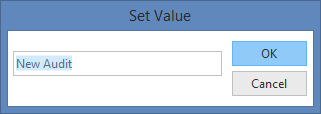
Click OK and note that the new value is shown in the Variables tab.
6. Press F5 to run the application. The form will be redisplayed. Enter 1000 in the department code and click the Fetch button.
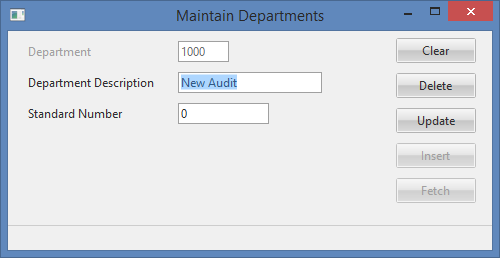
The The department record has been updated with the changed value.
[ |../../index.htm#lansa/frmeng01_0240.htm]