Page History
[  |../../index.htm#lansa/frmeng01_0075_1.htm]
You are here:
...
WBF015A - Getting Started with Forms Programming
In this step, you will logon to Visual LANSA and set the editor options
1. Logon to Visual LANSA. If you are not sure how to do this, refer to the LANSA User Interface Tutorials. Once started, the Visual LANSA Editor is displayed. The appearance of the editor will depend upon the type of installation as well as the editor settings.
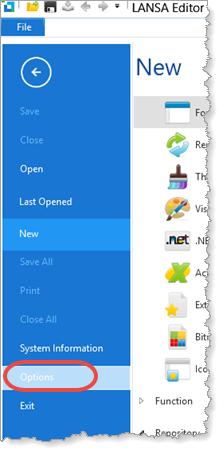
2. To change the editor settings, choose Options from the File menu.
We
We recommend you set the Source settings with the Component Definitions selected. Define_Com statements will be shown in the Source, rather than being compressed. These settings are included in the exercise Format Source Code in the LANSA Editor Tutorials.
Remember that you can also turn on the Auto Hide tab feature to make more space to view source code in the editor. For more details, refer to exercise VUI002 Editor Parts in the User Interface Tutorials.
3. Make sure you can view the Controls tab. This tab contains all the controls frequently used on a component.
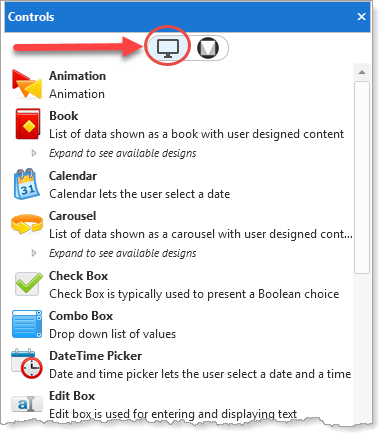
Note the highlighted button at the top of this tab. This has selected the Visual LANSA controls, which support both desktop and web applications. These tutorials use the Visual LANSA controls. The
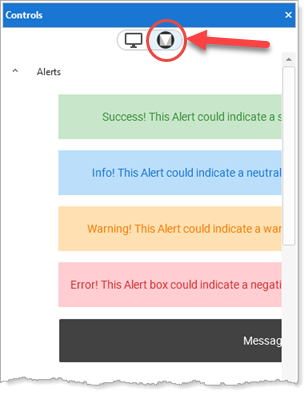
The alternative list, shown here, contains controls based on Google's Material Design, which support supports web application development. See
See Explore the Material Design Controls application from the Visual LANSA Home page, which demonstrates many of the Material Design controls.
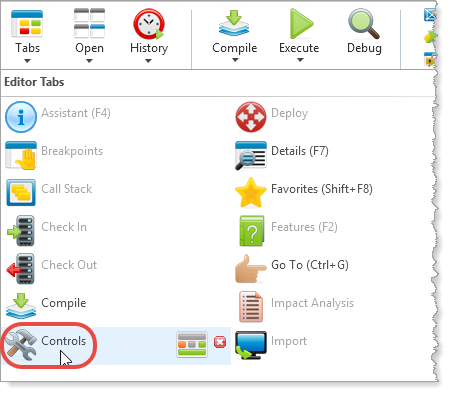
If If the Controls tab is not open, open it from the Home ribbon, Tabs menu:
[ |../../index.htm#lansa/frmeng01_0075_1.htm]