Page History
[  |../../index.htm#lansa/wbfeng01_0270.htm]
You are here:
...
1. Open the xDepartments Server Module in the editor. Select the Srvroutine Find and press F9 to set a breakpoint.
2. Switch to the Maintain Department web page and clear any breakpoints. Execute the web page in debug mode.
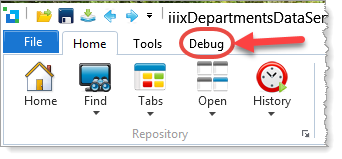
3. In the browser, enter department code 100 and click the Fetch button. The editor will switch to the xDepartments server module and break at the beginning of the Find srvroutine. Click on the Debug ribbon tab to select it:
4. On the Source tab, place the cursor (click at the beginning of the line) at the If statement after the Fetch command in the Find srvroutine. Click the Run to Cursor button on the Debug ribbon:
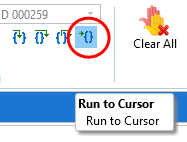
Note Note that debug will break at the If statement. The cursor position has been treated as a temporary breakpoint.
5. Click the Continue Execution option on the Debug ribbon, or use the F5 key.
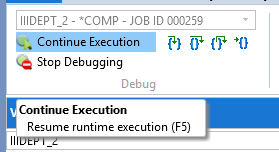
6. The server module will continue execution, returning department data to the web page component. Switch to the browser to see the output.
7. If you follow these steps fairly slowly, the browser will almost certainly exceed its wait time and you will receive an error in the browser. You could simply, end debug in the web page and run through these steps again more quickly. The next step explains how to change the web server time-out settings.
8. To increase the web server (IIS) wait time you can change the setting as follows.
a. Run the Windows Control Panel, then run Administrative Tools.
b. From Administrative Tools, run Internet Information Services (IIS) Manager.
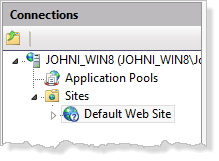
c. In IIS Manager, expand the Connections tree on the left and select Default Web Site:
d. Under Actions on the right-hand side, select Advanced Settings.
e. In the Advanced Settings dialog, expand Limits. The Connection Time-out setting is in seconds, with a default value of 120 seconds. Change this to any suitable value, such as 500 seconds.
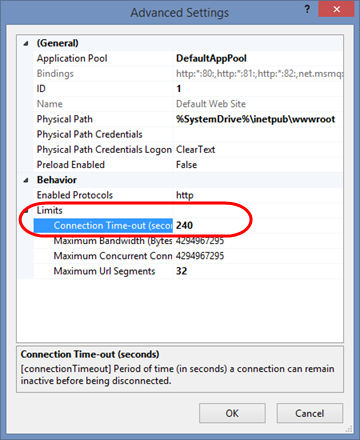
f. Click OK to save your change.
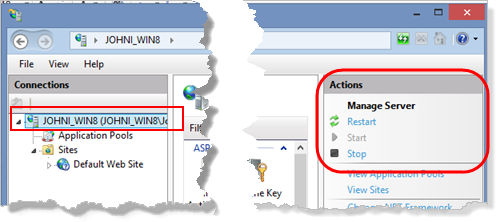
g. Restart the web server by selecting the top level in Connections (showing your PC name) and use the Actions on the right-hand side to Restart the web server.
h. Then continue with your exercise steps.
[ |../../index.htm#lansa/wbfeng01_0270.htm]