Versions Compared

Key

  • This line was added.
  • This line was removed.
  • Formatting was changed.

変更を保存し、フレームワークを再起動します。

リボンの [接続] をクリックして、先ほど定義した IBM i サーバーに SuperServer モードで接続します。
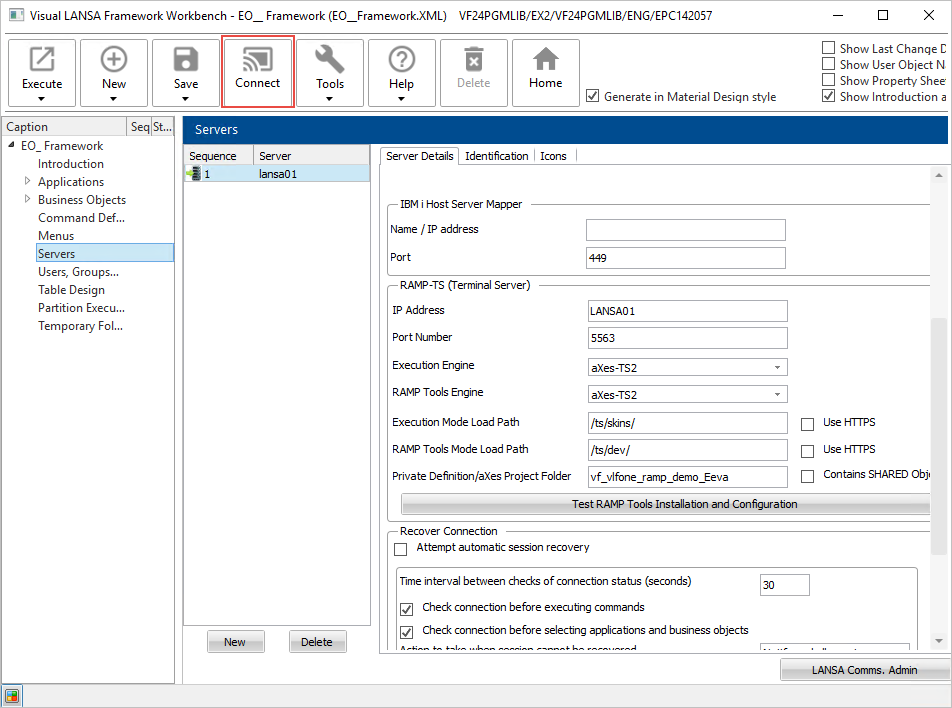
Image Added
 
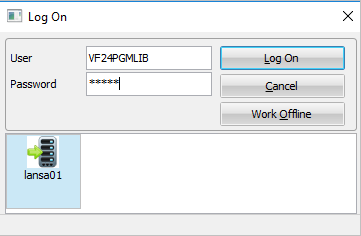
実際のユーザー ID でサインインします。

Image Added
 
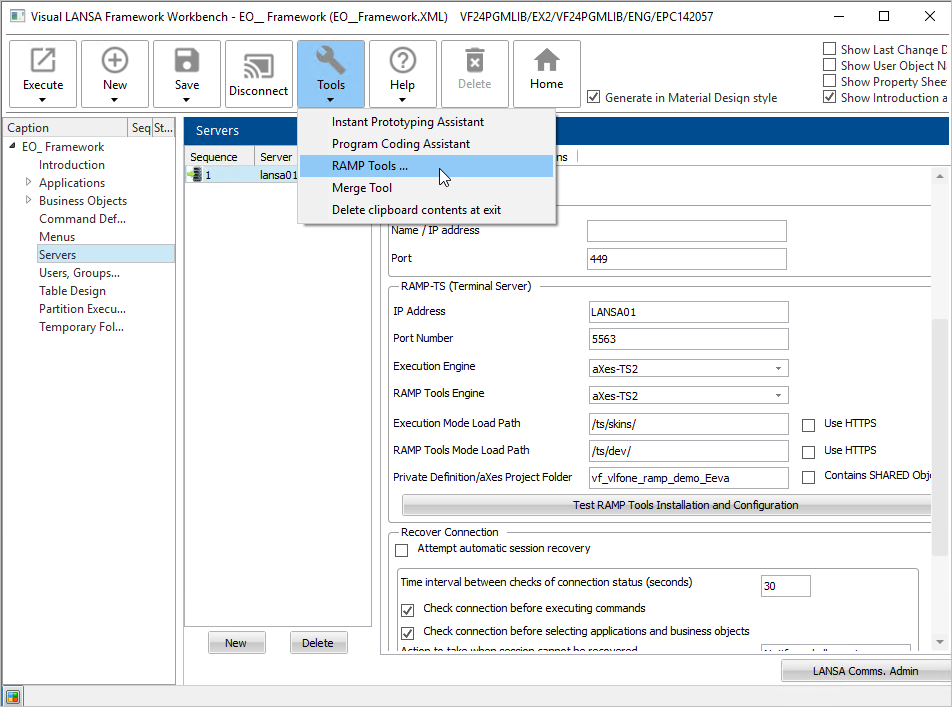
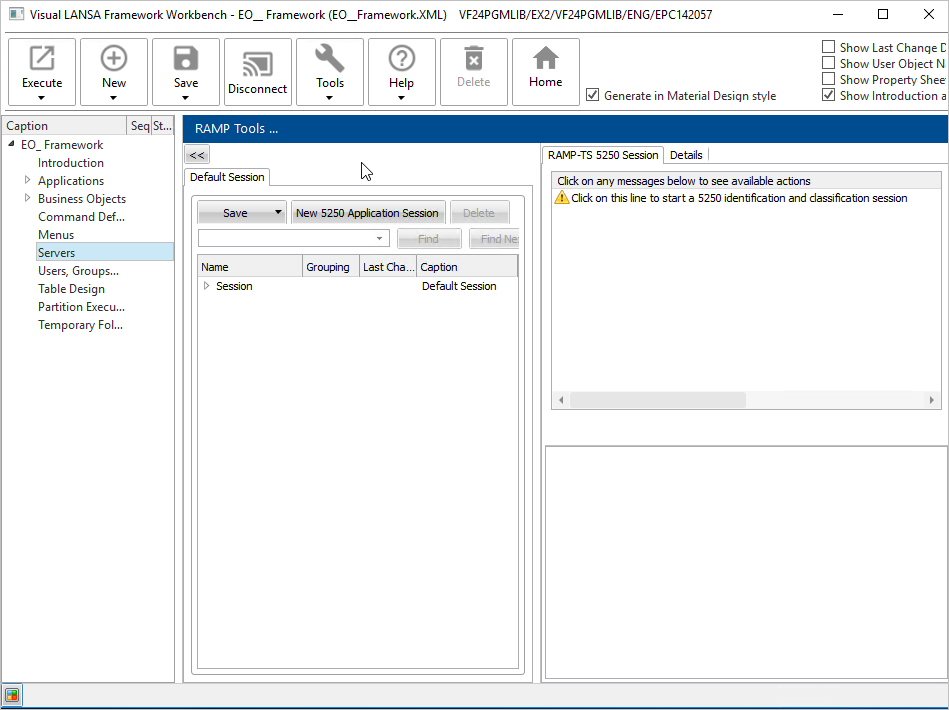
リボンのツールから [RAMP ツール] を選択します。

Image Added
 

[ Image Removed |../../index.htm#lansa/lansa050_2615.htm]
現在地: RAMP-TSガイド > インストールおよび構成 > 提供の RAMP デモの設定 > RAMP ツール機能の検証

...

Wiki Markup変更を保存し、フレームワークを再起動します。 リボンの \[接続\] をクリックして、先ほど定義した IBM i サーバーに SuperServer モードで接続します。 !worddavaf485e25f57cd86bb5b0fc63f3f1b1cc.png|height=32,width=32!   実際のユーザー ID でサインインします。   !worddavaf485e25f57cd86bb5b0fc63f3f1b1cc.png|height=32,width=32!   リボンのツールから \[RAMP ツール\] を選択します。 !worddavaf485e25f57cd86bb5b0fc63f3f1b1cc.png|height=32,width=32!   これで、vf_vlfone_ramp_demo プロジェクトの RAMP ツールを利用できるようになります。 !worddavaf485e25f57cd86bb5b0fc63f3f1b1cc.png|height=32,width=32!   [ !worddavaf485e25f57cd86bb5b0fc63f3f1b1cc.png|height=32,width=32! |../../index.htm#lansa/lansa050_2615.htm]ツールを利用できるようになります。

Image Added