Page History
WAM040 - Add dropdown lists for Department and Section
In this step you will add dynamic select boxes to replace the department and section code fields, and test your WAM. 1. Open
- Open the Details WebRoutine in the Design view. Drag and drop a Dynamic Select Box weblet onto the department and the section field input values.
...
- With one of the Dynamic Select Boxes selected in the Design view, select the Details tab. Notice that the weblet has adopted the field name and value:
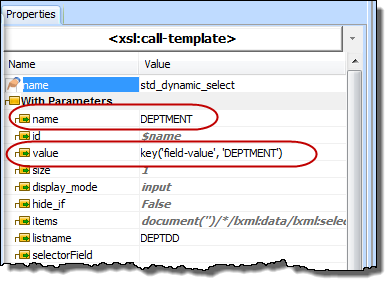
...
- In the Design view, select the DEPTMENT dynamic select box weblet and use the Details tab to define its properties as follows:
Property
Value
listname
DEPTDDcodeField
DEPTMENTcaptionField
DEPTDESC
...
- Select the Section dynamic select box weblet and define its properties as follows:
Property
Value
Listname
SECTDDcodeField
SECTIONcaptionField
SECDESC
...
Note Note: All properties can be selected from a dropdown list.
...
- Adjust the width of dynamic select dropdowns, so that the department and section descriptions will be visible.
...
- Save your changes and test your WAM by running the Begin web page.
...
At this stage:
- Both the dropdown lists should be populated, the section's dropdown list containing only the sections for the current department.
- When employee details are displayed, the dropdown lists should display the correct value for the employee. You could use your WAM iiiEmpUpdate to check this.
- If you select a different section and update the employee, the update should be processed correctly.
- The section's dropdown list is populated once only, so if you change department, it will contain an incorrect list of values. You will correct this in the next step.