Page History
WAM050 – A Section Maintenance Application
To design and develop your WAM applications, just like any other new application, you need to begin by focusing on:
- What is the business process?
- The user interface
- A new web application will require many WAMs and many web pages. Start by drawing up a plan of the web site and the navigation it will require.
- What WebRoutines will be required?
- What working lists, group_bys, working fields need to be defined?
- What weblets can be used to enhance the user interface?
- What working lists will be required to support these weblets?
- How do fields and lists need to be mapped into and out of each WebRoutine?
- In a new WAM create your WebRoutines and WEB_MAPS before coding your application logic
- When you add a new WebRoutine to a WAM, the XML/XSL will be built at compile time.
| Info |
|---|
Avoid creating very large WAMs with too many WebRoutines. Each time a WebRoutine is invoked from the browser, the WAM loads and then unloads. Many small WAMs is a much better design and will be easier to maintain. |
...
- Create a new WAM.
Name: iiiSecMaint
Description: Section Maintenance
Layout weblet: iiilay01
...
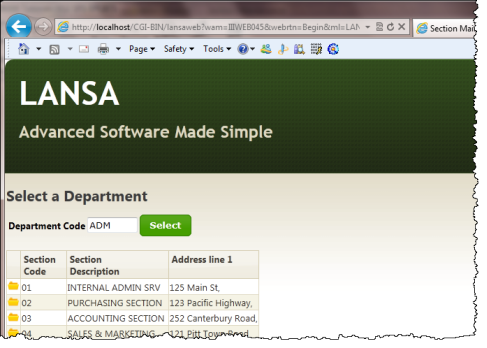
Consider the first two screen captures shown in the Objectives section that show the Begin WebRoutine in operation. This WebRoutine initially displays a list of sections that is empty and an input field for a department code. An AutoComplete weblet will replace the Department Code input field. A Select push button invokes the Begin WebRoutine that builds a list of sections for the department and displays this list.
...
- Consider what working lists will be needed to handle this web page and what logic will be necessary?
- Define a
...
- work field DEPT_IN based on DEPTMENT, this will be the department code input field.
...
- Define working list DEPTS, to support the AutoComplete weblet. The list contains the field DEPTMENT only.
...
- Define working list SECTLIST, to support the list of sections containing STDSELECT, SECTION, SECDESC, SECADDR1. Note: All fields apart from STDSELECT should have an *output attribute.
...
- Map STDRENTRY globally as a hidden field.
- Map STDRENTRY globally as a hidden field.
...
- Define a WebRoutine named Begin, based on the following pseudo code
     Map field DEPT_IN for * both
     Map for *output the Sections working list, SECTLIST
     Case of field STDRENTRY
     * Select Push Button
     When = S
     clear list SECTLIST
     select fields in working list from the section table with the key dept_in
     add entry to working list
     end of select loop
     end of case loop
...
Define a response WebRoutine AutoComplete to build the list DEPTS to support the AutoComplete weblet
     Define WebRoutine AutoComplete with a Response(*JSON) keyword
     Map DEPT_IN for input
     Map list DEPTS for output as a *JSON list
     Convert the first character of DEPT_IN to uppercase
     clear list of departments
     Select DEPTMENT from the file DEPTAB with the key DEPT_IN, with a Generic(*yes) keyword
     Add an entry to the department list
     end select
     end subroutine
...
Your completed code should now look like the following:
...
     Function Options(*DIRECT)
     Begin_
...
Com Role(*
...
EXTENDS #PRIM_WAM)
...
Layoutweblet('iiilay01')
...
Define Field(#dept_in)
...
 Reffld(#deptment)
     Def_
...
List Name(#depts)
...
Fields(#deptment)
...
 Type(*Working)
     Def_
...
List Name(#sectlist)
...
Fields(
...
#STDSELECT (
...
#SECTION *out)
...
(
...
#SECDESC *out)
...
(
...
#SECADDR1 *out))
...
 Type(*Working)
     Web_
...
Map For(*both)
...
Fields((
...
#stdrentry *hidden))
...
WebRoutine Name(Begin)
...
Desc('
...
Select a Department')
     Web_
...
Map For(*both)
...
Fields(#dept_
...
in #sectlist)
     Case (#stdrentry)
...
When (=
...
 S)
     Clr_
...
List Named(#sectlist)
...
Select Fields(#sectlist)
...
From_File(sectab)
...
 With_Key(#dept_in)
     Add_
...
Entry To_List(#sectlist)
     Endselect
     Endcase
...
     Endroutine
     WebRoutine Name(AutoComplete)
...
 Response(*JSON)
     Web_
...
Map For(*input)
...
 Fields(#dept_in)
     Web_
...
Map For(*output)
...
Fields((
...
#depts *json))
     #dept_
...
in :=
...
#dept_in.substring(
...
 1, 1 ).upperCase
     Clr_
...
List Named(#depts)
...
Select Fields(#deptment)
...
From_File(deptab)
...
With_Key(#dept_in)
...
 Generic(*yes)
     Add_
...
Entry To_List(#depts)
     Endselect
     Endroutine
     End_
...
Com
...
Compile your WAM and open the Begin WebRoutine in the Design view.
...
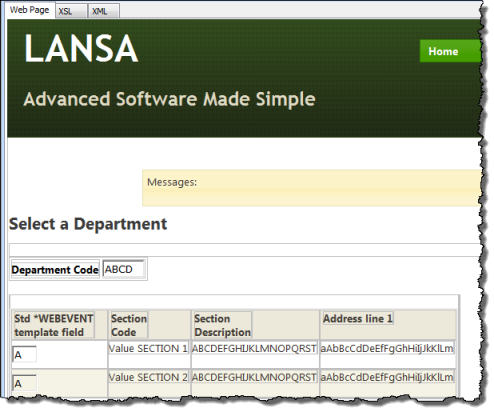
Your web page should look like the following:
...
Drag and drop an jQuery UI AutoComplete weblet onto the Department Code field. Select the Details tab and set up the AutoComplete properties:
Property
Value
sourceWrName
AutoCompleteListname
DEPTSvalueField
DEPTMENT
...
If the Select column (field STDSELECT) is shown as an input field (i.e. it does not have a clickable image weblet field visualization defined in the Repository), drop a Clickable Image weblet into the field in the first column.
...
With the clickable image selected, select the Details tab and set up its properties:
Property
Value
currentrowhfield
SECTIONcurrentrownumvalue
$SECTIONRentryvalue
Stooltip
Select a Sectionon_click_wrname
DetailsNote Note:
- To return a field value from a list define the value as $FIELDNAME (upper case). i.e. $SECTION in this case.
- Although 'SECTION' is an *output field in the list, you can return a field value via the clickable image weblet.
- The Details WebRoutine is not yet defined in your WAM, so you need to type in this value for the on_click_wrname property.
...
- Select a clickable image weblet. Set the relative_image_path by clicking in the Value column, and then using the Elipsis
...
-
 button and select the /normal/16 folder and then select any suitable image. See the example following: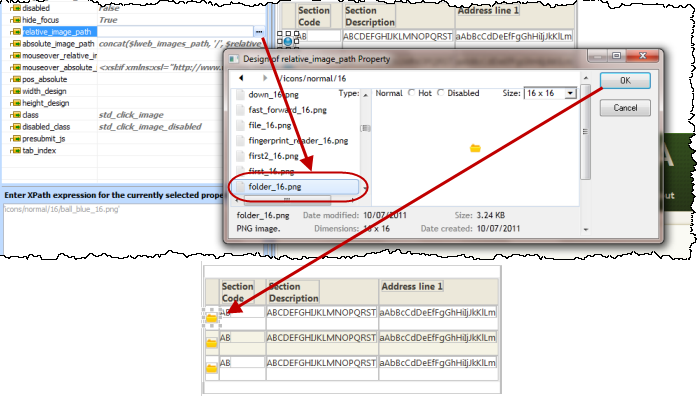
...
- Select the column heading "Std *WEBEVENT template field" and delete it.
...
- If the field SECTION has a dropdown field visualization defined in the Repository, it will not be displayed in the list – since it is an *output field. If necessary, select the field SECTION in the list and use the context menu to select the option Replace with an Output Field.
...
- Select anywhere in the table containing "Department Code" and the AutoComplete weblet. Use the context menu, and select the
...
- option Table Items / Add columns… to add one column to the right. Add a push button into this new column and remove the * placeholder characters from this cell.
...
- Set up the push button properties:
Property
Value
caption
Selecton_click_wrname
BeginsubmitExtraFields
Field Name: STDRENTRY
...
Literal Value: S
...
Note Note: Whenever possible, set a weblet property value by selection from its dropdown list. Using a list of values provided by the editor, when available, will help to minimize errors in your XSL.
...
- Save your changes and run the web page in the browser. Your page should look like the following: