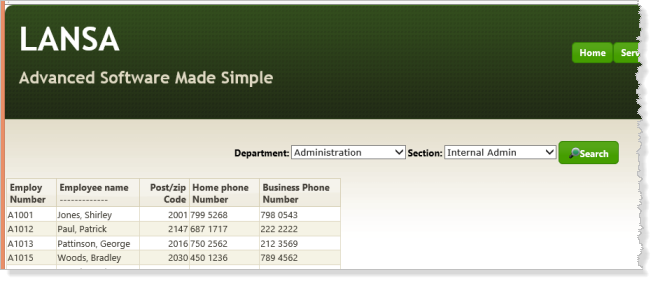
Page History
...
- Open the ShowPage WebRoutine in the Design view.
...
It should look like the following: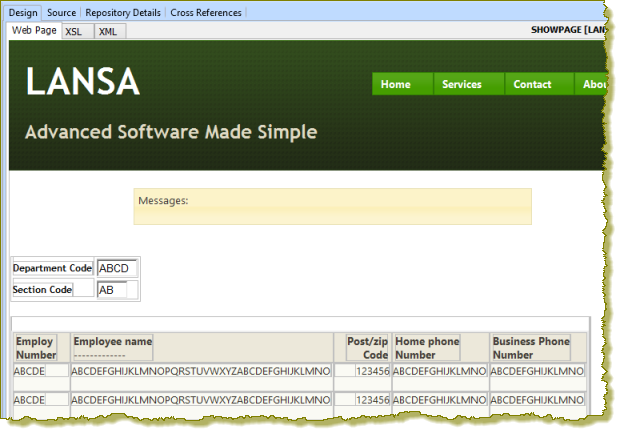
...
- Click anywhere in the table containing department code and using the context menu select the Table Items / add Columns… option, to add 3 columns.
...
- Move the section code and its label into the 3rd and 4th columns (top row), using drag and drop.
...
- Drop a push button with image into the 5th cell, top row
...
- Click in the bottom row, and use the context menu, Table Items / Delete Row to delete this row.
...
- Click in the cell containing the section code label, if necessary use the cursor keys to ensure you are in the table cell (<td> tag) and use the Details tab to change its class to caption.
...
- Select the department code label and delete it. Type Department: into the cell. Change the cell class to caption.
...
- Select the section code label and delete it. Type Section: into this cell.
...
- Select each of the new cells using the cursor keys, and delete the * place holder characters.
...
- Save your changes.
- Save your changes.
...
- Select the push button and set up its properties on the Details tab:
Property
Value
caption
Searchleft_relative_image
icons/normal/16/zoom_16.pngon_click_wrname
ShowPagesubmitExtraFields
Field Name: STDRENTRY
...
Literal Value: S
...
- Select the table and changes its Align property to center. You should be able to click on a corner of the table to select it.
...
- Save your changes
...
- Your page should look like the following:
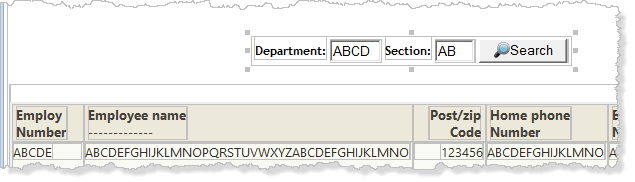
...
- Drag and drop a Dynamic Select Box onto the field DEPTMENT, set up its properties as shown:
Property
Value
listname
DEPTScodeField
DEPTMENTcaptionField
DEPTDESC
Adjust the width of the dynamic select box.
...
- Drag and drop a Dynamic Select Box onto the field SECTION and set up its properties as shown:
Property
Value
Listname
SECTScodeField
SECTIONcaptionField
SECDESCupdateWrName
updsectsupdateOnFieldChange
DEPTMENTupdateFieldsToSubmit
Field Name: DEPTMENT
...
Value: Field DEPTMENT
...
Adjust the width of the dynamic select box.
...
-
Complete the updateFieldsToSubmit property by clicking on the Ellipsis
...
-
 button in the value column, to open the Design of…
...
- Property dialog.
...
- Select DEPTMENT in the Name column.
- Select DEPTMENT in the Name column.
...
- Select the Field checkbox and enter DEPTMENT in the Value column.
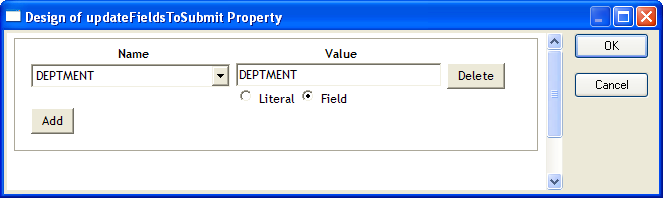
...
- Save your changes.
...
- Execute the ShowPage WebRoutine in the browser.
- Changing selected department should refresh the section's dropdown list.
- The Search button should populate the list of employees.