Page History
WAM060 - Employee Maintenance using Advanced Weblets
The The Details WebRoutine:
- Will be invoked by selecting an employee in the employees list, using the Anchor weblet (also known as a hyperlink). Output for the Details WebRoutine will be shown on the ShowPage web page.
- Output will be displayed in the Navigation Panel on the right of the Vertical Splitter.
- Will handle display and update of employee and employee skills data. It will also handle adding a new skill for the employee.
...
- At the top of your WAM, begin by defining fields, lists or group_by that will be required to support the Details WebRoutine.
- Define a
...
- working list, EMPSKLS for employee skills containing SKILCODE, GRADE, COMMENT, DATEACQ, DATEACQR and EMPNO . DATEACQR and EMPNO should be hidden.
...
- Define a work field EMPNOW based on EMPNO
...
- Define a group_by, EMPDATA containing fields EMPNOW, SURNAME, GIVENAME, ADDRESS1, ADDRESS2, ADDRESS3, POSTCODE, PHONEBUS and PHONEHME. EMPNOW should be output.
- Define a group_by, EMPDATA containing fields EMPNOW, SURNAME, GIVENAME, ADDRESS1, ADDRESS2, ADDRESS3, POSTCODE, PHONEBUS and PHONEHME. EMPNOW should be output.
...
Your code should look like the following:Def_
...
List Name(#empskls)
...
Fields((
...
#SKILCODE *out)
...
#GRADE #COMMENT #DATEACQ (#dateacqr *hidden)
...
(
...
#empno *hidden))
...
 Type(*Working)
     *
...
Define Field(#empnow)
...
 Reffld(#empno)
     Group_
...
By Name(#empdata)
...
Fields((
...
#empnow *out)
...
#SURNAME #GIVENAME #ADDRESS1 #ADDRESS2 #ADDRESS3 #POSTCODE #PHONEHME #PHONEBUS)
- Create a Details WebRoutine. Initially you will create a simple version of this WebRoutine and then extend it.
...
- Map field EMPNO for both as a hidden field.
...
- Map for both, Group_by, EMPDATA and list EMPSKLS. EMPSKLS should be mapped with a *private attribute. *Private means it will not be automatically shown on the web page.
- Map for both, Group_by, EMPDATA and list EMPSKLS. EMPSKLS should be mapped with a *private attribute. *Private means it will not be automatically shown on the web page.
...
Your code should look like the following:
...
     WebRoutine Name(Details)
     Web_
...
Map For(*both)
...
Fields((
...
#empno *hidden))
     Web_
...
Map For(*both)
...
Fields(
...
#empdata (
...
#empskls *private))
...
Endroutine
- In this step you will add logic to your Details WebRoutine using a CASE loop for STDRENTRY (this is mapped globally as a hidden field).
...
Note the following:- Field EMPNOW is shown on the Details web page as an output field. EMPNO is mapped as a hidden field and will be used for employee update. EMPNO is passed into the Details WebRoutine by the Anchor weblet.
- Field EMPNOW is shown on the Details web page as an output field. EMPNO is mapped as a hidden field and will be used for employee update. EMPNO is passed into the Details WebRoutine by the Anchor weblet.
...
Code your Details WebRoutine based on the following:- Change EMPNOW to EMPNO
- Case loop on STDRENTRY
- When = D
- Fetch fields in EMPDATA from file PSLMST with key EMPNO
- Clear list EMPSKLS
- Select EMPSKLS from file PSLSKL with key EMPNO
- Add entry to EMPSKLS
- Endselect
- When = U
- Update fields in EMPDATA in file PSLSMT with key EMPNO. Go to next statement on validation error.
- If status is not OK, issue an error message
- Else
- Issue an "employee changed" message including employee number.
- Endcase
...
Your code should look like the following:
...
     WebRoutine Name(Details)
     Web_
...
Map For(*both)
...
Fields((
...
#empno *hidden))
     Web_
...
Map For(*both)
...
Fields(
...
#empdata (
...
#empskls *private))
     Web_
...
Map For(*both)
...
Fields((
...
#skilcode *hidden))
...
     #empnow := #empno
     Case (#stdrentry)
     When (= D)
     Fetch Fields(#empdata) From_File(pslmst)
...
 With_Key(#empno)
     Clr_
...
List Named(#empskls)
...
Select Fields(#empskls)
...
From_File(pslskl)
...
 With_Key(#empno)
     Add_
...
Entry To_List(#empskls)
...
     Endselect
     * update employee
     When (= U)
     Update Fields(#empdata) In
...
_File(pslmst)
...
With_Key(#empno)
...
 Val_Error(*next)
     If_
...
Status Is_Not(*okay)
...
     Message Msgtxt('Error occurred on employee update')
     Else
     Message Msgtxt(' Employee ' + #empno + ' was changed')
     Endif
     Endcase
     Endroutine
- Compile your WAM and open the Details WebRoutine in the Design view.
...
Your web page should look like the following: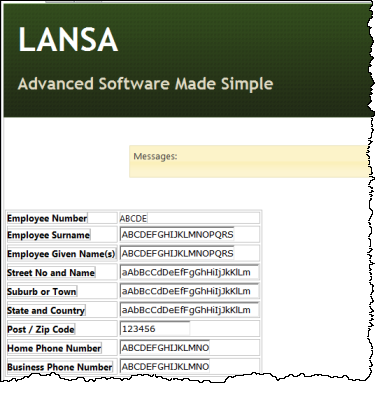
...
- Drag and drop a Tab Pages weblet (not Tab Pages (deprecated)) onto the page.
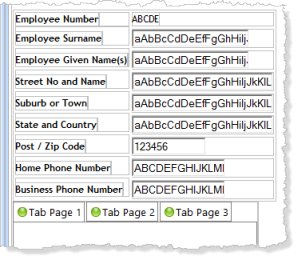
...
- Click on the Tab Pages weblet to select it. On the Details tab set up its tabs properties by clicking on the Ellipsis
...
-
 button, that will open the Design of… Properties dialog: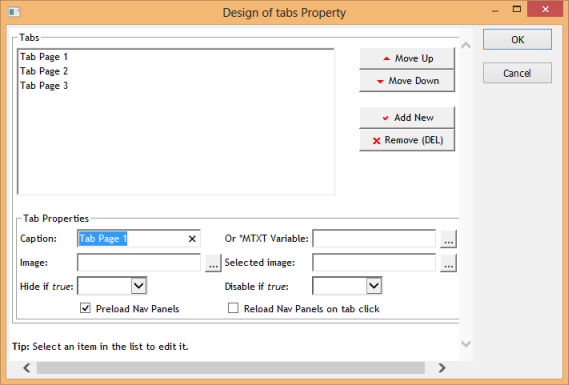
-
...
- Select each tab page entry in the list and set up its properties:
Property
Value
caption
Detailsimage
icons/normal/16/folder_16.png
...
Property
Value
caption
Skillsimage
icons/normal/16/contract_16.png
...
- Delete Tab Page 3.
- Delete Tab Page 3.
...
- Save your changes by clicking OK.
...
- Click on the Tab Pages weblet to select it and set its height and width properties:
Property
Value
content_width
450pxcontent_height
400px
...
- Save your changes. Your page should now look like the following:
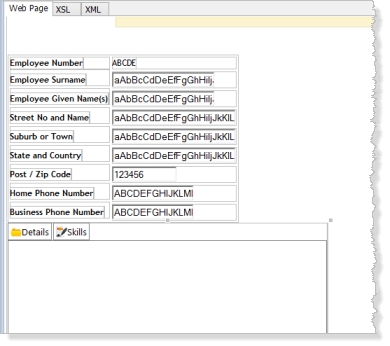
...
- Click on a corner of the employees fields table to select it. Use the context menu to select Cut.
...
- Click on the Tab Pages weblet to select it.
...
- Click on the Details tab to ensure the correct tab sheet is selected.
...
- Use the context menu to Paste the table into the tab folder Details tab.
- Use the context menu to Paste the table into the tab folder Details tab.
...
Your page should now look like the following: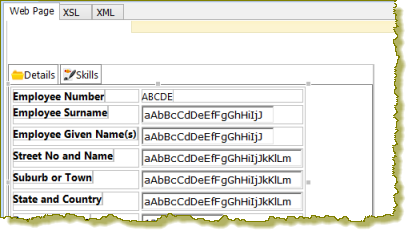
...
- Save your changes.
...
- Click on the Skills tab to select it and drag and drop a jQuery Enabled Grid onto the Skills tab page.
...
- Select the Grid and set up its properties:
Property
Value
Listname
EMPSKLS
...
- Click on the Details tab page and save your changes. This will make Details, the default tab at run time.
...
- The Details web page will be displayed inside the Navigation Panel on the ShowPage web page. The Details web page therefore requires a blank layout.
...
- On the Favorites / Weblet Templates tab, using the dropdown at the top, select Layout Weblets:
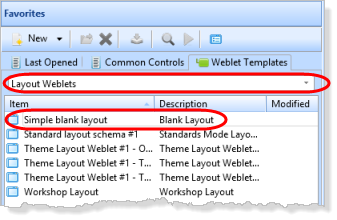
- On the Favorites / Weblet Templates tab, using the dropdown at the top, select Layout Weblets:
...
- Drag and drop the Simple blank
...
- layout onto the page. Your design should now look like the following:
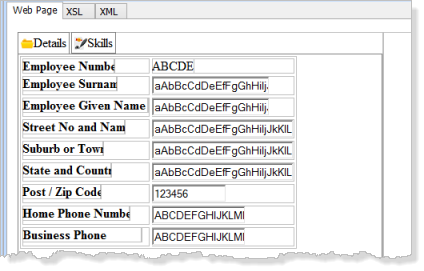
- layout onto the page. Your design should now look like the following:
...
- You need to ensure that this blank page adopts the same theme as your common layout iiilay01.
...
- On the Favorites / Weblet Templates tab, select Layout Weblets in the top dropdown list.
...
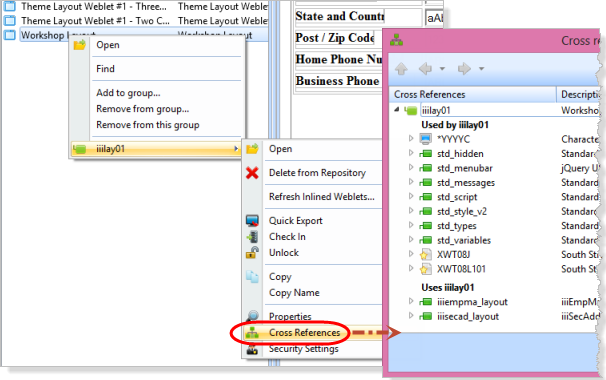
- Right click on the layout Workshop Layout and use the context menu to select Cross References:
...
...
- Make a note of the Style External Resources being used. In this example these are XWT08J and XWT08L1.
- Make a note of the Style External Resources being used. In this example these are XWT08J and XWT08L1.
...
- Close this dialog.
...
- In the Design view for WebRoutine Details, on the Design ribbon, select the External Resources button. Use the Add button to add the two Styles required.
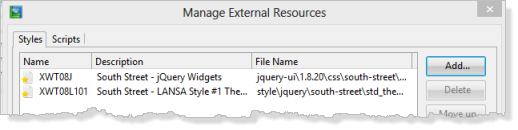
- In the Design view for WebRoutine Details, on the Design ribbon, select the External Resources button. Use the Add button to add the two Styles required.
...
- Your Design should now look like the following, but refelecting your chosen theme:
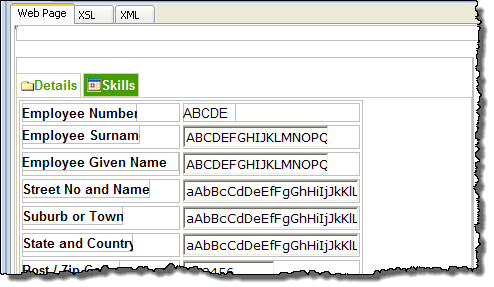
- Your Design should now look like the following, but refelecting your chosen theme:
...
- Note the Font used for the field labels.
- Note the Font used for the field labels.
...
- Note also the background used for a non-selected tab. The color may not be shown in the Design view. Check your results in the next step.
- Note also the background used for a non-selected tab. The color may not be shown in the Design view. Check your results in the next step.
...
- Save your changes.
...
- Execute the ShowPage WebRoutine in the browser to test your application:
- Selecting an employee should display details on the right side of the Vertical Splitter. The Details tab will be shown initially, as it was saved as the default.
- Selecting the Skills tab will display a grid of employee skills.
- Selecting another employee will display the Details tab again.
Later you will enhance the application to remember the current tab and display it for the next employee selected.