Page History
WAM060 - Employee Maintenance using Advanced Weblets
In this step you will extend the WebRoutine Details to insert a new employee skill.
- A New Skill push button on the Skills tab will refresh the grid with a blank first entry.
- The SKILCODE will now be an input field in the list EMPSKLS and the hidden field SC will no longer be needed.
- The SKILCODE column in the grid will be customized using a Dynamic select box.
- The Dynamic select box will be populated with a list of skills from the table SKLTAB. A new method routine will build this list.
- When the Skills Save button is processed, an employee skill will be inserted if the DATEACQR field is zero
...
- Change the definition of list EMPSKLS so that SKILCODE is input capable, removing the hidden field SC. Your code should look like the following:
Def_List Name(#empskls) Fields(#SKILCODE #GRADE #COMMENT #DATEACQ (#dateacqr *hidden) (#empno *hidden)) Type(*Working) Entrys(*max)
...
- Delete the definition of field SC and remove all code which refers to it.
...
- Define a Group_by SKL_LIST for fields SKILCODE, GRADE, COMMENT, DATEACQ, DATAECQR. This will be used to clear employee skills list fields before adding a blank entry for insert.
...
- Define a working list SKILLS containing fields SKILCODE, SKILDESC. This list will mapped for output to populate the skill code Dynamic select box.
...
- LANSA definition statements can be placed anywhere in your code. It is usual to place them at the top of the program code.
...
- Your new code should look like the following:
Group_
...
By Name(#skl_list)
...
Fields(#skilcode
...
 #grade #comment #dateacq #dateacqr)
Def_
...
List Name(#skills)
...
Fields(#skilcode #skildesc) Type(*Working) Entrys(*max)
...
- Add a new When clause to the Details WebRoutine, that will handle a request from the New Skill button to add a blank entry as the first entry in the employee skills list. This will allow insert of a new employee skill.
...
- The logic should be based on the following:
- When = N
- Change SKL_LIST to default values
- Add entry to EMPSKLS after *Start
- Message 'Complete new skill inthe first list entry'.
...
Your new code should look like the following:*
...
 add new top row to skills list
When (=
...
 N)
#skl_
...
list :=
...
 *default
Add_
...
Entry To_List(#empskls)
...
After(*START)
...
Message Msgtxt('
...
Complete new skill in the first list entry')
...
- When processing a list entry, a value of zero for Date Acquired (DATEACQR) means the entry is new.
...
- Add the following new logic to the CASE loop, for when STDRENTRY = S.
...
- New code is shown in red.
When (= S)Selectlist Named(#empskls)If (#dateacqr *NE *zeroes)Update Fields(#empskls) In_File(pslskl) With_Key(#empno #skilcode) Val_Error(*next)
...
Else
Insert Fields(#empskls) To_File(pslskl) Val_Error(*next)
EndifEndselectIf_Status Is(*okay)Message Msgtxt('Skills for ' + #empno + ' were changed')Endif
...
- Create a method routine BuildSkills to populate the skills list SKILLS.
...
- Clear the list SKILLS
...
- Select all records from file SKLTAB and add entries to list SKILLS
...
- Position to the first entry
- Position to the first entry
...
- Your code should look like the following:
Mthroutine Name(BuildSkills)
Clr_List Named(#skills)
Select Fields(#skills) From_File(skltab)
Add_Entry To_List(#skills)
Endselect
Get_Entry Number(1) From_List(#skills)
- Your code should look like the following:
...
Endroutine
- Add an output web_map for the SKILLS list to the Details WebRoutine as JSON data. Your code should look like the following:
Web_Map For(*output) Fields((#skills *JSON))
...
- Invoke the BuildSkills method at the end of the Details WebRoutine. Your code should look like the following. New code is shown in red.
Endcase#com_owner.BuildSkills
Endroutine
...
- Compile your WAM.
...
- Open the Details WebRoutine in the Design view.
...
- Select the Skills tab, and select the Grid weblet. On the Details tab use the Ellipsis button for the grid_col_properties value to open the Design of … dialog.
...
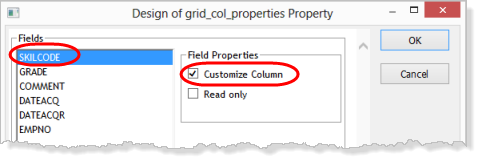
- With SKILCODE field selected, select the Customize Column check box and then click OK to close the dialog.
...
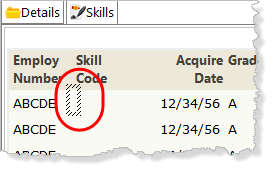
- Drop a Dynamic select box into the Skill Code column. See the image below showing how the editor will highlight the column when the cursor is in the correct position.
...
- Adjust the width of the dropdown so that it can display skill description.
...
- Select the Dynamic select box and set up its properties as shown:
Property
Value
listName
SKILLScodeField
SKILCODEcaptionField
SKILDESC
...
- Add a push button with image weblet into the into the single row table below the grid. Set up the button properties as:
Property
Value
caption
New Skill
left_relative_image
icons/normal/16/contract_16.png
on_click_wrname
Details
submitExtraFields
Field Name: STDRENTRY
...
Literal Value: N
...
- Adjust the width of the push button to display the caption as single line.
...
...
- Remove the place holder characters from table cell.
...
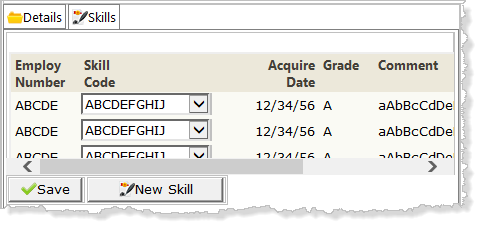
- Select the Details tab page and then Save your changes. Your Skills tab page should look like the following:
...
- Retest your WAM. Select an employee and select the Skills tab. The Dynamic select box for skills should display the correct skill description in each row.
- Click the New Skill button to add a new row at the top of the skills grid.
- Select a skill and complete the grade, comment and date acquired column. Note that the date acquired is a six digit date in the format DD/MM/YY.
- Click the Save button to process the skills in the EMPSKLS list and update or insert to the employee skills file.
- Validation errors will display messages at the top of the page.