Page History
WAM105 - Create Your Own Weblet
In this step you will create a a Toolbar Menu Item from which the toolbar will be built. If you have some basic HTML knowledge, then you will know that a menu item is essentially an <a> anchor tag that can have an href, image and alternate text elements etc associated with it. You should also know that in a WAM application an "href" will usually call a JavaScript function to call a WAM / WebRoutine. 1. Create
- Create a new weblet. From the File menu select New / Weblet in the Visual LANSA Editor.
...
- In Name and Description, replace iii with your initials.
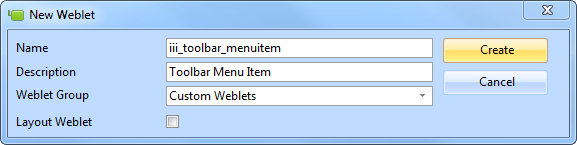
- In Name and Description, replace iii with your initials.
...
- Select Custom Weblets as the Weblet Group.
...
- Press Create to create your weblet and the Custom Weblets group. Type in a group name of Custom Weblets if this does not exist. The weblet will open in the Design view.
- Press Create to create your weblet and the Custom Weblets group. Type in a group name of Custom Weblets if this does not exist. The weblet will open in the Design view.
...
-
The XSL Source for your weblet should currently look like the following: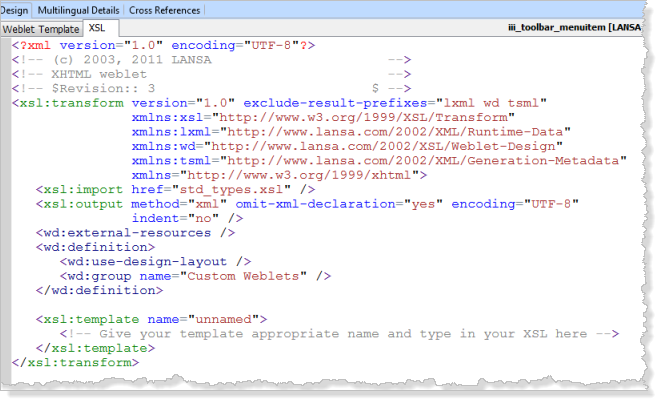
-
...
- Select the Weblet Template tab and use the Details tab to enter a name of iii_toolbar_menuitem. Replace iii with your initials.
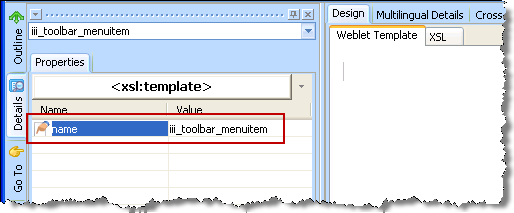
...
- Save your changes.
...
- You will now add the skeleton HTML code for the anchor tag, inside
...
- the
<xsl:template ...>…</xsl:template>, as follows:
...
Copy the following code <a href="jav...... code and paste it immediately following the lines:
...
- Code should be copied from WAM Tutorials in the Visual LANSA online guide.
...
- The new code is highlighted in red.
...
<xsl:
...
template name="iii_toolbar_menuitem"><!-- Give your template an appropriate name and type in your XSL here -->
...
<a href="j.././index.htm" target="_blank" <img alt="Tooltip" src="/images/icons/normal/16/folder_16.png" /
...
>
          <br />
          <span class="std_menuitem"
...
>
             Menu Text
          </span>
</a>
...
- In later steps you will complete this outline for the anchor tag code.
...
- Click the Save
 button on the editor Toolbar to save your changes.