Page History
...
- Create a new WAM with:
...
Name: iiiEmpEnqMap
...
- Description: Employee Enquiry with Map
...
- Layout Template: iiilay01
...
Create the WAM by copying the following code into the default WAM source:Group_
...
By Name(#empgroup)
...
Fields((
...
#SURNAME *OUT)
...
(
...
#GIVENAME *OUT)
...
(
...
#ADDRESS1 *OUT)
...
(
...
#ADDRESS2 *OUT)
...
(
...
#ADDRESS3 *OUT)
...
(
...
#POSTCODE *OUT)
...
(
...
#PHONEHME *OUT)
...
(
...
#PHONEBUS *OUT)
...
(
...
#DEPTMENT *OUT)
...
(
...
#SECTION *OUT)
...
(
...
#SALARY *OUT)
...
(
...
#STARTDTE *OUT)
...
(
...
#TERMDATE *OUT))
...
Define #ADDRESS Type(*string)
...
Length(1000)
...
Webroutine Name(begin)
...
Desc('
...
Select Employee')
     Web_
...
Map For(*output)
...
Fields(#empno)
...
     Endroutine
     Webroutine Name(DETAILS)
...
Desc('
...
Employee Details')
     Web_
...
Map For(*BOTH)
...
Fields((
...
#EMPNO *OUTPUT)(
...
#ADDRESS *hidden))
     Web_
...
Map For(*OUTPUT)
...
Fields(#empgroup)
...
Fetch Fields(#empgroup)
...
From_File(PSLMST)
...
With_Key(#EMPNO)
...
 Val_Error(*NEXT)
     If_
...
Status Is_Not(*OKAY)
...
Message Msgtxt('
...
Employee not found')
...
Transfer Toroutine(begin)
...
     Endif
Endroutine- Compile the WAM.
...
- Add a push button to the begin web page.
...
- Open the begin WebRoutine in the Design view.
...
- Add a column to the fields table.
...
- Add a push button in the new column.
...
- Set up the button with a caption of Details and an on_click_wrname of details.
...
- Remove the * placeholder characters.
...
- Save your changes.
- Save your changes.
...
- Open the Details WebRoutine in the Design view.
- Add a
...
- column to the fields table
...
- With the top row in the new column selected, set its rowspan property to 14.
...
- Click inside the new column and use the context menu to Insert HTML / Div. Your design should look like the following:
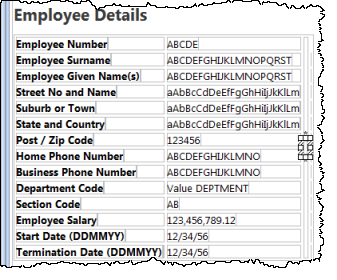
- Click inside the new column and use the context menu to Insert HTML / Div. Your design should look like the following:
...
- With the DIV still selected, select the Details tab. Expand its Style property and set the following properties:
Property
Value
Height
340px
Margin-left
50px
Width
340px
- With the DIV still selected, select the Details tab. Expand its Style property and set the following properties:
...
Your design should look like the following: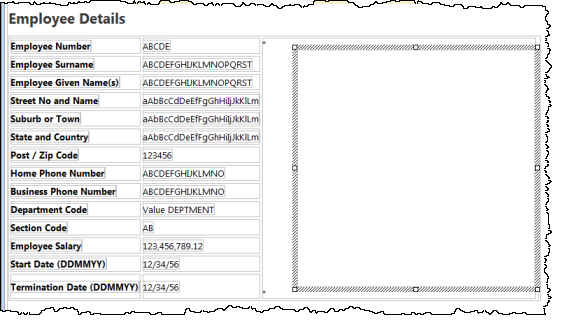
...
- Delete the * place holder characters from this column.
...
- Save your changes.
...
- Drop a clickable image weblet into the DIV.
...
- Select the clickable image and set its absolute_image_path to #ADDRESS.
Enter #ADDRESS in the XPath Expression window.
- Select the clickable image and set its absolute_image_path to #ADDRESS.
...
- Save your changes.