Page History
基本のメニュー・アイテムには、太字テキストとCSS表示値“block”以外は特別なフォーマットはありません。使用しているレイアウトとテーマによっては、これを大幅に変更することが可能です。Visual LANSA V12 SP1以前に提供されているデフォルト値のレイアウトには3つのテーマ、default、royal、grassがあります。
...
The basic menu item has no particular formatting beyond bold text and a CSS display value of "block". This can change significantly, depending on what layout and layout theme you are using. The default layouts provided prior to Visual LANSA V12 SP1 provided three themes: default, royal and grass.
|
|
|
Default | Royal | Grass |



...
If you are using an new Layout with a jQuery UI theme then you can set the menu item to take on the standard theme appearance of a clickable item by setting the useJQueryUITheme property to True.jQuery UIテーマの新しいレイアウトを使用している場合は、useJQueryUIThemeプロパティにtrueを設定することで、クリック可能項目の標準テーマの外観をメニュー・アイテムに取り入れることができます。
|
|
|
Cupertino | Smoothness | Pepper Grinder |
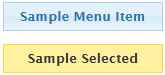
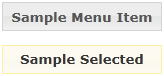
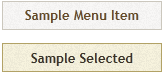
If you have no theme applied, or have useJqueryUITheme set to False, the menu item will display as bold text inside a borderless white boxテーマに何も適用されていない、またはuseJqueryUIThemeプロパティにfalseが設定されている場合は、メニュー・アイテムは枠線のない白いボックス内に太字のテキストで表示されます。
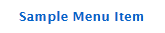 The basic HTML structure of this is:
この基本となるHTML構造は次のようになります。
<a class="std_menu" id="webletName">
  <span class="std_menu_span1">
    <span class="std_menu_span2">
      Sample Menu Item
    </span>
  </span>
</a>
When a menu item is selected, the class of the <a> tag is changed to "stdメニュー・アイテムが選択されると、<a>タグのクラスは“std_menu_selected".selected”に変更されます。
メニュー・アイテムの基本的なスタイルは、スタイルシートでstd_menu とstd_menu_selectedクラスのプロパティを定義することで決定できます。例えば次のようになります。Basic styling of the menu item can be done by defining some properties for the std_menu and std_menu_selected classes in your style sheet. For example:
a.std_menu, a.std_menu_selected {
  color:#01478c;
  border-style:solid;
  border-color:#7db0e5;
  border-width:0px 2px 1px 2px;
  background-color:#c7dff4;
}
a.std_menu_selected {
background-color:#7db0e5;
}
A left aligned image could be added with something like this:左揃えのイメージの追加は次のようにします。
a.std_menu, a.std_menu_selected {
  background-image:url('icon.png') no-repeat left center;
  padding-left:32px;
}
More complex "self sizing" background images can be created by applying the two halves of the image to each of the spans in what is known as the イメージの半分2つを各スパンに適用し、"sliding doors" technique. テクニックとして知られる方法を使って、更に複雑な”自動調整の”背景イメージを作成することもできます。