Page History
タブ・アイテム・デザイナを開くには、以下の手順に従ってください。
- ページ上のタブ・ページ・ウェブレットが選択されていることを確認し、[詳細]タブをクリックしてください。
- [詳細]タブのtabsプロパティの上にマウス・ポインタを動かしてください。省略記号(...)がプロパティ値の横に表示されます。省略記号(...)のボタンをクリックし、タブ・アイテム・デザイナを開きます。以下のようなウィンドウが表示されます。
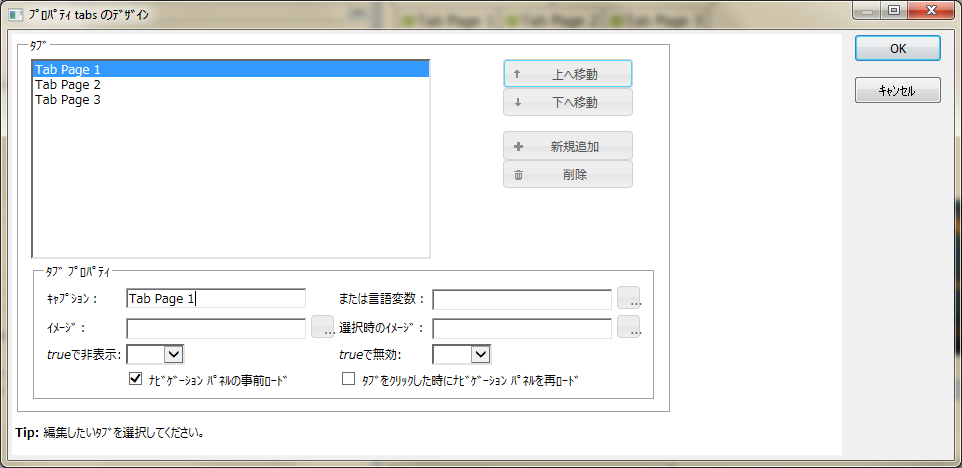
ウィンドウには、ウェブレットに定義されている現在のタブ・アイテムの一覧が表示されます。アイテムをクリックして、次のことができます。
- プロパティを変更する。
- ボタンを使ってアイテムを上下に動かしたり、アイテムを削除する。
[タブ プロパティ]では、選択したアイテムのプロパティを以下のように指定することができます。
[キャプション]
タブ・アイテムに表示するテキストを指定します。複数言語アプリケーションを作成する場合は、言語変数を使用する必要があります。キャプションまたは言語変数のいずれかを指定できます。
または [言語変数]
タブ・アイテムに表示するテキストを含む複数言語対応テキスト変数の名前を指定します。このプロパティの横にある省略記号(...)をクリックし、複数言語対応テキスト変数の一覧から選択してください。[キャプション]、[または言語語変数]のいずれかの欄のみ指定可能です。
[イメージ]
イメージ仮想ディレクトリに関連付けられた、タブに表示されるイメージのパスとファイル名を指定します。指定された場合、tab_imageプロパティに指定されたイメージが上書きされます。
[選択時のイメージ]
イメージ仮想ディレクトリに関連付けられた、選択時にタブに表示されるイメージのパスとファイル名を指定します。指定された場合、tab_selected_imageプロパティに指定されたイメージが上書きされます。
trueで[非表示]
タブ・アイテムを非表示にすることを示すフィールドの名前を指定します。ここでの非表示とはタブおよびそのコンテンツがブラウザに全く送られないという意味です。タブが非表示になるのは、フィールドにブール値true、または数字の1が含まれる場合、もしくは文字列の値がtrue、TRUE、y、Y、または1の場合です。
trueで[無効]
タブ・アイテムを無効にすることを示すフィールドの名前を指定します。タブが無効になるのは、フィールドにブール値true、または数字の1が含まれる場合、もしくは文字列の値がtrue、TRUE、y、Y、または1の場合です。
[ナビゲーション パネル]の事前ロード
タブ・ページにナビゲーション・パネルがある場合、このチェックボックスは、タブ・ページを含むページがロードされる時に、選択されていないタブのナビゲーション・パネルをロードするかどうかをコントロールします。ナビゲーション・パネルによってアクセスされるWebroutineやURLのリソースのコストが高くかかる場合や、単に多くのタブがある場合などは、1つもしくは全てのタブのこのボックスのチェックを外すことができます。このチェックボックスのチェックが外れている場合、ナビゲーション・パネルは対象のタブ・ページが選択されていない時はロードされず、選択されるとロードされます。
タブをクリックした時に[ナビゲーション パネル]を再ロード
タブ・ページにナビゲーション・パネルが含まれている場合、このチェックボックスはナビゲーション・パネルが1度(最初に表示される時)ロードされるか、またはタブページが表示されるたび毎回ロードするかをコントロールします。
To open the tab item designer, follow these steps:
1. Make sure the Tab pages weblet on your page is selected and then click on the Details tab.
...
- Change its properties.
- Move the item up or down or remove it by using the buttons.
In Tab Properties area you can specify the properties for the selected item as follows:
Tab Caption
Specifies the text that appears on the tab item If you are creating multilingual applications you should use the *MTXT Variable instead. You can only specify one of the Tab Caption or the *MTXT Variable.
Or *MTXT Variable
Specifies the name of a multilingual text variable that contains the text that appears on the tab item. Click the ellipsis next to this property to select from a list of multilingual text variables. You can only specify one of the Tab Caption or the *MTXT Variable.
Image
Specifies the path and file name, relative to the images virtual directory, of an image to be displayed on the tab. If specified, this overrides any image specified in the tab_image property.
Selected Image
Specifies the path and file name, relative to the image's virtual directory, of an image to be displayed on the tab when it is selected. If specified, this overrides any image specified in the tab_selected_image property.
Hide if true
Specifies the name of a field that indicates if the tab item should be hidden. Hidden, in this context, means that the tab and it's content is not sent to the browser at all. The tab is hidden if the field contains the boolean value true, the number 1 or a string value of true, TRUE, y, Y or 1.
Disable if true
Specifies the name of a field that indicates if the tab item should be disabled. The tab is disabled if the field contains the boolean value true, the number 1 or a string value of true, TRUE, y, Y or 1.
Preload Nav Panels
If the tab page contains a navigation panel, this checkbox controls whether the navigation panel for unselected tabs is loaded when the page containing the tab pages is loaded. If the webroutine or URL that is accessed by the navigation panel is resource-expensive or simply if you have a lot of tabs, you may wish to uncheck this box for one or all tab pages. If this checkbox is unchecked, the navigation panel is not loaded unless or until the corresponding tab page is selected.
Reload Nav Panels on tab click
...