Page History
...
Then check the installed Open SSL version by running the command below in the command prompt:
Private Key Generation
- Without Encryption:
Run the command in cmdopenssl genrsa 2048 | openssl pkcs8 -topk8 -inform PEM -out <private_key_filename.p8> -nocrypt - With Encryption:
Run the command in cmdopenssl genrsa 2048 | openssl pkcs8 -topk8 -v2 des3 -inform PEM -out <private_key_filename.p8>

You can find the file at the same location where the command was executed. Use File Explorer to verify that the file has been created.
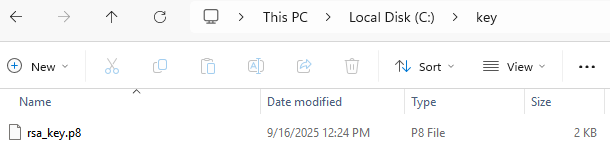
→ Private key is generated
...
openssl rsa -in rsa_key.p8 -pubout -out <public_key_filename.pub>

You can find the file at the same location where the command was executed. Use File Explorer to verify that the file has been created.
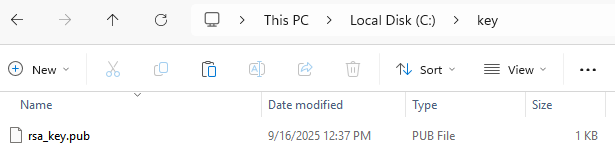
→ Public key is generated
...
- Assign the public key to a Snowflake user
ALTER USER MY_SERVICE_USER SET RSA_PUBLIC_KEY='MIIBIjANBgk................'; - Verify the user’s public key fingerprint
Execute the following command to retrieve the user’s public key fingerprint:DESC USER USERNAME->> SELECT SUBSTR((SELECT "value" FROM $1WHERE "property" = 'RSA_PUBLIC_KEY_FP'),LEN('SHA256:') + 1) AS key;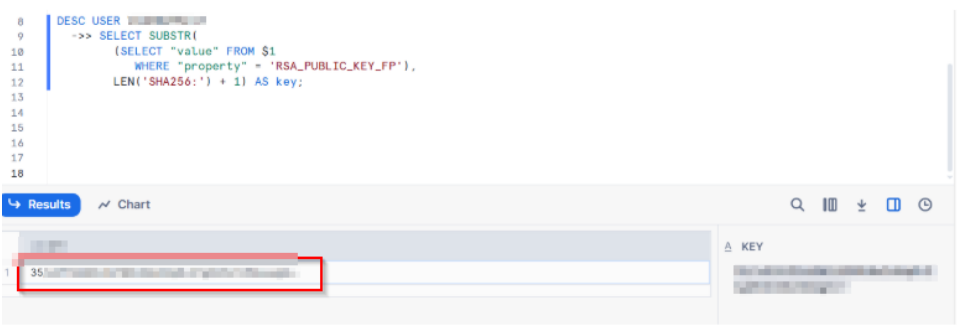
- The above output should match the fingerprint of the local public key. To obtain it, use the following
command:openssl rsa -pubin -in rsa_key.pub -outform DER | openssl dgst -sha256 -binary | openssl enc -base64
If the keys generated in both the command prompt and Snowflake console matches, Keys are successfully
generated and assigned to the account!!
...
Install the latest version of the Snowflake ODBC Driver
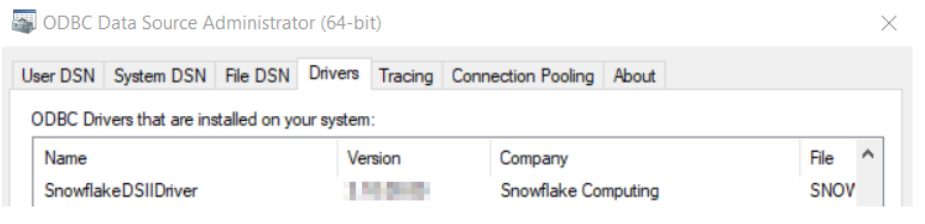
Create a DSN by adding the required details and test it.
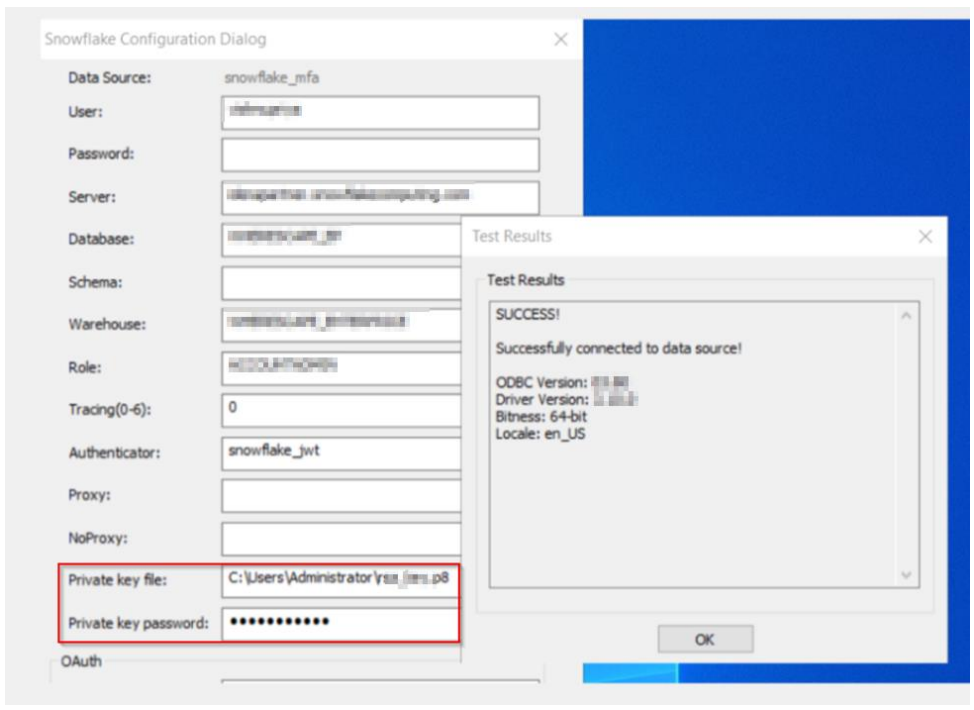
Alternatively, if you plan to continue using the existing driver, you can manually add additional fields via the Registry Editor by following these steps:
...