Page History
The main LANSA Client Administrator screen displays the currently configured hosts in the Configured Hosts list box.
A host system can be:
...
The Host Configuration Details dialog box is displayed when you are viewing, changing or adding a host system. The options selected in this dialog box are used only for this host system. It is therefore possible, for example, to allow data for a development system to be edited, but not to allow data to be edited when connected to a production system.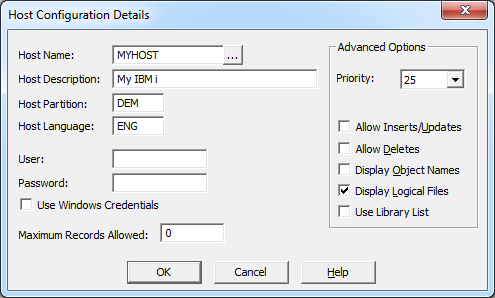
Options must be specified in the Host Configuration Details dialog box for each host from which LANSA Client is to retrieve data.
...
A short description of the host using 40 characters or less. This name must be unique as it is used by the end user to select the host system from which LANSA Client is to retrieve data. The same name is also displayed in the Administrator's Configured Hosts lists.
Host Partition
This is the name of the partition on the host system which you want LANSA Client to access. A partition is like a library or a directory. The partition name cannot be longer than 3 characters.
...
User and Password
Specify a User ID and Password to be used whenever LANSA Client communicates with the host system.
...
If the User ID and Password are set to *PROMPT then the user will be prompted for these values when LANSA Client attempts to communicate with the host system,
A profile a profile must be specified at the host for the User ID.
If the Host supports Kerberos mapping of Windows user names, you may select the Use Windows Credentials option instead of specifying a username and password. Upon connection to the Host, Client will send it your current Windows User ID, which will be mapped to an equivalent user on the Host. (Your System Administrator will need to configure this).
| Info |
|---|
Kerberos works without further configuration directly to a server with no access outside that server, say to SQL Server or a file share. If access outside of that 1 server is required – so called "multi-hop" – then this is what is supported: 1.
If your environment does not allow one of these configurations then multi-hop cannot be used. |
Maximum Records Allowed
The maximum number of records to be retrieved from each query. This limit applies to the number of records transferred from the host to the workstation, not to the number of records read.
If this number is left blank or is a value of 0, LANSA Client will retrieve as many records as possible. For each individual workstation, it is possible to reduce the number specified here by setting a lower limit using the Output Options command described in the LANSA Client User Guide.
| Note |
|---|
Note: LANSA Client should not be used to retrieve large volumes of data. It is a query and charting tool, not a data transfer utility. You should always aim to reduce the volume of data retrieved by using LANSA Client's search facilities. |
Advanced Options
Priority
You can set a priority level, in the range 10 to 80, to run your LANSA Client jobs on the host. Select the appropriate number in the Priority list. The lower the priority number selected, the higher will be the priority of your jobs at the host. The default priority is set at 25.
...
You can choose to enable or disable the insert and update capabilities of LANSA Client.
If you enable this feature, this Allow Inserts/Updates option will be ticked and the user will be able to insert new data and update existing data from the Results window. This is the default option.
If you disable this feature, the user will not be able to add or insert data. This means that the Insert Row and Edit Row commands will not be available.
...
The aggregate of the number of fields that can be edited or inserted in one operation must not exceed the buffer storage on the host. The host buffer has 9999 bytes allocated by LANSA Open. Refer to the LANSA Open Guide if any editing you are planning is likely to exceed this limit.
...
If you choose to disable this feature, the user's Delete Row command will not be available. The default option is to disable this feature.
...
You can display the logical files in the Files to Select From area of the LANSA Client Query window. This option will be ticked if logical files are to be displayed.
...
When you are satisfied with the details of this dialog box, select the OK button or press the Enter key.
To discard the changes, select the Cancel button or press the Esc key.
You will be returned to the LANSA Client Administrator dialog box.