Page History
Use a list view to offer the user various ways of displaying a list. You can arrange items into columns with or without column headings as well as display images for the list view items.
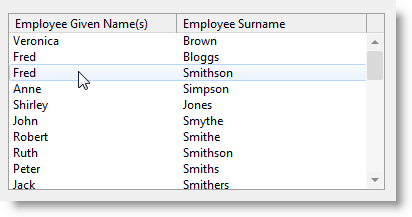
A list view can be displayed in different views using the ViewStyle property: Icons, Small Icons, List , Report.
You can add checkboxes to the list view by setting the CheckBoxes property of the list view to True: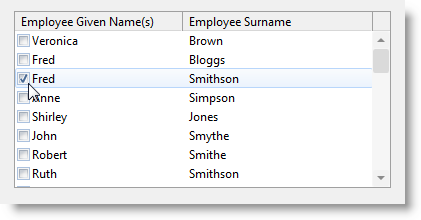
You can let the user sort the items in a list view column by clicking on the column heading if you set the SortOnClick property of the column to True. The sort sequence swaps between descending and ascending.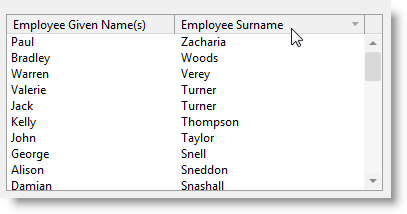
To assign an image to a list view item use the SET command to assign an image to the current item in the list:
     EVTROUTINE handling(#COM_OWNER.Initialize) options(*NOCLEARMESSAGES *NOCLEARERRORS)
     SELECT fields(#LTVW_1) from_file(PSLMST)
     ADD_ENTRY to_list(#LTVW_1)
     SET com(#LTVW_1.CURRENTITEM) IMAGE(#VI_EXEMPL)
     ENDSELECT
     ENDROUTINE
     EVTROUTINE handling(#ltvw_1.itemgotselection)
     SET com(#LTVW_1.CURRENTITEM) IMAGE(#VI_EMPLOY)
     ENDROUTINE
You can also assign an image to the list view columns by using the Image property of the column:Anchor 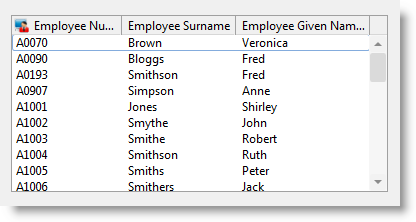
2.10.7 Filling a List-Type Component
2.10.8 Working with Items in Lists
&<img src="../resources/images/opentoc-dark.png" title="Open Contents List" border="0"&>