Page History
There are a number of conventions on the use of the different Windows interface controls. These conventions are based on the functionality of the control. For example you would quite naturally visualize an action or a command as a command button.
Often you will have a choice of several controls for visualizing a component. In deciding which is the most appropriate one look for the one which will do most to simplify the interface of your program. Also consider the other controls which have been placed on the form, so as not to have, for instance, more than one tree view in a window
Think about the Purpose of the Control
Broadly speaking controls have the following purposes:
Action | Push button |
|---|---|
Entry, display and selection | List view, list box and combo box |
Feedback | Status bar and progress bar |
Grouping | Tab sheet, group box |
How Do I Represent a… ?
The following guidelines are meant to help you choose the right visualization style for various situations. They are not absolute.
Choice between two options
Notice how differently data and logic are represented:
Database Data (Fields) | Program Logic (Actions) |
|---|---|
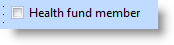
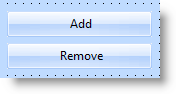
To record a Yes/No choice in the data base, make the field's visualization style Check box. | To let the user choose from two actions, use two buttons. |
...
|
Choice between several options
Again, notice how differently data and actions are shown:
Database Data (Fields) | Program Logic (Actions) |
|---|---|
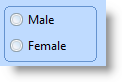
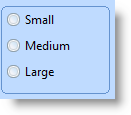
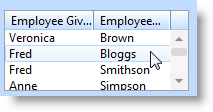
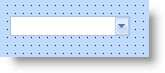
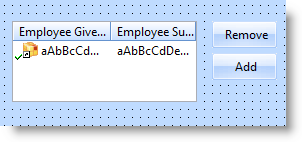
To record an user's choice of a value for a field, make the field's visualization style Picklist. The picklist's appearance can be: A set of radio buttons in a frame frame | To let the user choose from several items or actions, use a list with a set of buttons |
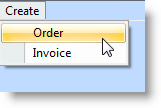
...
|
There Are Only Three Ways for the User to Trigger an Action
In GUI applications there are only three correct controls you can use to let the user trigger an action:
...
In standard GUI usage these three controls command immediate action. No other control has this characteristic.
Do not, for example, trigger an action when the user ticks a check box (except to write the choice to a database). This is because a check box is universally used to present a yes/no selection, not an action.
Let's say your application brings up a new window if the user decides to create a new invoice. It would be wrong to represent this as a check box, because the user does not expect a new window to appear when they tick a box:
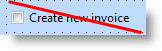
For your application to behave predictably, you represent this choice as:
| A push button |
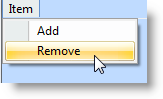
| A menu option |
| A toolbar button |

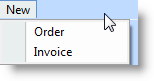

...