Page History
You specify the layout manager for a container using its LayoutManager property. By default this property is set to *NULL.
To choose a layout manager use the Layouts group in the Design tab in the ribbon.
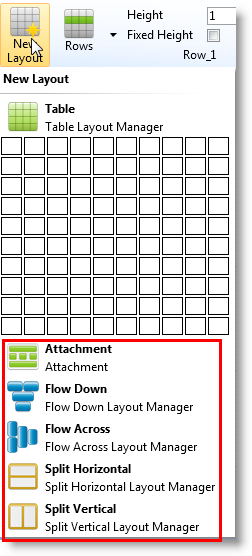
Then lay out individual components using the layout options on the ribbon: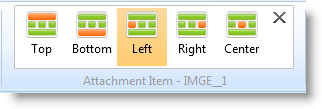
You can also display the layout details by using the arrow on the Layout Manager group in the ribbon: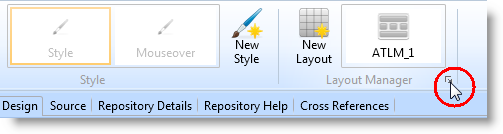
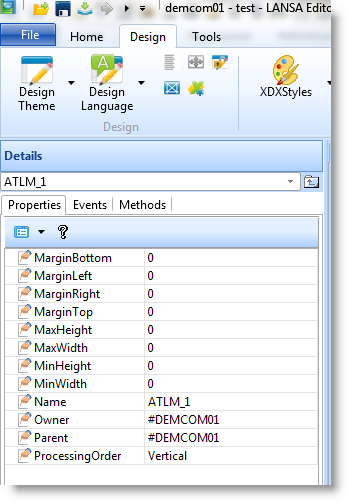
Or click on the button with ellipses (three dots) in the LayoutManager property of the Details tab to display the Layout Helper:
The Layout Helper dialog is displayed: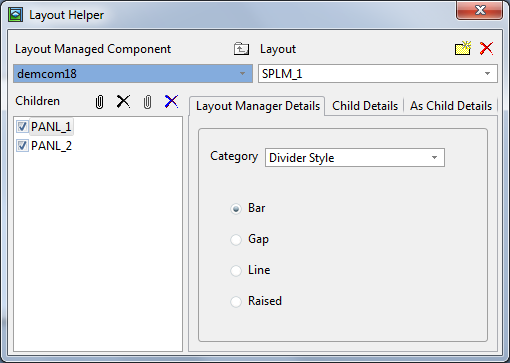
Use the Layout Managed Component drop-down to choose the component for which you specify a layout.
When you have selected the component, click on the Create layout manager button to select the type of layout you want to create. The Create New Layout dialog is displayed: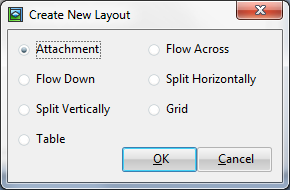
Choose a layout and click OK.
The new layout (in this case ATLM_1) is displayed in the Layout field: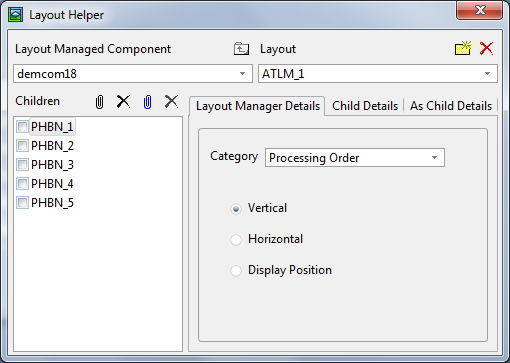
All the components contained in the layout managed component are shown in the list of Children.
Any components you add to the layout managed component after the layout manager has been specified will automatically be attached to the layout.
To view the Layout Helper again click on the button with ellipses in the LayoutManager property in the Details tab.