Page History
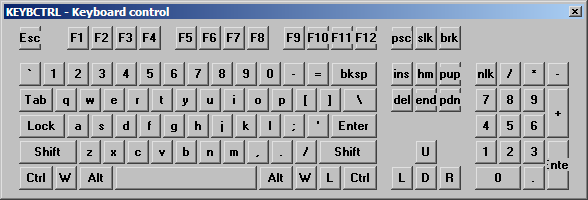
To show you the basics of how to install an ActiveX control in your LANSA system, we use a keyboard control created by Iocomp Software.
The keyboard control is part of a collection of instrumentation ActiveX controls. It is an on screen keyboard with mouse control support and is designed for touch-screen applications or keyboard-less applications:
You can download an evaluation copy of the controls from a trial of ActiveX/VCL on the iocomp software site.
| Note |
|---|
Note: You need to be registered in the iocomp software site to download the trial. |
1. To download the ActiveX controls, select the ActiveX tab and click on the Download link.
When the Security Warning dialog is displayed, click on the Save button. In the Save As dialog specify where the control is to be saved, for example in the click the Trial button in the ActiveX/VCL section.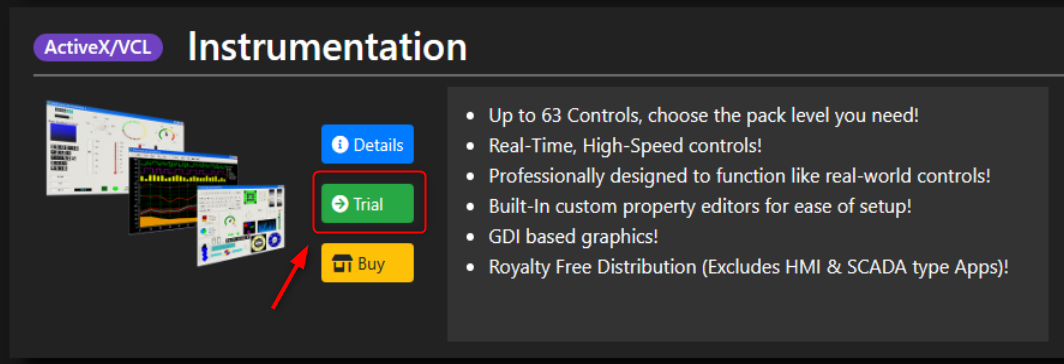
2. In the Trials section, click the Download button of ActiveX.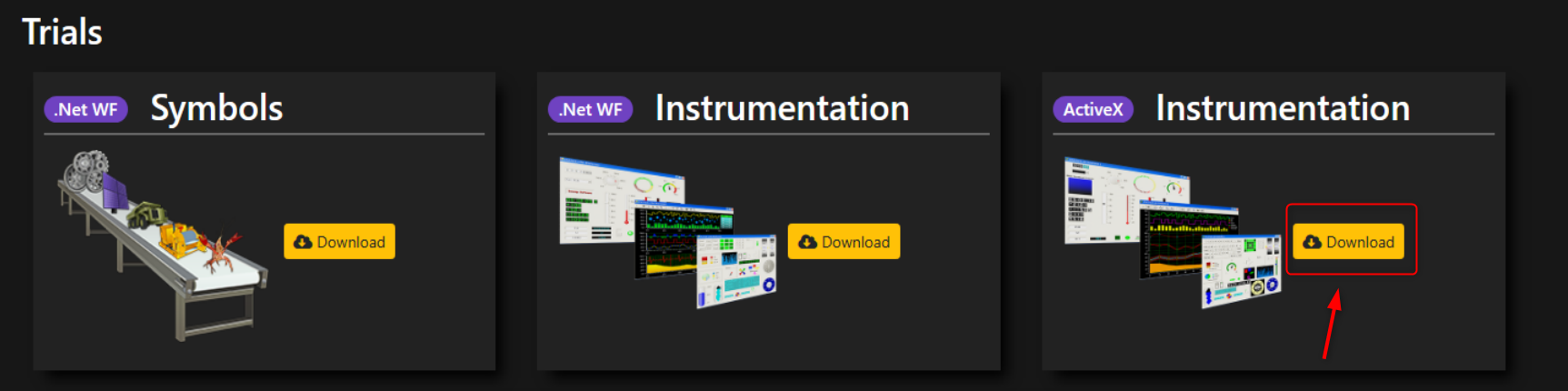
3. Download directory.
The instrumentation controls are downloaded in an exe file. Execute Open the file installation wizard by double-clicking it. Install the controls:
the file.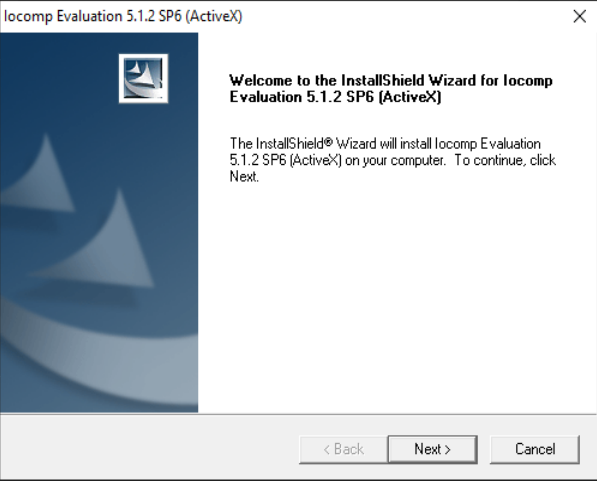
4. Accept the terms and conditions, register your information details and choose the platform:
Accept the default settings in the dialogs that follow. Destination Location: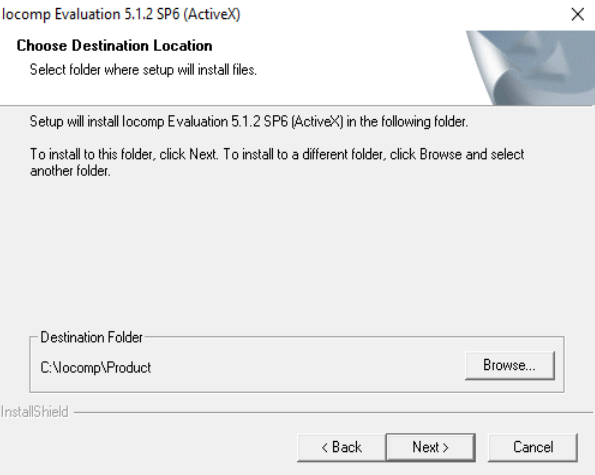
5. Select wether you want Support for the Open Platform Communications features or not.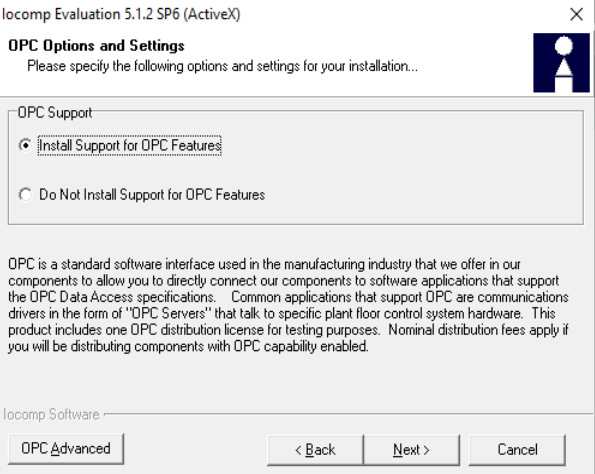
6. Click the Next button to copy the program files.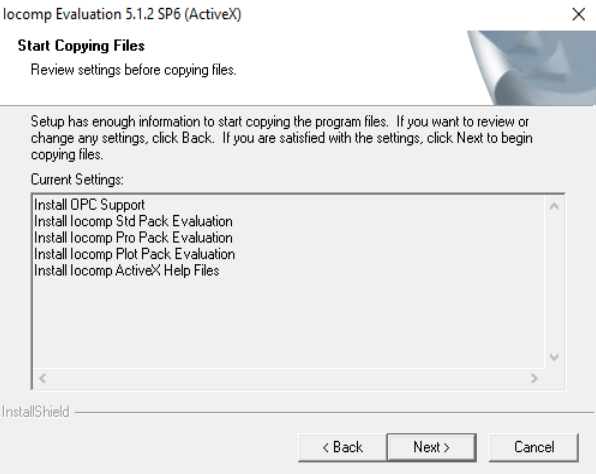
7. Click the Finish button.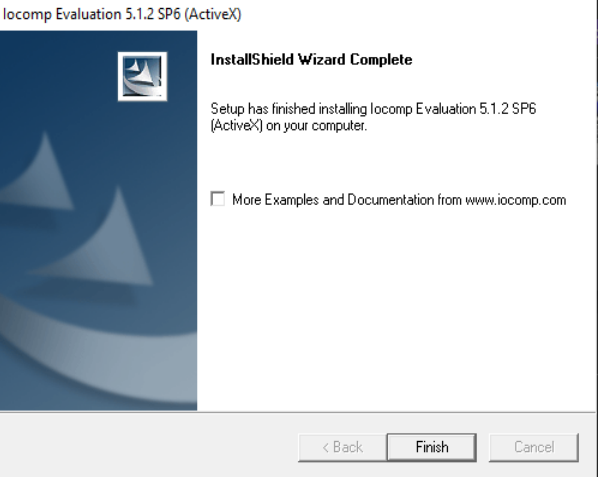
After the installation is complete, the ActiveX controls are installed in the Windows registry of your computer. They are now ready to be enrolled in the LANSA Repository.