Page History
This example shows the essentials of how to expose properties, events and methods of an ActiveX LANSA form:
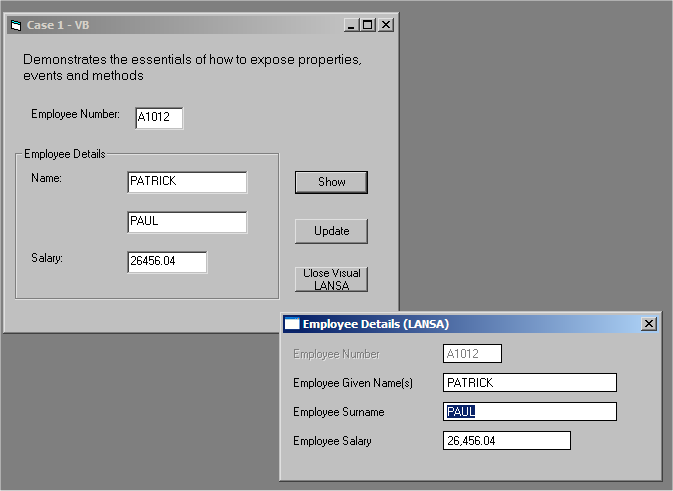
Source that makes up this example:
Name | Type | Description |
|---|---|---|
AXFORMA | Visual LANSA Component | Visual LANSA Source |
Project1 | Visual Basic Project | Project Definition |
Form1 | Visual Basic Form | Visual Basic - Code |
Session.cfg | Configuration file | Session Configuration (Session.cfg) |
...
Refer to Show a Form for the source code.
Step 1. Add the Visual LANSA Component
In this step you create an ActiveX LANSA form to display employee details: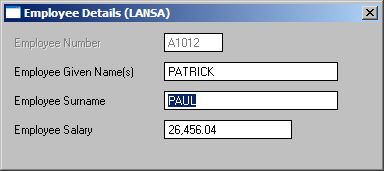
To create the ActiveX component:1. Open
- Open the LANSA editor and create a new component named AXFORMA, type Form.
...
- Copy and paste the source code from Case 1 - Visual LANSA Source into the form.
...
- Select the Set ActiveX Attributes command in the ribbon. (The sample code you have copied already has these attributes, but setting them again does not do any harm.)
...
- This step exposes the Visual LANSA component as an ActiveX Control. You can see what thecommand does by first deleting the existing four ActiveX attribute statements (Attribute Class(#PRIM_ATTR.AX_) from the source before selecting the menu option)
...
- Compile the form.
Step 2. Add the Visual Basic Form
In this step you create a Visual Basic form which uses the LANSA ActiveX form: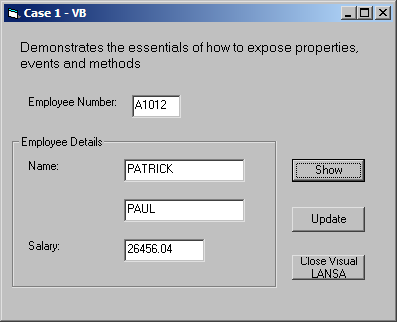
To create this form:1. Close
- Close Visual Basic.
...
- Start Notepad, open the form (Form<n>.frm) created in the General Setup Tasks.
...
- Replace the code in Notepad with the source code from Case 1 - Visual Basic - Object, then Save.
...
- Start Visual Basic and open the Project (Project<n>.vbp) created in the General Setup Tasks.
...
- Open the form (Form<n>.frm)
...
- Copy the source code from Case 1 - Visual Basic - Code to the form's code, then Save.
...
- Right-click in the Visual Basic toolbox and select components from the popup menu.
...
...
- Scroll down and check LANSA.AXFORMA. This will add a LANSA icon to the toolbox.
...
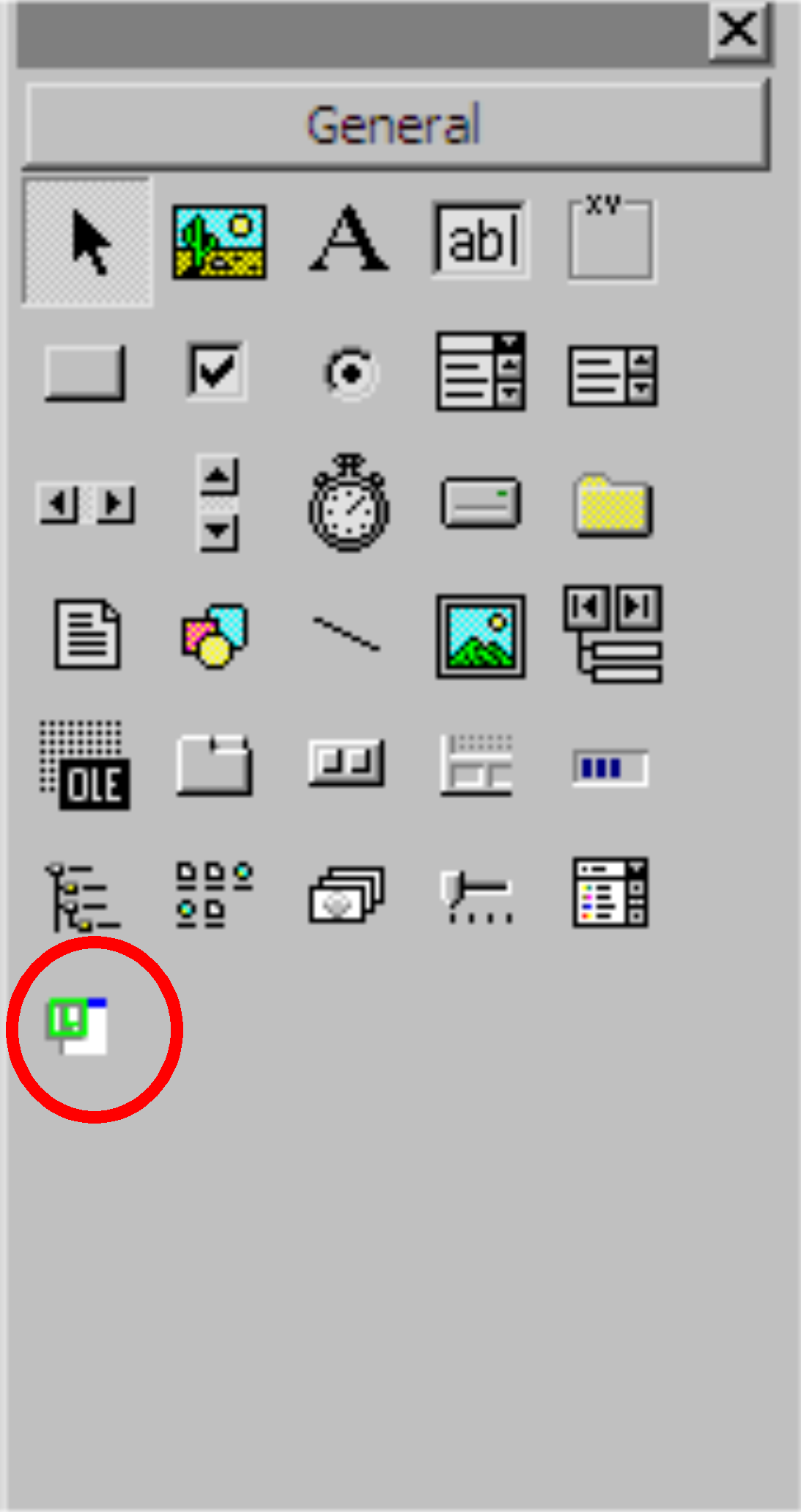
...
- Click on the AXFORMA icon to select it and on the form drag out a rectangle and release the left mouse key. The LANSA ActiveX form has now been added to the Visual Basic form:
...
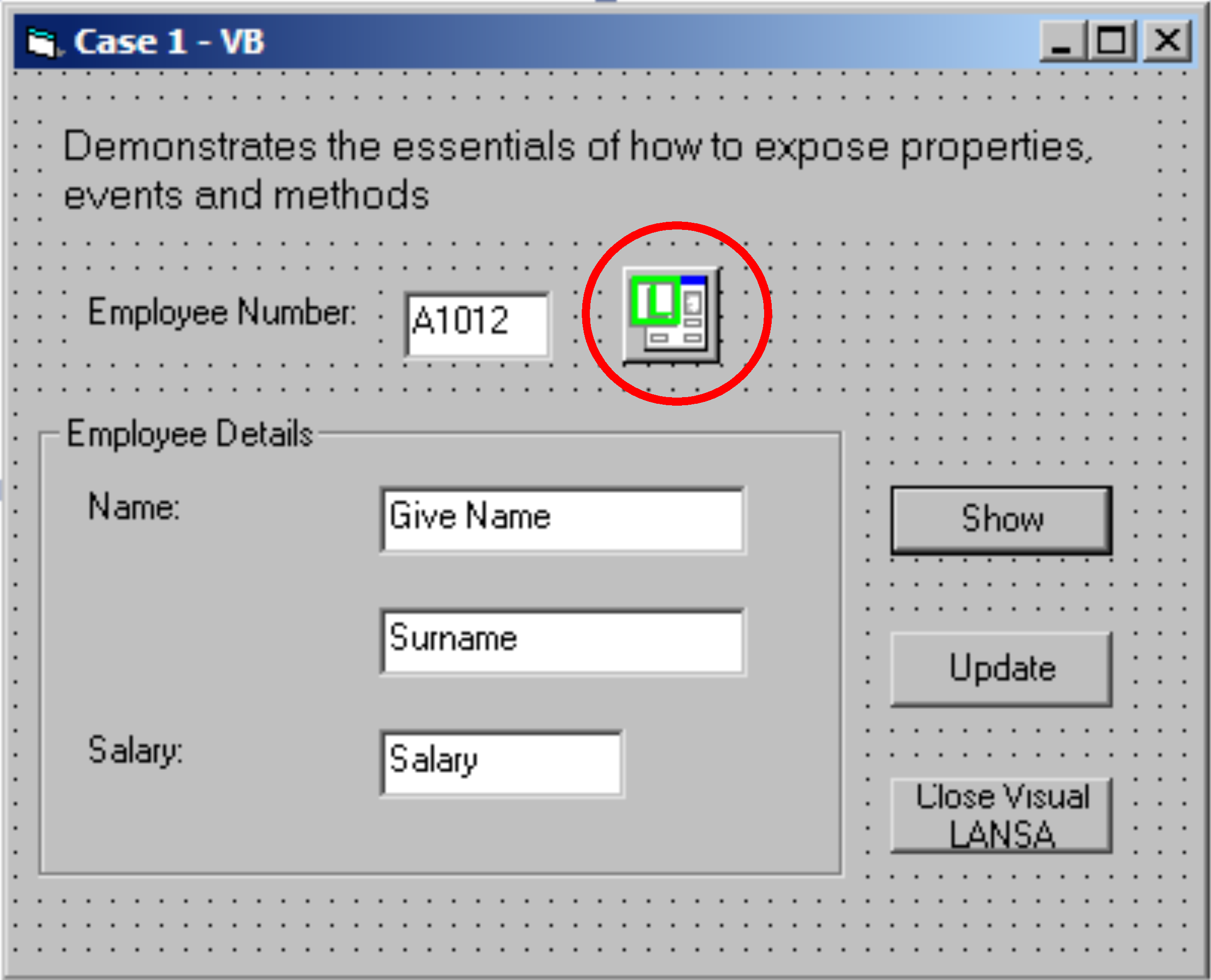
...
Display the properties of the form and change its name from AXFORMA1 to AXFORMA.
Note
...
Notes: - If your Toolbox is not displayed, click View then Toolbox.
- To view the form's user interface design, Click View, then click Object from the Menu or the Project Pane.
...
- In the Visual Basic LOAD routine (Private Sub Form_Load) modify the login script to your requirements. For example:
...
Call ConnectToLansa("user1", "mypassword", "c:\ActiveXTests\session.cfg")
...
- Save, then compile the Visual Basic Project using the Make Project<n>.exe option in the File menu.
...
- You can now view the sample Personnel data by executing the program and typing in an Employee Number, then clicking on Show.