Page History
- With
1. With your iii SOAP Tutorial project open in Studio.
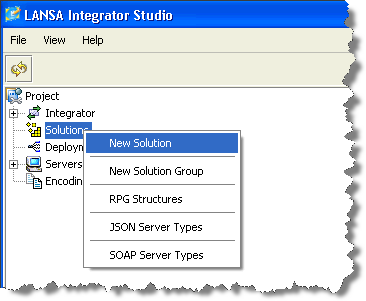
Select2. Select the Solutions folder and right click on it to open the context menu.
Select
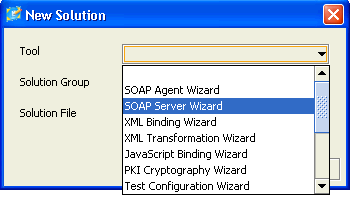
3. Select New Solution from the context menu to open the New Solution dialog box.
In
4. In the New Solution dialog box, select the SOAP Server Wizard Tool from the drop-down list.
Enter
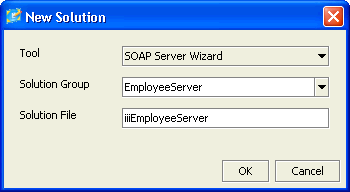
5. Enter the name of the Group to contain this Solution, in this case EmployeeServer.
IfIf you had more than one group already, you could select an existing Solution Group from the drop-down list.
In6. In File, enter a name for the Solution, in this case iiiEmployeeServer. This name will be used for the project (prj) file. It will also be used by the SOAP Wizard as a prefix for some of the objects that it generates for the solution.
Press7. Press OK.
Select
8. Select Yes, to confirm that the new solution group is to be created.
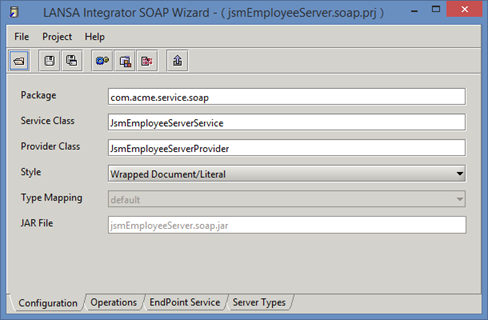
LANSALANSA Integrator opens the SOAP Wizard.
SelectSelect the Configuration tab.
LANSA
LANSA Integrator provides default values but you must change some of them to be specific to this project and the server that will service it.
Change 9. Change the Package to
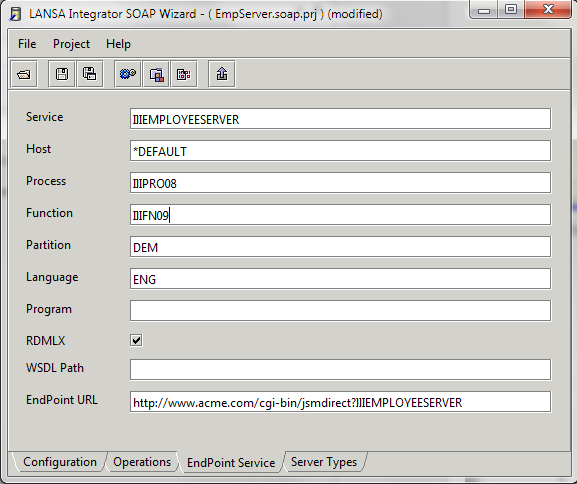
Selectcom.iiicompany.service.soapThis is the name that the SOAP Wizard will use when generating the Java implementation files for your solution so make it something unique to your solution.10. Select the EndPoint Service tab. You will fill in this tab as shown below in the next steps.
Make
11. Make the following changes
:.
Service
IIIEMPLOYEESERVER
Host
*DEFAULT
Process
IIIPRO08
Function
IIIFN09
Partition
DEM
Language
ENG
Program
Leave blank. Required if an RPG program is used for the business function.
RDMLX
Checked
WSDL
Leave blank in this case (no external users)
Change the EndPointURL.
This This identifies the server to which users of this web service need to send their web service requests and it will be written into the WSDL file that describes this service.
For For this exercise, if you are using an
IBM i IBM i JSM Server, then the server will be on the
IBM i IBM i and the client will be on your PC. In this case the URL will point to the
IBM i IBM i server's IP address. For example:
http://10.44.10.236:80/cgi-bin/jsmdirect?iiiemployeeserver
If you are using a local Windows web server and JSM Server, your URL may look like this:
http://localhost/cgi-bin/jsmdirect.exe?iiiemployeeserver
In In this case
, your client and server will both be running locally.
Save12. Save your changes. Do not close the SOAP Wizard.