Page History
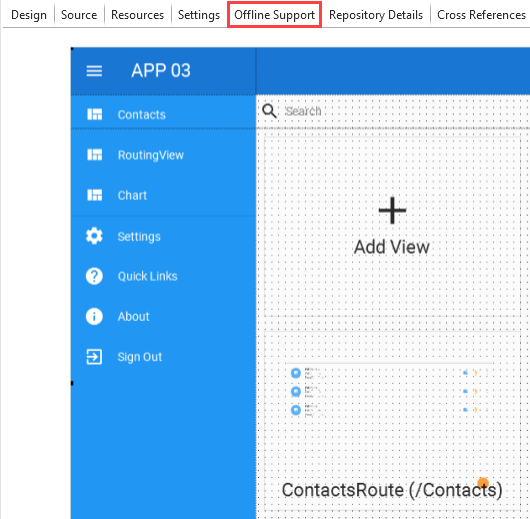
When viewing your application canvas, the "Offline Support" tab is available.
The Offline Support tab allows you to include the service worker within the application, manipulate the web app manifest, and/or nominate resources to be cached.
Use the Offline Support tab following the steps:
1. Click Click on "Offline Support".
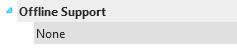
2. Double click on "None".
3. The details tab displays a dropdown with available options. Select one of them.
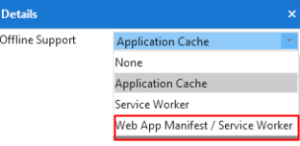
The Application Cache provides you with the following options:
Service Worker
Creates the background functionality and enables to drag-and-drop reusable parts, views, and other resources into a cache storage bucket.
Web App Manifest/Service Worker
Enables the full Progressive Web Application functionality. For example, it allows you to install the application on a desktop or mobile device without using the App Store.
4. Once you select an option, the following view is displayed:
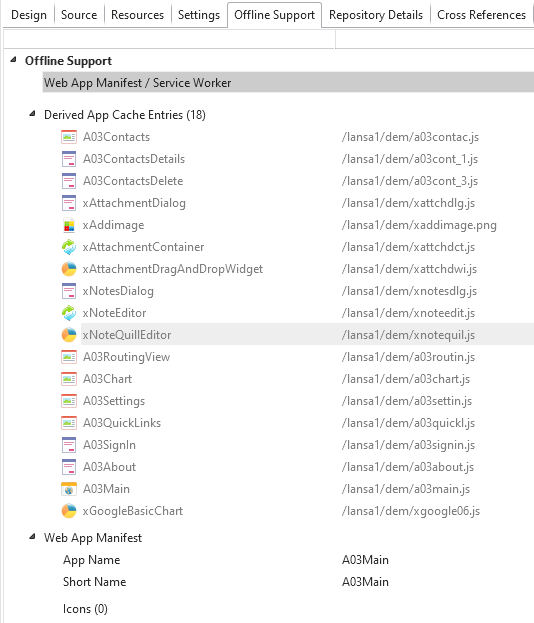
5. Right-click "Web App Manifest/Service Worker" to see a context menu with additional options.
6. Select "Add Service Worker Cache" to start nominating objects and resources that will be placed in the cache storage.
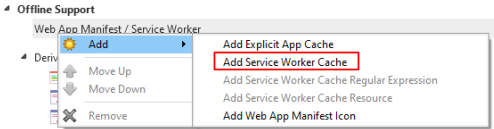
7. After you select the "Add Service Worker Cache", the Details tab displays the following:
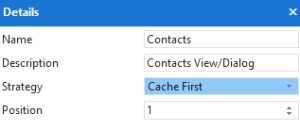
Fill in the details as follows:
- Name - Choose a name for the cache storage. This name will be accessible in the browser under developer tools.
- Description - Include details for the cache storage you are creating.
- Strategy - You can select from the following:
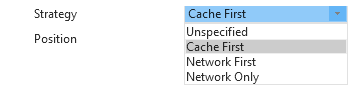
Cache First
Signals to the service worker to check the cache first before making a network call. If the resource is not within the cache, then it falls back to the network.
Network First
Signals to the service worker to allow making a call for a resource over the network first. It clones the resource and places it within the cache for future use.
Network Only
Signals to the service worker so the requested resource should only come from the network.
The Network Only is a great strategy when a specific resource is constantly changing and the end-user needs the most up-to-date information.
Unspecified
Uses the Cache First strategy by default.
- Position - Set your cache storage position.
8. Once you set the Details, click "Add" or right click to bring up the context menu on the name of the cache storage bucket, and select "Add Service Worker Cache Resource".
Refer to the image below as an example where the 'Contacts' is the storage bucket:
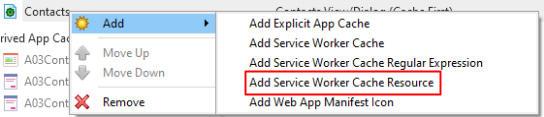
9. The "Add Service Worker Cache Resource" option allows you to specify the identifier of a specific resource.
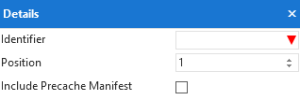
The Precache Manifest ensures that the resource is placed within the cache storage on the first load of the application.
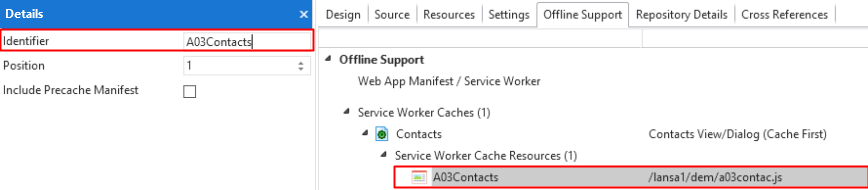
Refer to the image below as an example where 'A03Contacts' is the identifier for the 'Contacts' storage bucket view.
| Note |
|---|
| Note: As you type the resource name in the identifier, LANSA searches simultaneously for the resource you need. |
If you do not know the specific identifier, you can drag a resource from the repository view to the specified Cache bucket name.