Page History
As an example, you will be guided through the process of generating a client ID and client secret for Google sign-in.
You first need to login to the Google Developers Console.
{+}https://console.developers.google.com+
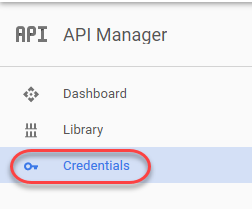
Go to the Credentials tab.
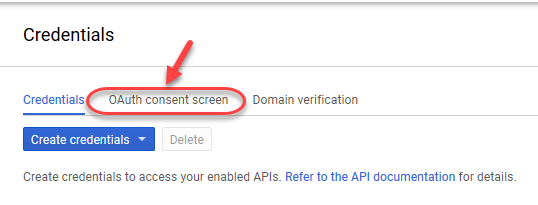
Click on the OAuth consent screen to setup your application name. This name that will appear when your web application is asking permission to access the user's details with Google.
Fill out the details on the screen, and click the Save button to finish.
Now go to the Credentials tab.
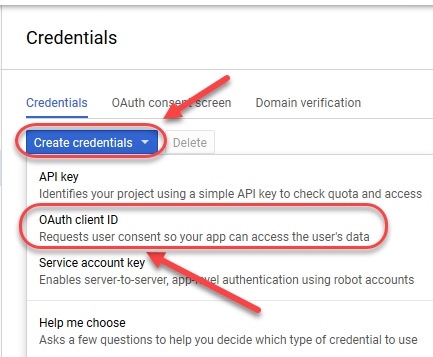
Click the Create credentials button and choose OAuth client ID from the dropdown.
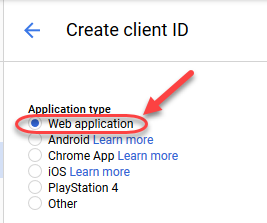
You will be prompted to choose an application type.
Choose Web Application.
You will be presented with a form.
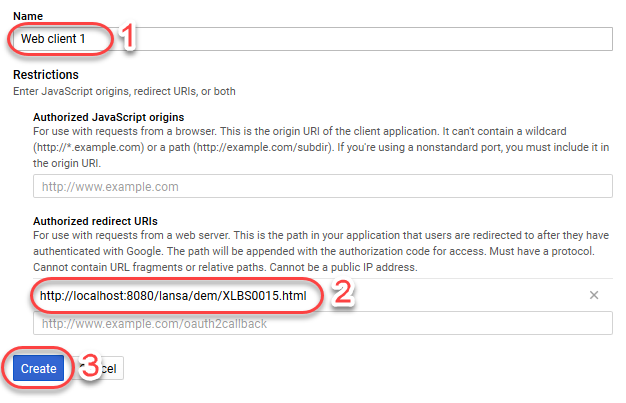
Fill out any name you like in the Name field.
In the Authorized redirect URIs, the default you should use for the Web Client Example Library is XLBS0015.html.
If you are running on localhost 8080, default installation on partition DEM, your redirect URL is:
http://localhost:8080/lansa/dem/xlbs0015.html
Click the Create button.
You can view your client ID and client secret at any time by going to your entry under the OAuth2 Client IDs.
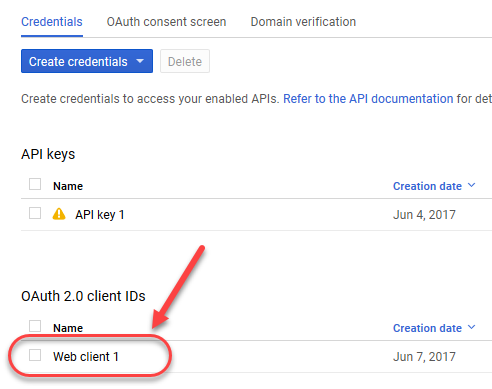
Click on the client name (Web client 1) to display the properties for this client.
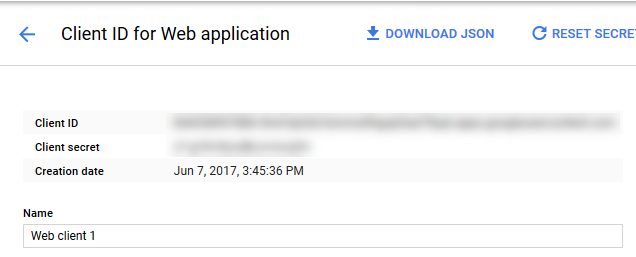
Next: Place your Client IDs and Client Secrets in WebApi_CommonInfo