Page History
Go to the folder where you extracted the ZIP package. Your source Java files are located under the tutorial-src folder.

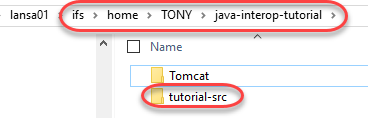
Navigate into the tutorial-src folder.
You should see the following files & folders:
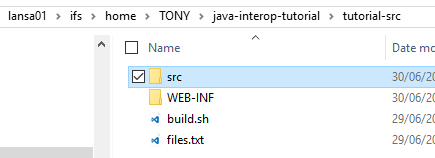
- src: this is where your Java files reside
- WEB-INF: this is the deployment unit (binaries & libraries)
- build.sh: this is your build script (to compile your Java files and deploy to Tomcat)
- files.txt: the list of Java source files. If you add new Java files, add the path to this file.
Now go further into src folder, and then tutorials folder you should see your Java source file, Example1.java.
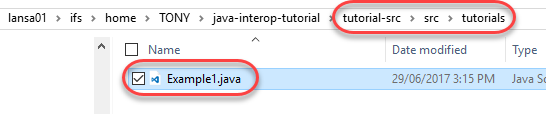
Open the Example1.java file with a text editor.
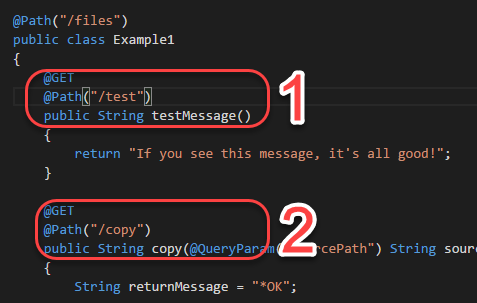
You can see that the file contains 2 services:
...
You can probably guess that the test service would just return the string "If you see this message, it's all good!" when executed successfully.
Let's now try to build and execute it.
Go to Qshell again, into the tutorial-src folder.
| Info |
|---|
| You can check what folder you are currently on using the pwd command. |

You should your current directory printed:

CD into the tutorial-src folder.

Do pwd again to confirm you are in the right folder:

| Info |
|---|
| You can use the LS command to list the content of the current directory. |


Now you are going to launch the build.sh build script, however before you do that, again you have to make sure that the script has its execute permission set.
Run the following command (in Qshell):chmod
chmod a+x *.sh
| Info |
|---|
| You only need to run the chmod command once only, before you execute the script for the first time. |
Now run the build.sh script
./build.sh
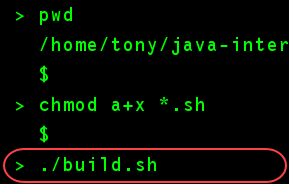
You can tell if the script has finished executed or not from whether the '$' sign has appeared, like so:
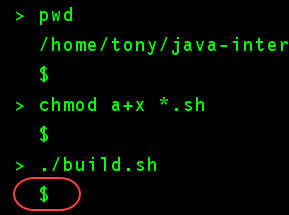
No message is good news, it means your Java source code (Example1.java) has compiled successfully, and deployed to Tomcat. If an error occurred, you should see some error messages displayed.
Before we move on to writing the RDMLX code, let's do a quick test first. You will now attempt to invoke the test service from a web browser.
Start by launching your favorite web browser.
| Info |
|---|
You can use any browsers, but don't use Internet Explorer (IE) if possible. The problem with IE is that it doesn't show the response body if the HTTP status code returned indicates an error (we actually want to see the response regardless of the returned HTTP status code). |
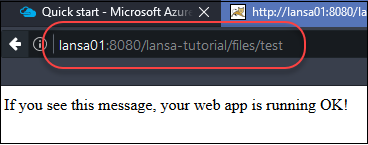
We first need to know the URL of the test service before we can execute it. If you use the default port, then the Tomcat HTTP service will be running on port 8080, otherwise use the HTTP port you noted in the earlier section. The URL for the test service will look like this (replace hostname with the name or IP address of your IBM i IBM i server):http
http://<hostname>:8080/lansa-tutorial/files/test