Page History
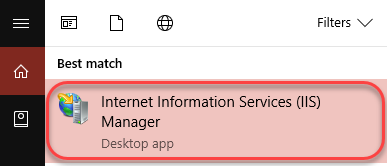
Let Let's now launch the IIS Manager. From the Windows Start/Search menu, type inetmgr.

You should see Internet Information Services (IIS) Manager appearing in the list. Click to launch.
You should now see the IIS Manager window. In the Connections pane, you should see a node labelled with your computer name like this:
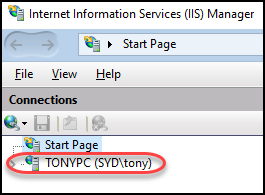
Expand that node (by clicking on it).
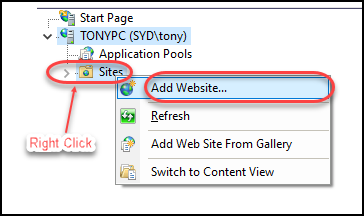
You should now see a node called Sites. Right click, then choose Add Website.
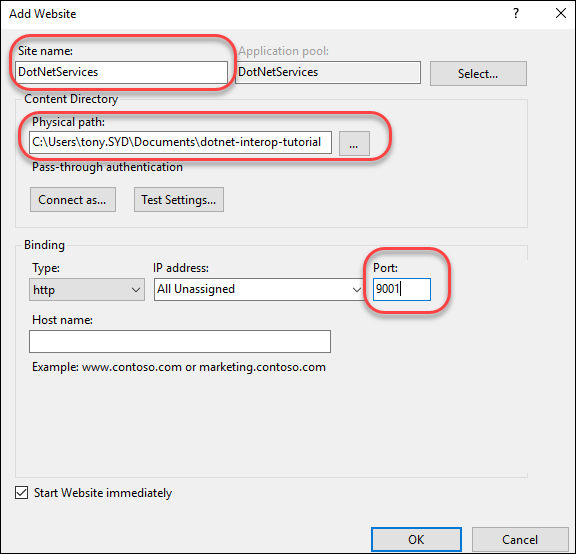
Fill out the following fields:
- Site name: DotNetServices
- Physical path: the path where you extracted the downloaded template ZIP file to.
- Port: choose an unused port, for example 9001.
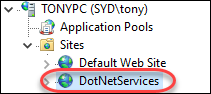
Press the OK button. You should now see your newly created site (DotNetServices) on the left pane:
Let's now do a quick test to make sure that your new web app is setup correctly.
Open a web browser, and type in the following URL (adjust the port number 9001 if that's not the port number you put when creating the web app on IIS):
http://localhost:9001/test
If your new web app is setup correctly, you should see the following response (you may see a slightly different style on different browsers, but you should see the text "This is a test…"):