Page History
Included in the downloaded ZIP file is an example of how you can create a Windows user authentication service. This is particularly useful if you would like to provide a single sign-on facility on your IBM i.
Browse the downloaded .NET source code using Windows Explorer.
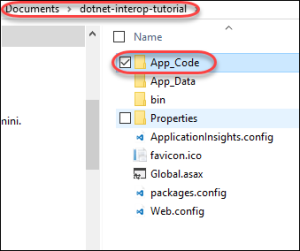
Go into the App_Code folder (the App_Code folder is a special folder where all your source code should reside in – files in this folder will be automatically compiled by the .NET runtime). You should see a C# source file called WindowsUserSservices WindowsUserServices.
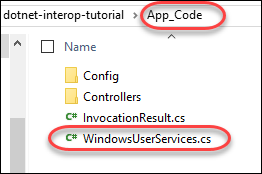
Open that file using any text editor, and you can see the core code that does the user authentication.
Now go back to Windows Explorer, and go into the Controllers sub-directory.
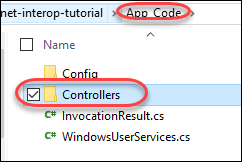
Now go back to Windows Explorer, and go into the Controllers sub-directory.
You should see the a file called UserController.cs. A controller publishes your service as a web service.
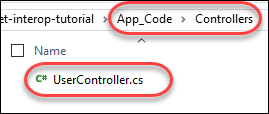
Notice the annotations RoutePrefix and Route. They indicate the URL path you would use to invoke the services in this controller.
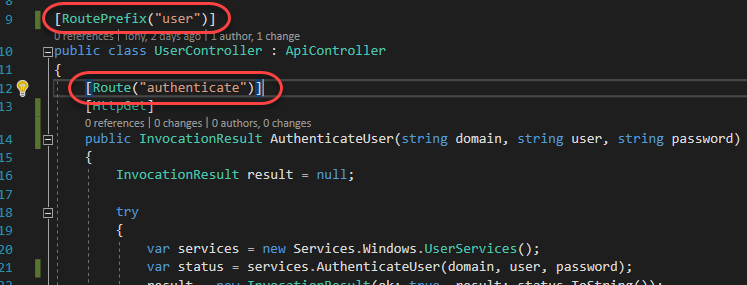
For example, to invoke the AuthenticateUser service, you would use the following URL (adjust the port number to the port you put when you created the web app in IIS):
http://localhost:9001/user/authenticate
Let's now test this service using a web browser.
| Info |
|---|
Be aware that service web app is currently using plain HTTP, so the IIS you are using is on a different computer from your workstation, the traffic is not encrypted In a later section, you are going to rectify this and configure an HTTPS port for your service. |
Pick a local or domain username & password (preferably a test username & password) that you are going to use in this test.
If you are using your real account, until we have setup HTTPS, do not specify your real password (just specify an incorrect password – which is enough for the purpose of this testing).
Open your web browser and navigate to the following URL:
http://localhost:9001/user/authenticate?domain=domain&user=username&password=password
For example:
httphttp://localhost:9001/user/authenticate?domain=SYD&user=tony&password=mysecretpwd
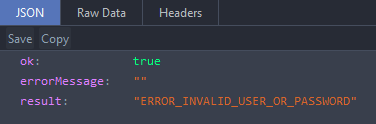
You should see the following response if your password was incorrect:
Next: Writing your RDMLX Base Class for Your Windows Services