Page History
...
Use
...
this
...
function
...
[from
...
the
...
Tools
...
Menu
...
(LANSA
...
Web
...
Server
...
Extension)
...
]
...
to
...
test
...
the
...
settings
...
in
...
the
...
LANSA
...
Web
...
Server
...
Extension
...
configuration
...
file.
...
This
...
function
...
is
...
available
...
for
...
configuration
...
files
...
from
...
V14.1
...
and
...
later.
...
The Web Administrator can run diagnostic tests on a LANSA Web Server Extension configuration file to assist in troubleshooting and offers a one-stop-place
...
for
...
testing
...
and
...
changing
...
entries
...
in
...
the
...
configuration
...
file.
...
Because
...
the
...
test
...
interacts
...
with
...
the
...
LANSA
...
Web
...
Server
...
Extension
...
and
...
IIS,
...
unsaved
...
changes
...
to
...
the
...
configuration
...
file
...
must
...
first
...
be
...
saved
...
and
...
IIS
...
restarted
...
before
...
the
...
test
...
can
...
commence.
...
Some
...
of
...
the
...
issues
...
this
...
testing
...
tool
...
can
...
help
...
diagnosing
...
are:
|
|
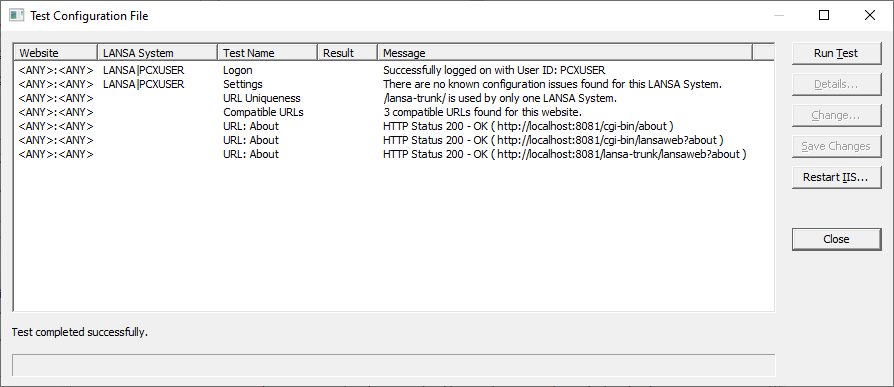
The testing tool collects information about the backend, such as platform (IBM i, Windows or Linux), LANSA version and SP level, and Web System name (also known as Web Alias), if applicable. It submits About URLs (for example: http://localhost:8080/lansa/lansaweb?about ) to the Web Server and displays the HTTP Status Code and Status Text. All information is displayed in an easy to read and easy to navigate way. Details in the configuration file can be changed, changes can be saved, IIS can be restarted and the test can be restarted from within the testing tool.
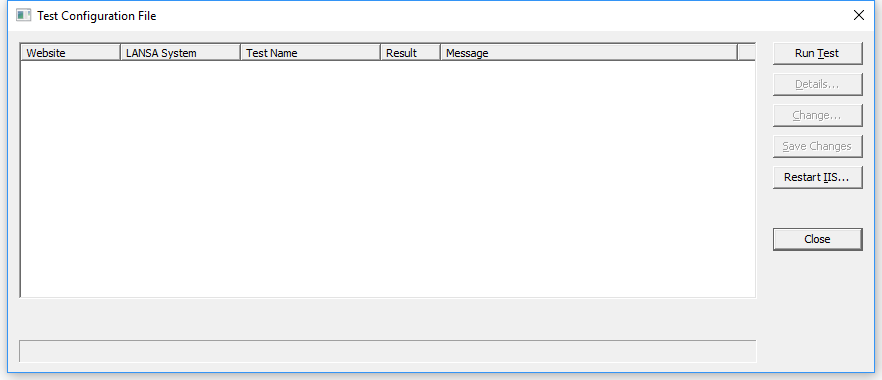
Click the Run Test button to start the test.
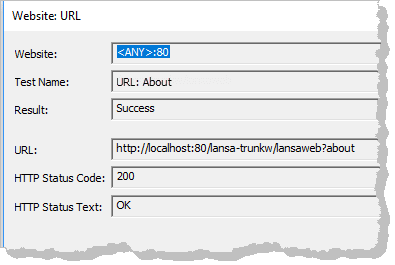
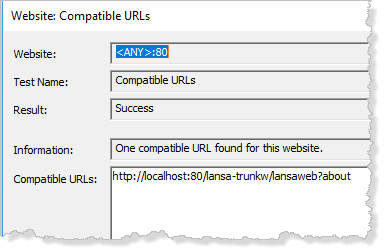
A successful test might look like this:
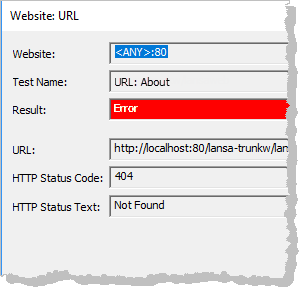
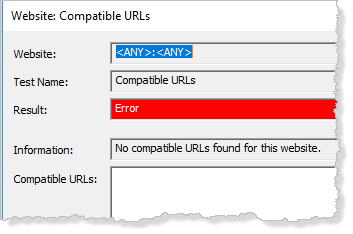
An unsuccessful test might look like this: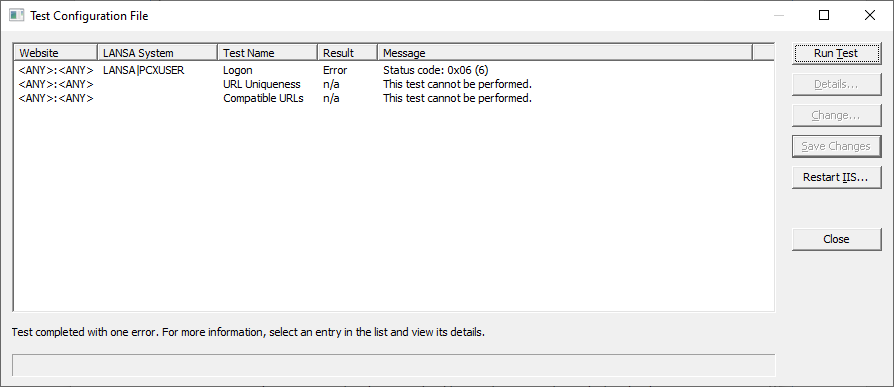
For more information about an error, select the entry in the list and view the details using the Details… Details… button.
Change… opens the relevant configuration dialog for the LANSA System or Web Site to make any required changes.
Save Changes saves any changes that have been made to the configuration file.
Restart IIS… IIS… restarts Internet Information Services (IIS). Note that restarting IIS will affect all running Web Sites.
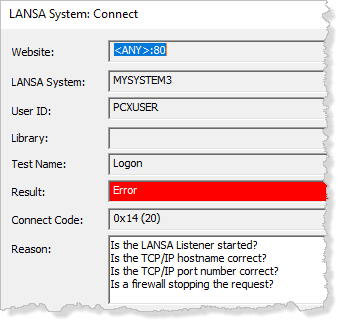
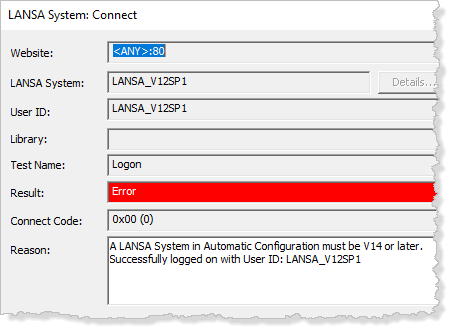
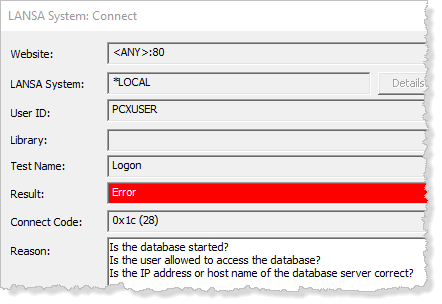
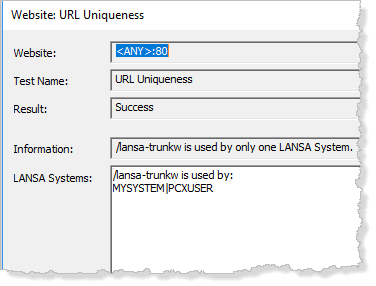
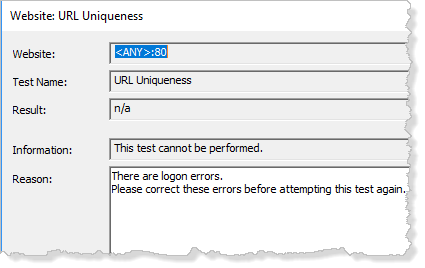
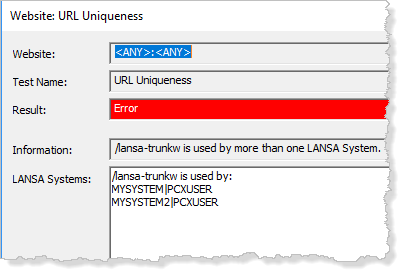
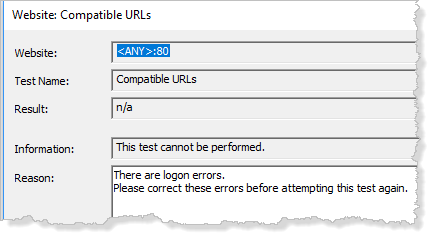
The following images are examples of test result dialogs. The dialogs are self-explanatory.
<-Previous and Next -> buttons move between the test result dialogs. Each test has a unique result dialog for the specific test and contains information about the test and its result.
Change… button opens the relevant configuration dialog for LANSA System or Web Site to make any required changes.
Close will close the dialog.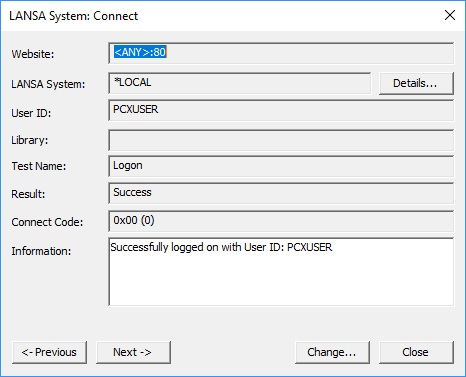 Click on Details…
Details… for connection details, which are available from V13 and later and if the connection is successful.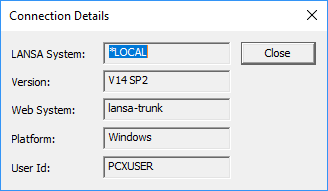
Following are some possible test results: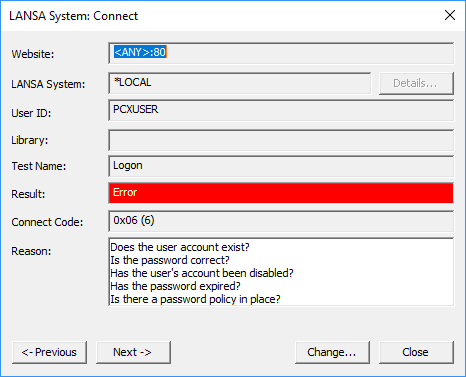
...
|
|
|
|
...
|
|
|
|
...
|
|