Page History
A full Visual LANSA system is not required on the Web Server.
1. On the Web Server machine, start the Visual LANSA install.
2. Select Other LANSA Features.Press Next> Next>
3. The Choose Features to install dialog is displayed.
a. Select the Web Server. This will automatically select LANSA Web Services Extension and Web Images features.
b. Select the Web Administrator.
c. Ensure that these features are also selected:
LANSA Open
...
LANSA Open Core Files
...
Translation Tables
and
LANSA Communications
4. Press Next> to continue.
5. In the the Specify Optionsdialog, select the Web Server/Data Application Server.
Enter the values that you recorded (marked A, B and C) when installing the Data Application server:
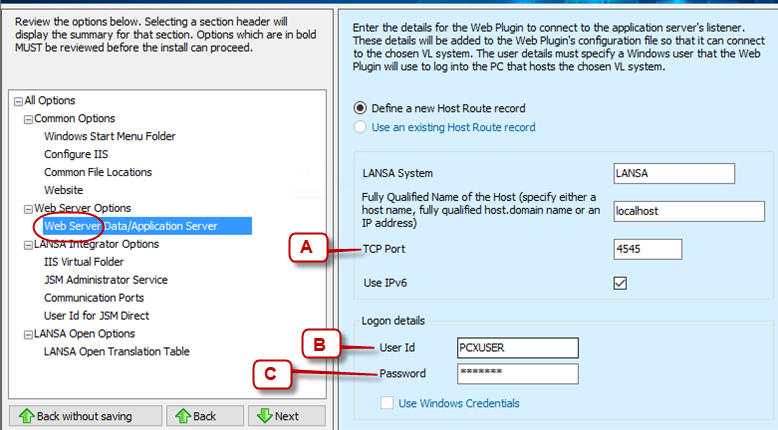
6. Enter the name of the machine that is used as the Data/Application Server in Fully Qualified Name of the Host. localhost is the default.
7. Complete the install process.