Page History
In this step you will snap your application into the Framework. You will also specify that an unmanaged session is to be started for the PSLTABMain screen.
Unmanaged sessions are primarily used to log the user on and then drive them to a specific starting point. From that point forward the user can move around inside the 5250 application without being managed by the Framework.
So, when the user clicks on Code Tables in the Framework menu, the 5250 session logs the user on and then drives them to the menu screen. The entire Code Tables facility (which could be composed of hundreds of 5250 screens) is now accessible without the need to name, classify and track the screens. If the user goes away from the command handler and then comes back again later, the current 5250 screen, whatever it is, is just redisplayed.
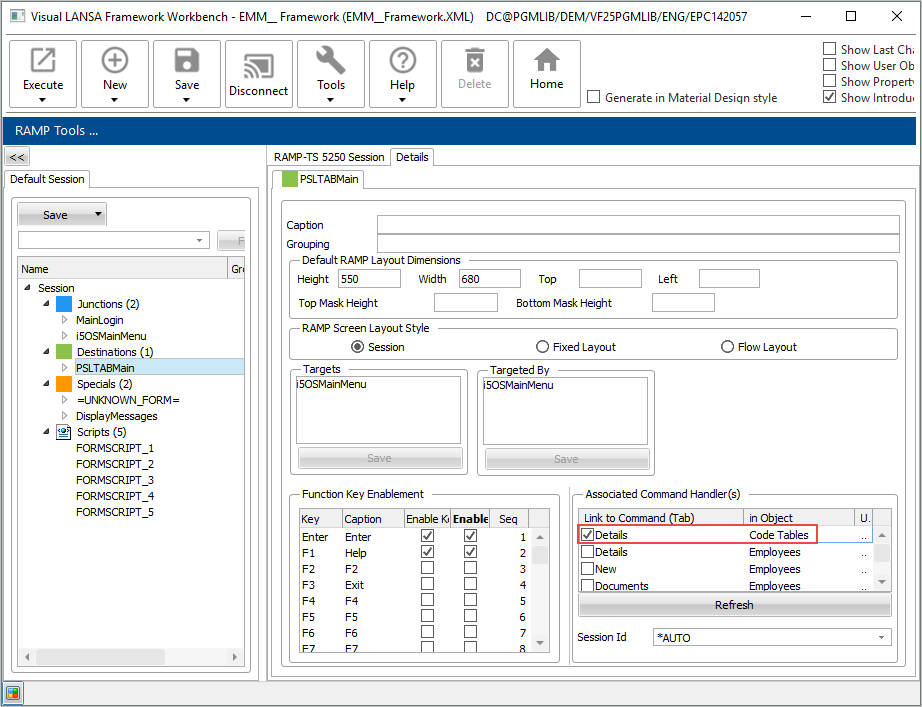
1. In the PSLTABMain screen details scroll the list of available commands in the Associated Command Handler(s) list and locate the Details command of the Code Tables business object (note that you can sort the columns in the list when looking for the command). Select the command:

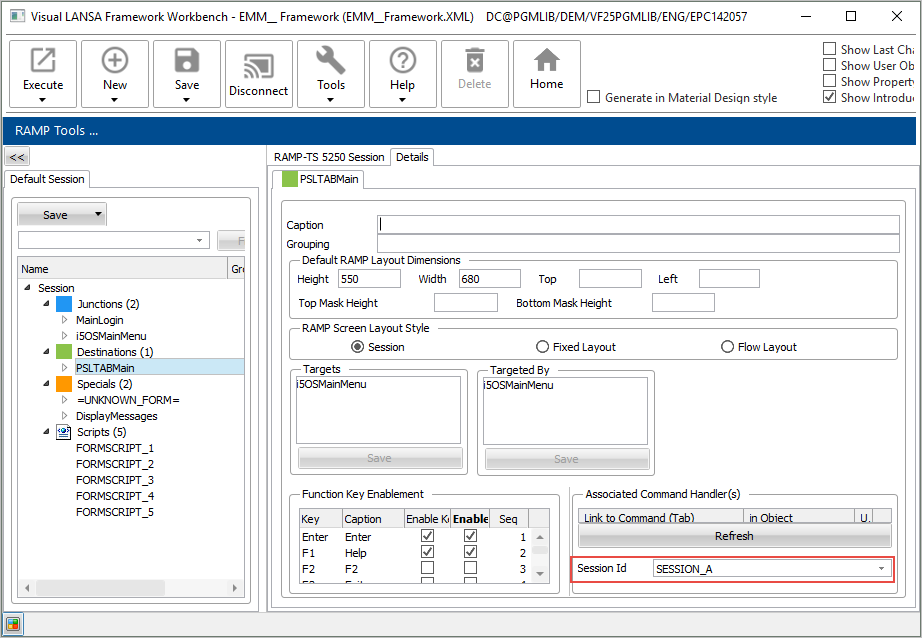
2. Set the Session Id to Session A:
3. Save Save your RAMP definitions by clicking the Save button and select Partial Save:
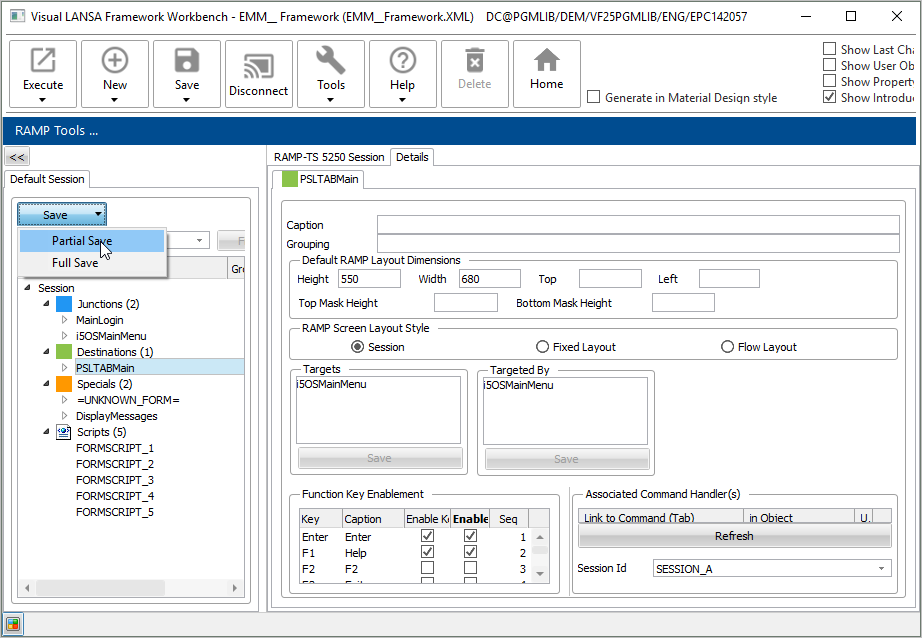
When working in RAMP Tools, you typically do a Partial Save of your work. Only when you are ready to test your application in end-user mode, you need to do a Full Save of the RAMP definitions.
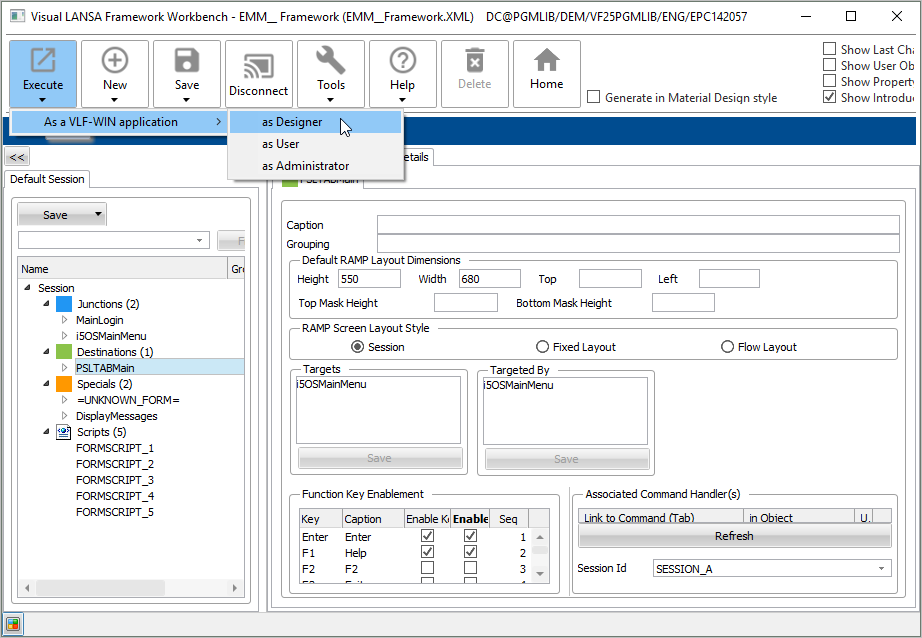
4. Execute the Framework as a VLF-WIN Application. Choose Designer.
5. Select your Framework.
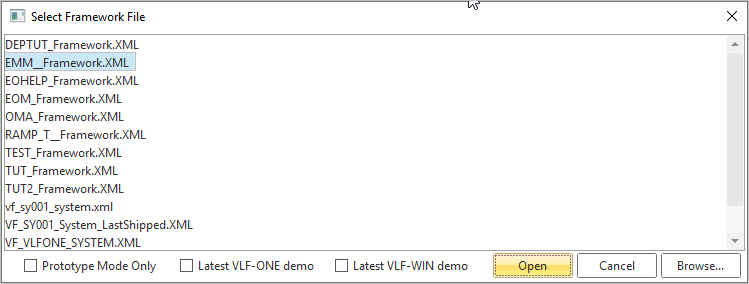
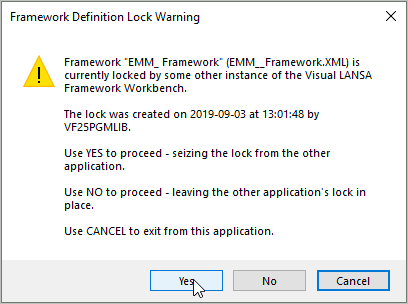
6. Reply Yes to the Framework Definition Lock Warning.
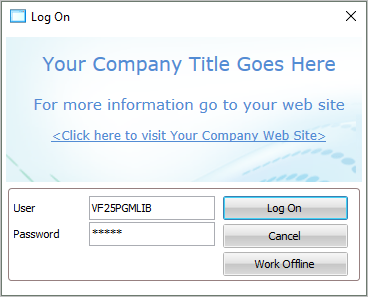
7. Log on to the Framework.
8. Select the Personnel application and then Code Tables business object in the Framework. The Personnel Table Main menu is displayed.
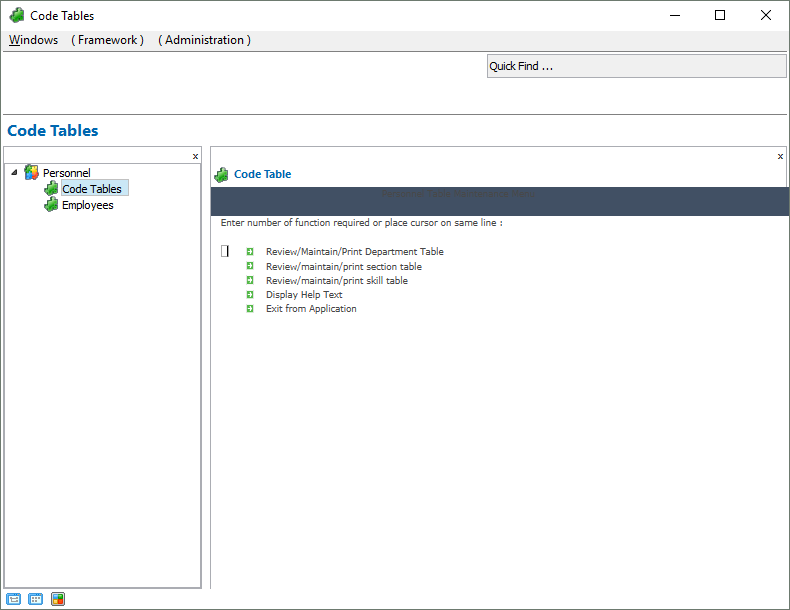
9. Select one of the options in the menu to access the code tables.
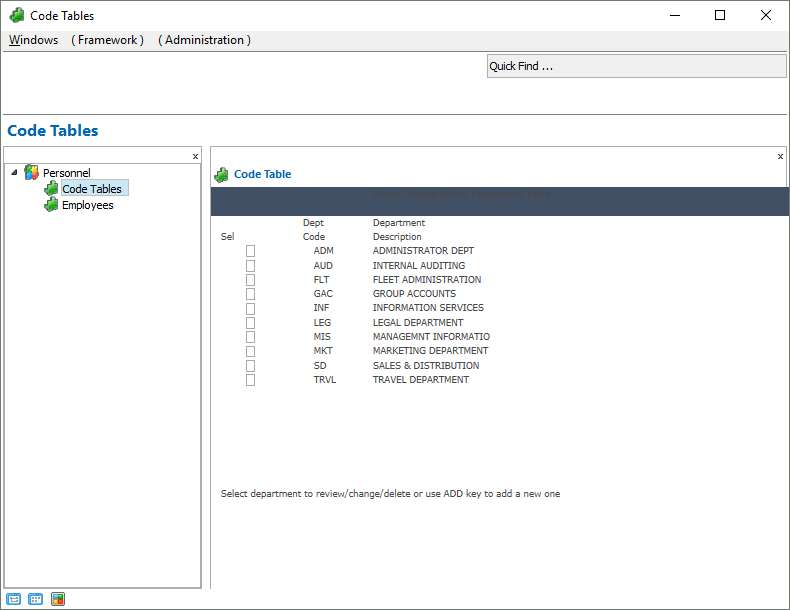
Note that your screen might look different depending on how your system is set up.
The code tables maintenance application segment is now modernized and fully functional in the Framework.