Page History
In this step you will name the screens and the required fields in your application.
1. Start the Framework Workbench.
2. Connect to the server.
3. Start RAMP and log into your system.
4. Start the PSLSYS application by entering the command:
lansa run pslsys partition(dem)
5. In the Screens tab, name the main menu PSLSYSMain and the option field txtOption:
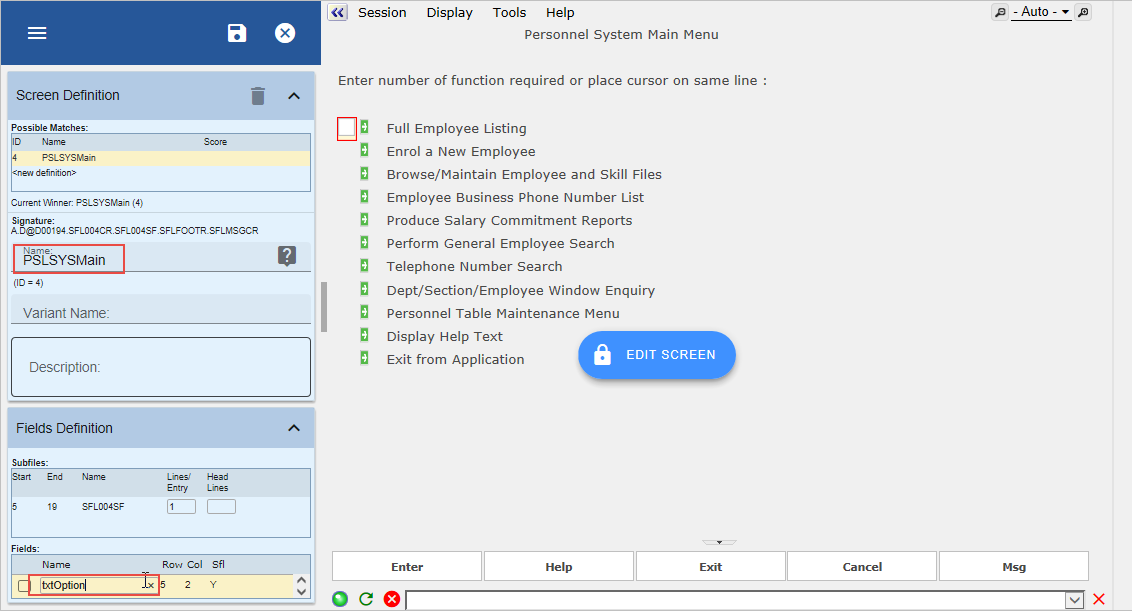
Note that you should not select the check the box in front of a field. The checkbox is used to use the field to differentiate between otherwise identical screens.
In the following steps, whenever a message appears asking you if you want to save the changes you have made, click SAVE.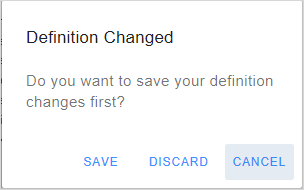
6. Select option 2 in the menu to display the Enrol a New Employee screen.
7. Name it NewEmployee
8. Name the Employee number field txtEmpno and click Save.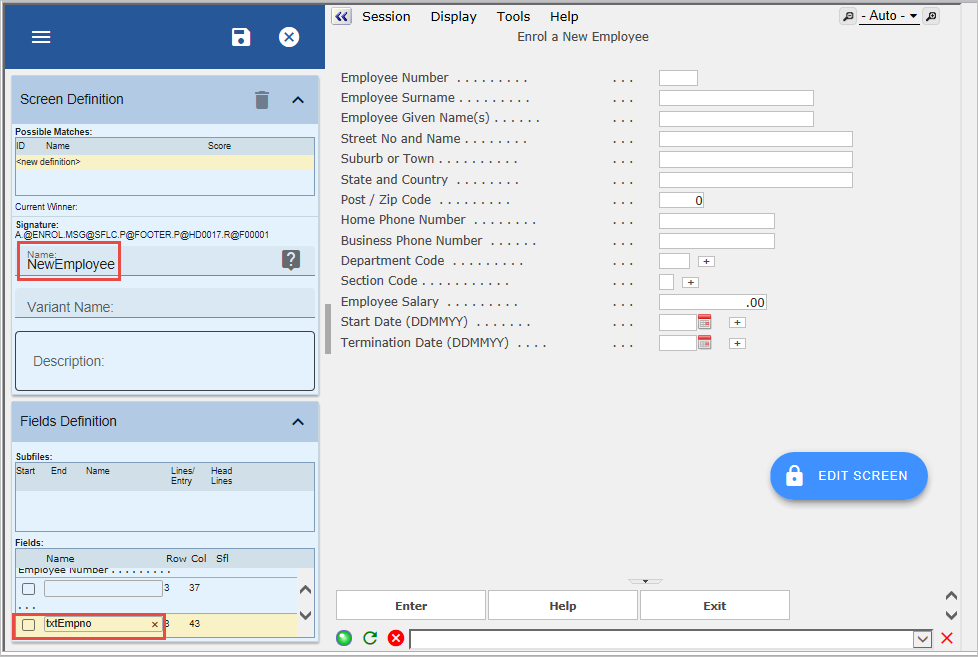
9. Press F12 to return to the Personnel System Main Menu.
10. Select option 3 in the menu to display employee and skills details.
11. Name the employee search screen FindEmployee.
12. Locate the Employee Number field and name it txtEmpno:
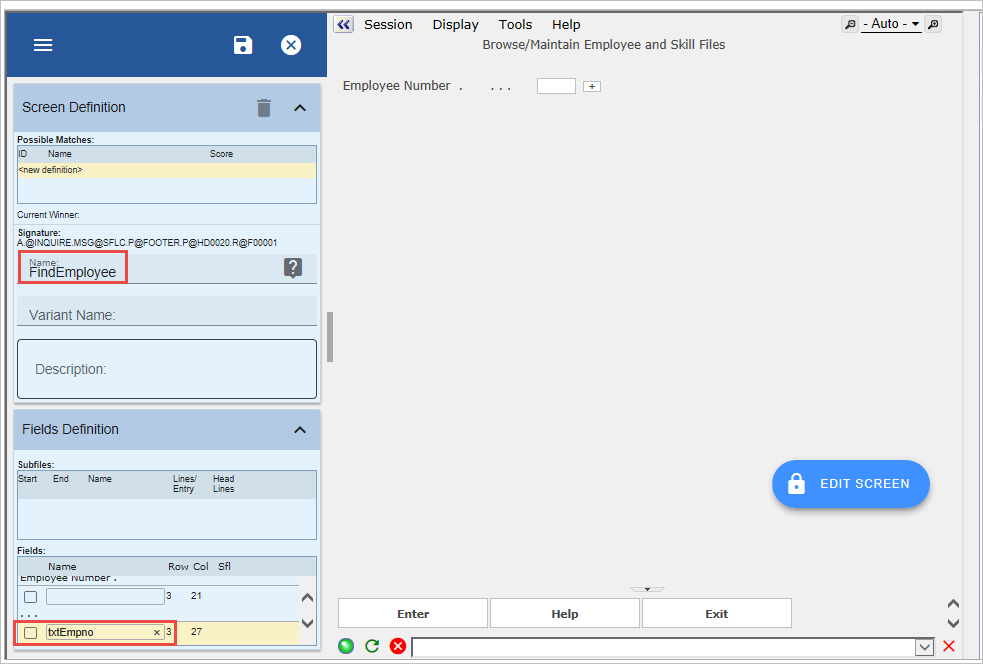
13. Click Save.
14. Type in any employee number, for example A1234, and press Enter to display the Browse/Maintain Employee and Skill Files screen.
15. Name the screen DisplayEmployee.
16. Click on the Save button.
17. Press F21 or click the Change button to display the screen in update mode so that you can name fields.
18. Name the Surname field on the screen txtSurname.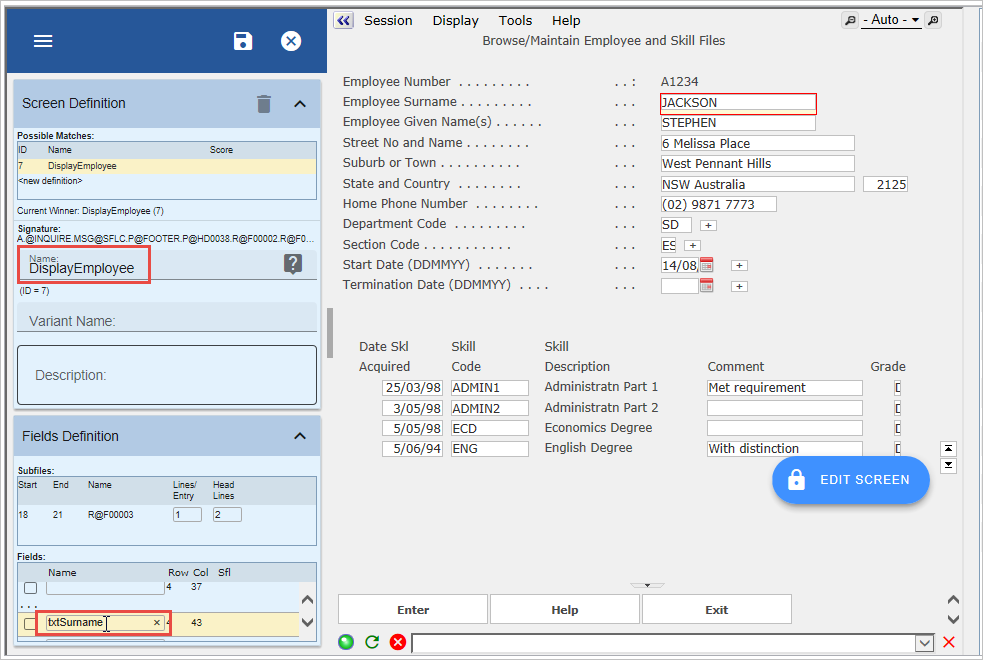
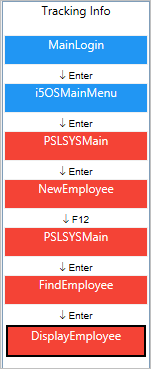
You have now finished naming your screens:
19. Do a partial save of your RAMP definition.
20. Return to the IBM i Main Menu by pressing F3.