Page History
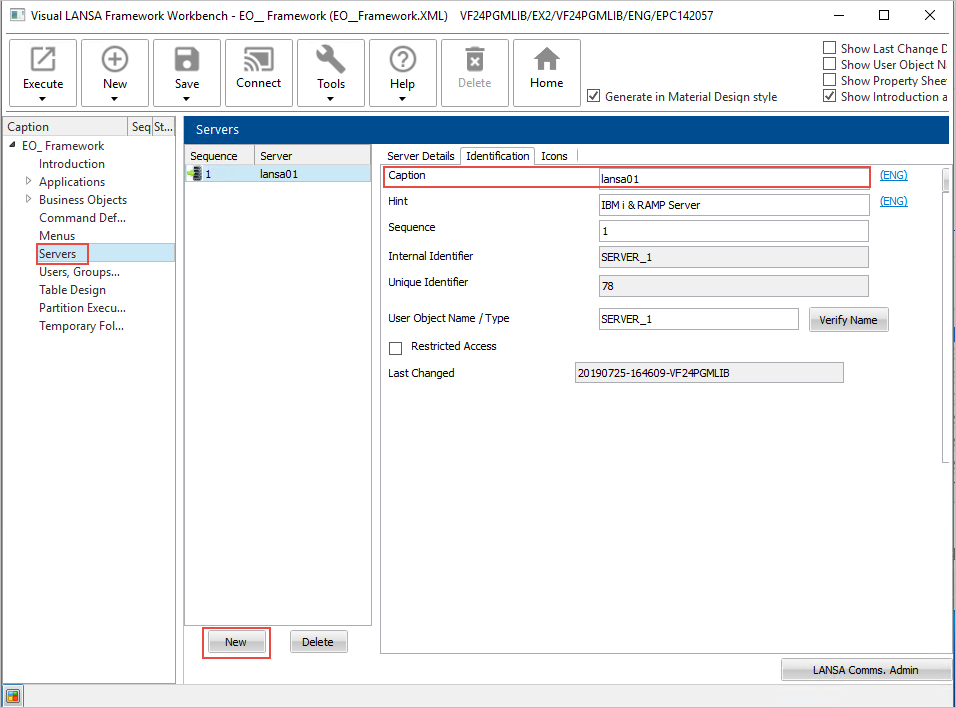
1. Select Servers in the navigation tree on the left.
2. Create a new server by clicking the New button.
3. On the Identification tab enter a Caption that describes your server.
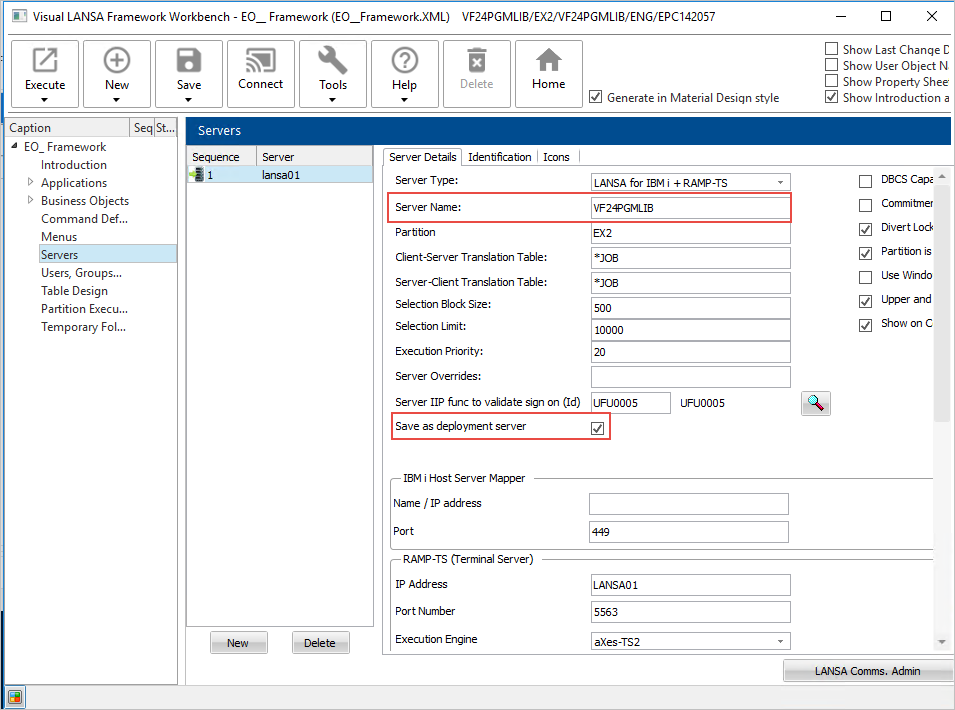
4. On the Server Details tab, enter a Name for the server and select LANSA for IBM i + RAMP-TS as the Server Type.
5. For RAMP files to be generated, at least one of the servers you are using needs to be defined as the deployment server (option Save as deployment server).
6. In the RAMP-TS section of the screen enter the host and port number of your RAMP-TS/aXes-TS server like this: 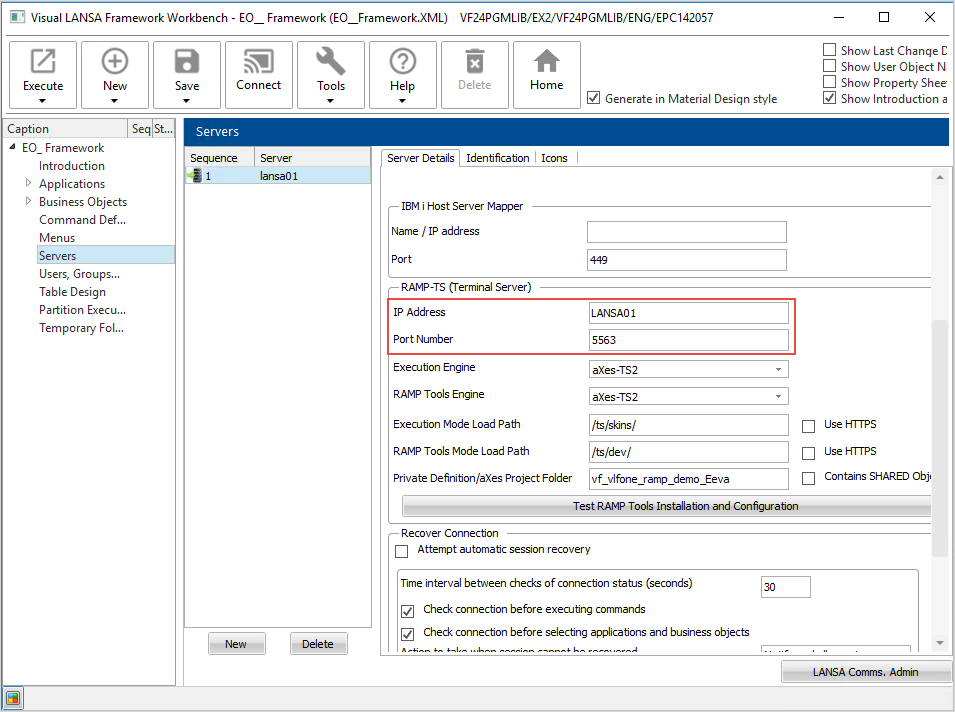
7. Specify the name of your aXes project folder if you have already created one. For more information, see Create an aXes Project in the VLF-ONE RAMP tutorials or Create an aXes Project in the VLF-WIN RAMP tutorials.

8. Save and restart the framework.
9. Display Servers.
10. Select the server you just defined and switch to the Server Details tab.
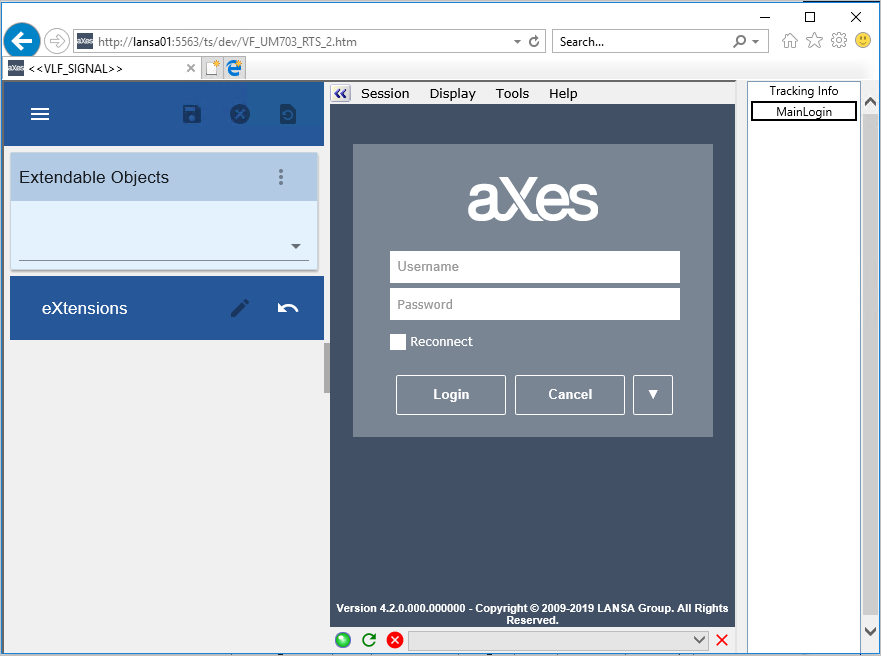
11. Click the Test RAMP Tools Installation and Configuration button.
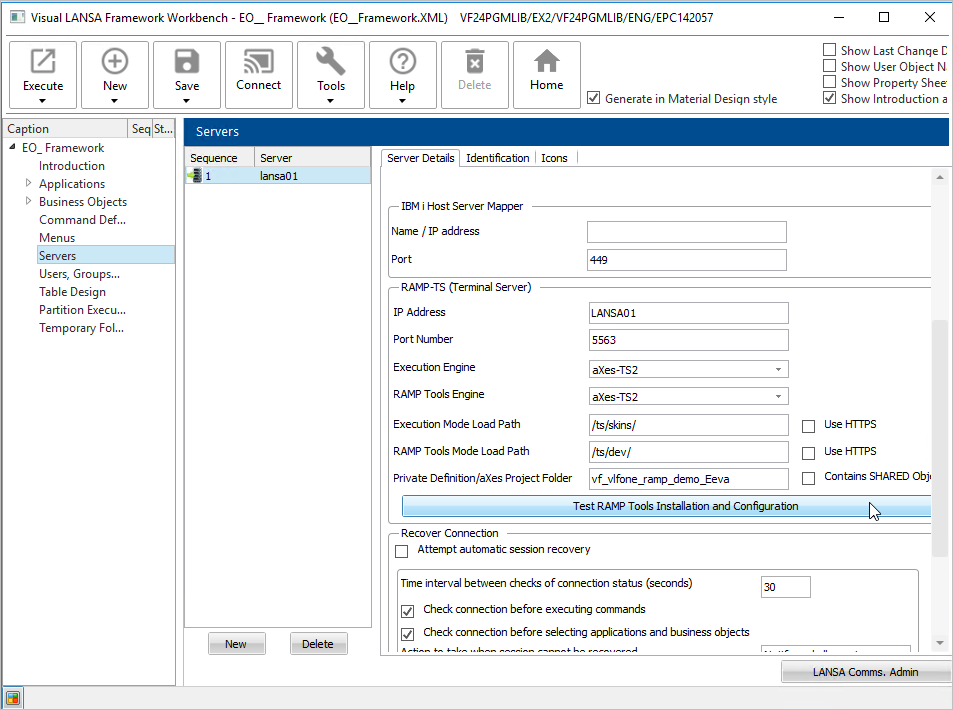
You should see this screen:
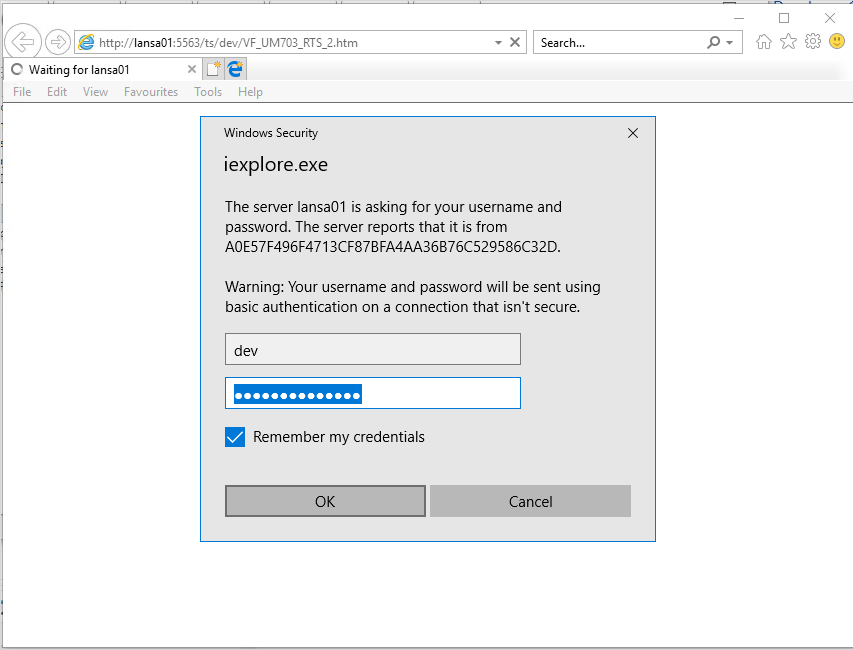
If you get the aXes authentication dialog, type dev/dev and tick the Remember my credentials box:
12. On the resulting web signon dialog sign on.
The next screen should look like this:
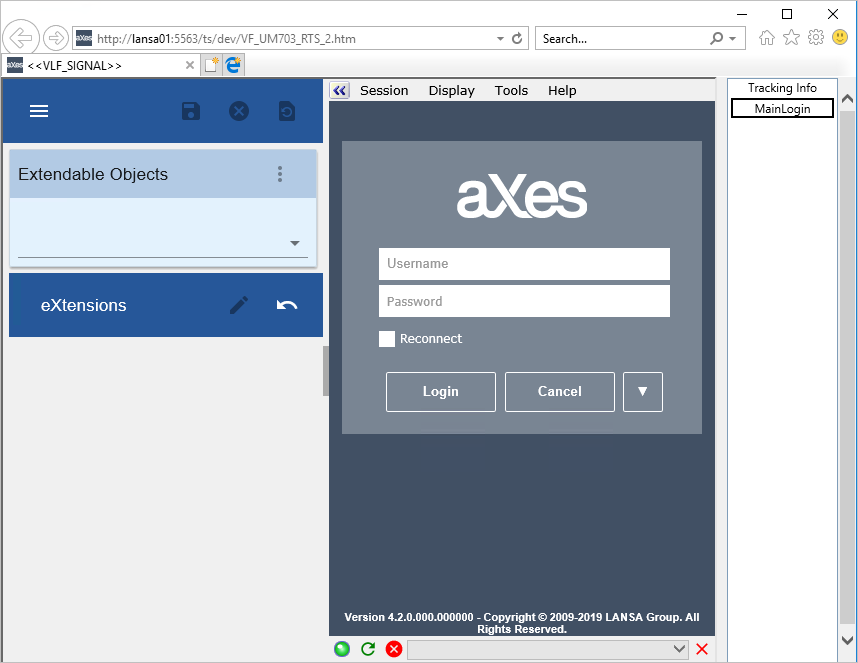
Please do not proceed with using RAMP-TS until this verification test can be completed successfully.