Page History
In this step you change the script to show the DisplayEmployee in update mode.
1. In RAMP Tools select the DisplayEmployee screen in the Screen and Script List.
2. Expand it to display the script associated with the screen.
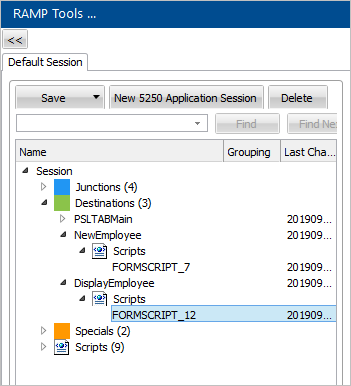
3. In the vHandle_ARRIVE function replace the code after the definition of bReturn with this code:
if (oGLOBAL_CurrentFORM.vLatestVariant == "Update") {
SHOW_CURRENT_FORM(true); /* Show the form in the framework and show VLF buttons / HIDE_5250_BUTTONS(); / Hide any 5250 style buttons displayed / GET_FORM_MESSAGE(22); / Extract messages and hide the message line / SETBUSY(false); / Last thing done - turn off the busy state */
}
else
{ SENDKEY(KeyF21); },
Your arrive script should look like this:
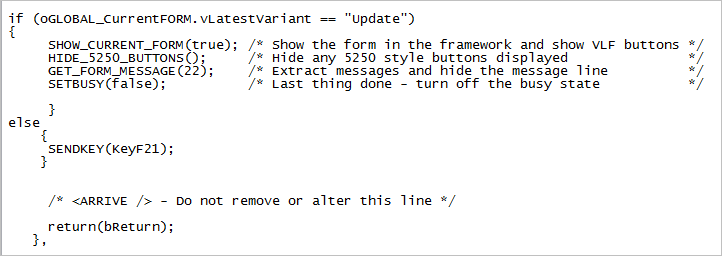
The arrive script now checks the variant name of the screen which arrives, and if the variant is not Update, the screen is put in update mode.
4. Commit the changes.
5. Do a partial save of the RAMP definition.
6. Execute the Framework as a VLF-WIN application, as a Designer.
7. Select an employee in the instance list. Notice that in the Details command handler the Browse/Maintain Employee and Skill Files screen is now displayed in change mode.
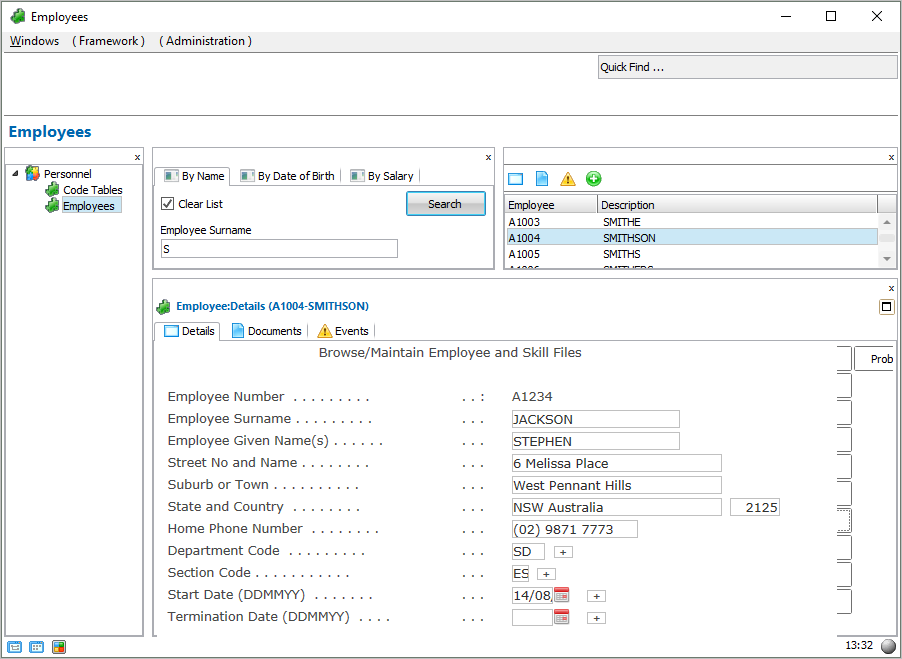
8. Make a change to the name of the employee.
9. Press Enter.
Notice that after the save the FindEmployee screen is shown.
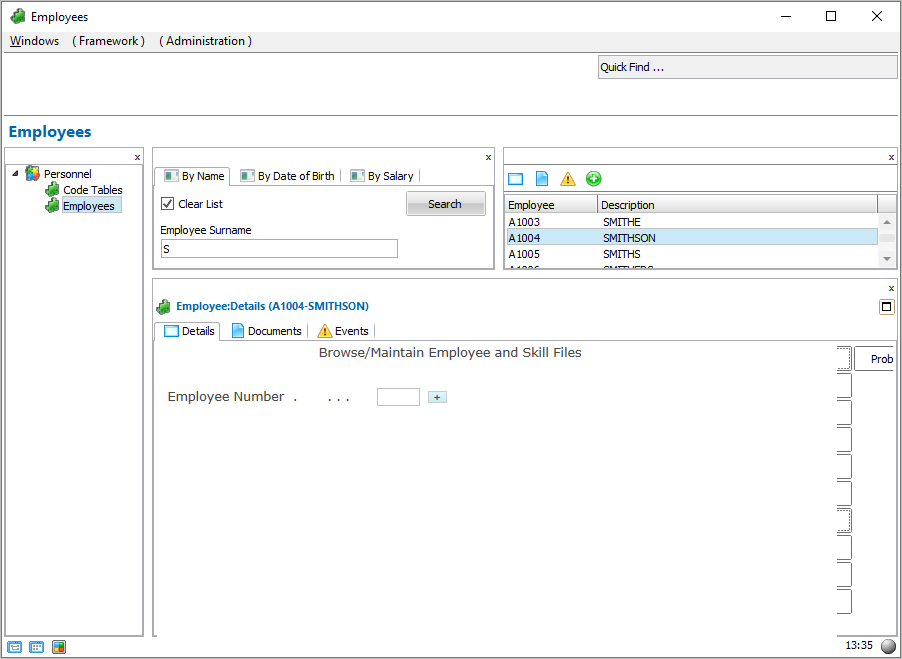
This is typical 5250 behavior which needs to be changed to fit the Framework navigation model. In the next step you will make the FindEmployee script to redisplay the Browse/Maintain Employee and Skill Files screen after employee details have been saved.