Page History
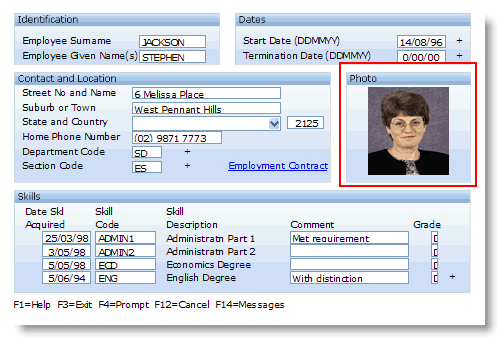
In this step you will hide the function key text shown on the bottom of the screen and you will add a picture of an employee.
When you edit a screen with the aXes Designer, the function key text line on the screen becomes visible, even though it was previously hidden by RAMP. To hide the line:
1. Click on Edit Screen in aXes Designer.
2. Select the function key text line on the bottom of the screen.
3. Set its Visible property to False.
Next you add an image to the screen:
4. Add a group box with the caption Photo and with Modern look:
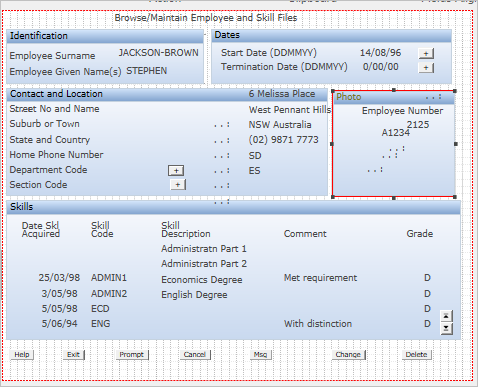
5. Then add a new element and make it an Image extension inside the group box:
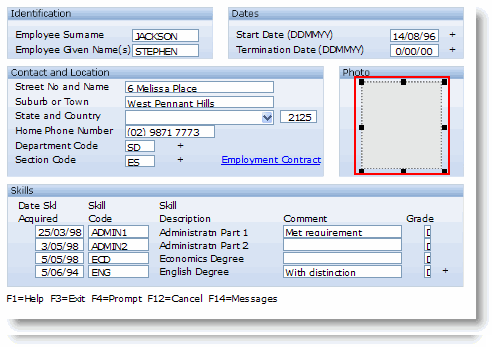
6. Change its imagePath to /ts/skins/images/ and imageName to examplephoto.gif:
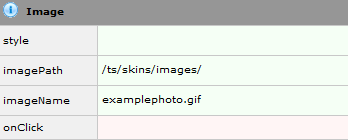
7. Click Save. The image is displayed in its full size.
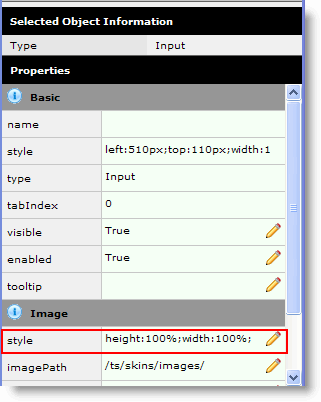
8. To shrink it, click on the Style property of the image extension and change the style's height and width to 100% (be careful to select the Style property in the Image group):
The screen will now look like this:
9. Save the screen customization