Page History
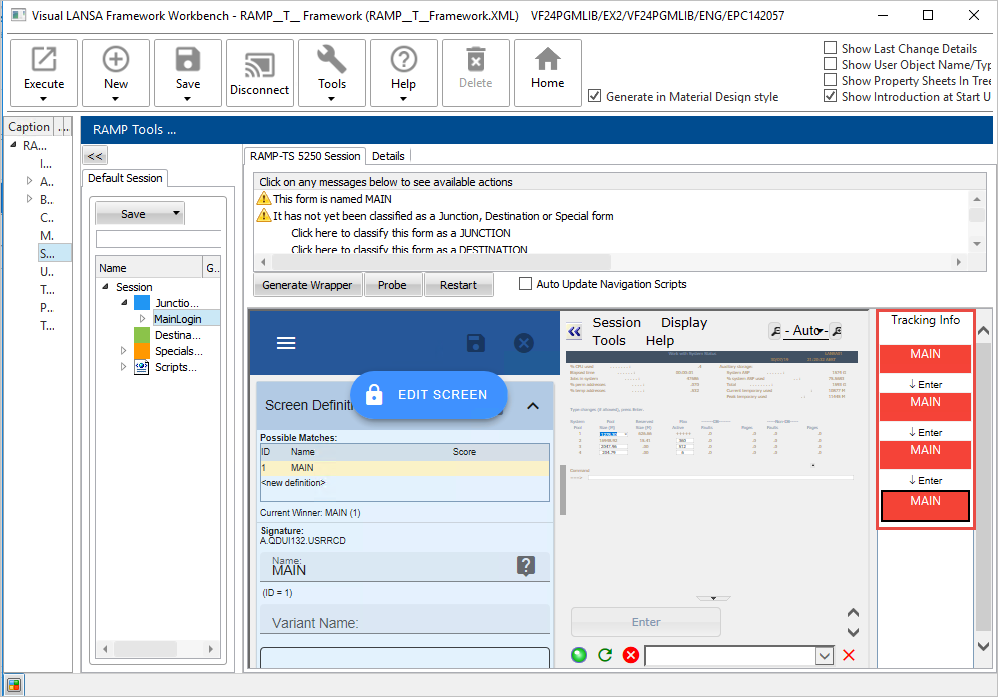
In this step you will see screens with identical record formats, and you will identify the IBM i Main Menu.
In RAMP Tools, type in user and password and click Login.
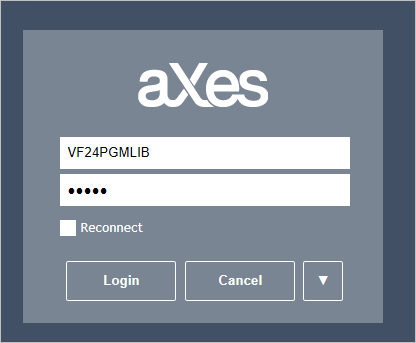

Because our user profile has its Initial Menu parameter set to MAIN, the next screen is the IBM i Main Menu screen.
Note: if there is already a session running under the same user profile the next screen may be Display Program Messages.
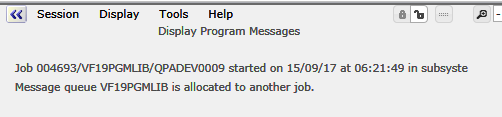
If Display Program Messages is displayed, press F3 to exit to arrive at the IBM i Main Menu screen.
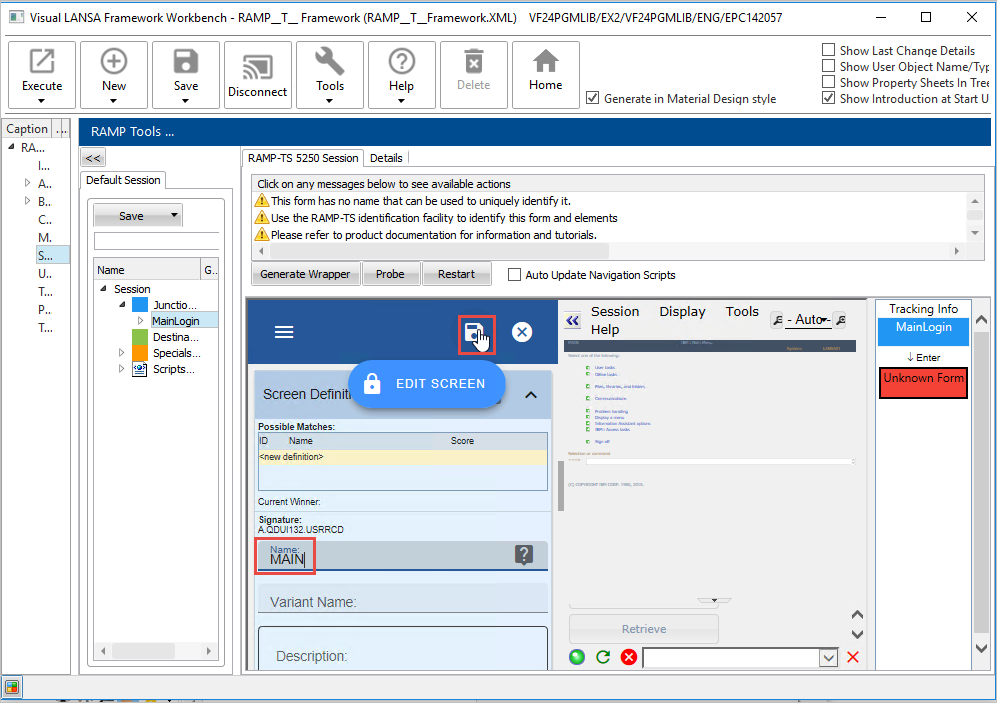
The IBM i Main Menu screen is Unknown to RAMP because it does not have a name.
Note the Signature of the IBM i Main Menu screen is A.QDUI132.USRRCD.
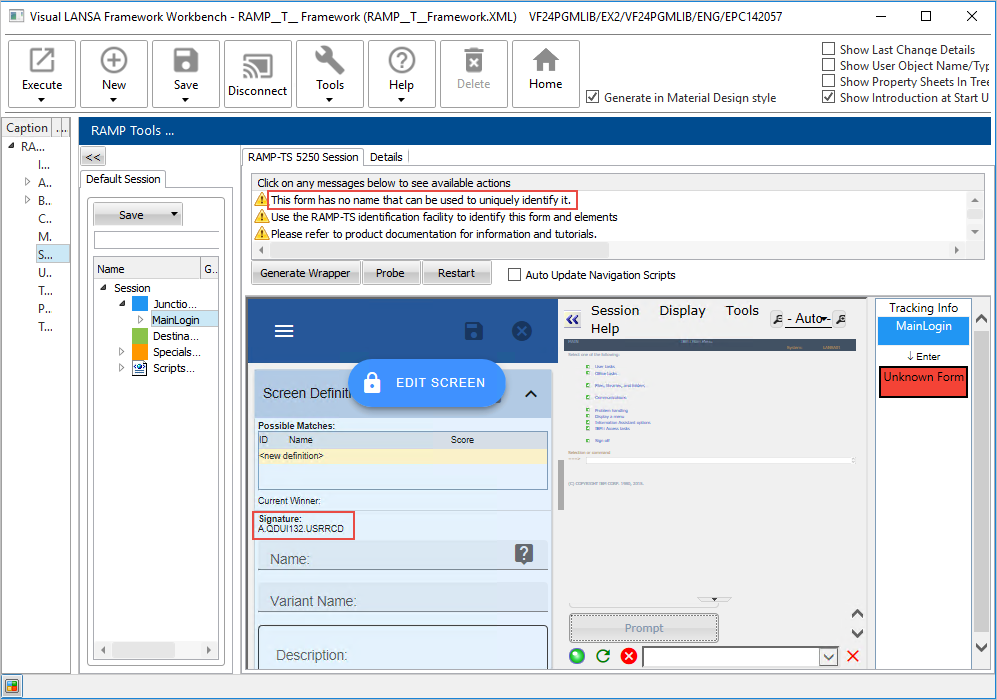
Type MAIN in the Name field and click Save:
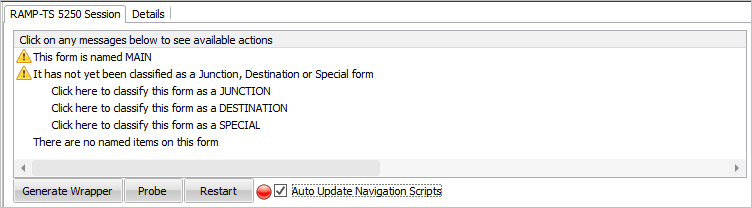
The screen has now been identified. You can see it is recognized by RAMP:
To move to the next screen, in the command line type wrkactjob and press Enter.

The Work with Active Jobs screen arrives.
But for RAMP, the Name of this screen is MAIN because the signature of Work with Active Jobs is the same as the IBM i Main Menu.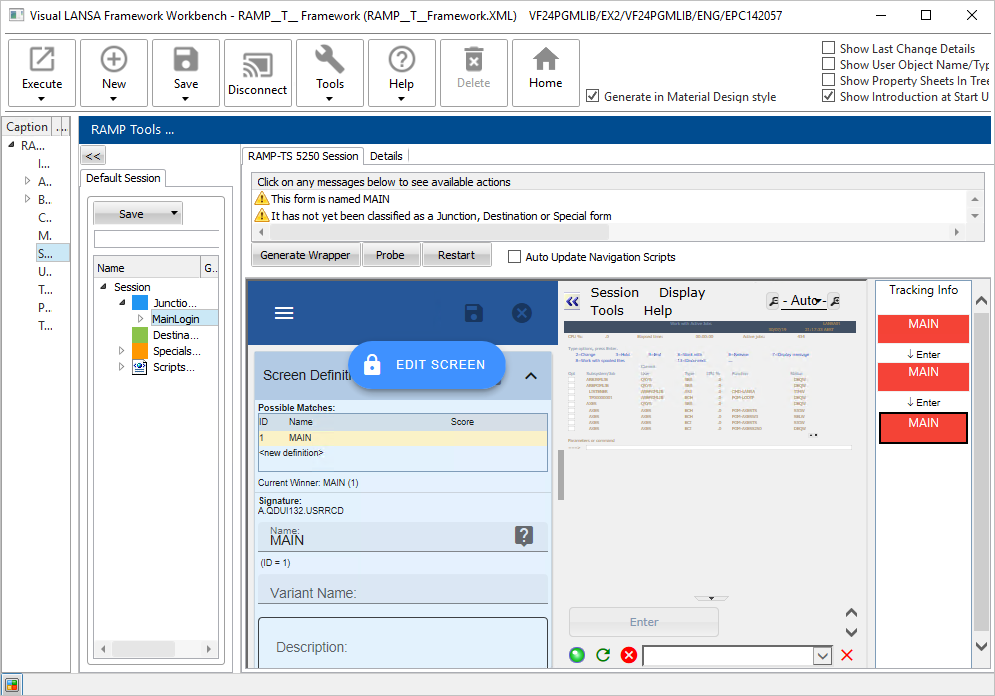
In the command line type wrksyssts and press Enter.
Again, same record format to same Signature to same Name … but three different screens.