Page History
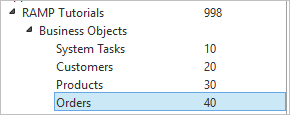
We will use the Orders business object in the RAMP Tutorials application:
Using the knowledge acquired in the BASIC tutorials, identify, classify and choreograph navigating to Order Maintenance (some of this is already done for you, but please review the steps).
- In the Main menu screen, type this command and press Enter:
lansa run df_ramp dfrordm partition(dem)
- Name the screen ORD_KEY
- In ORD_KEY: set the name of the Order Number field to KEY
- Save ORD_KEY and classify it as a JUNCTION.
- Type 5001 in the order number and press Enter
- Name the screen ORD_MAINT
- In ORD_MAINT:
Name Address Line 1 as ADDRESS
Name City as CITY
Name Postal Code as POSTALCODE
...
- Save ORD_MAINT and classify it as a DESTINATION
- Disable all enabled function keys and buttons except Enter.
- Enable the F24 function key and button, and set its caption to "Align Cust":
- Save the framework.
- Sign off to arrive at the MainLogin screen
- Turn on Auto Update Navigation Scripts
- Choreograph the navigation from Main to ORD_MAINT and back
- Turn off Auto Update Navigation Scripts
- In the properties of the Orders business object, enable the Details command
- In the Details of ORD_MAINT, link it with command Details in business object Orders
- Edit the script for ORD_KEY to make the value entered in the customer number field soft.
- Save the Framework
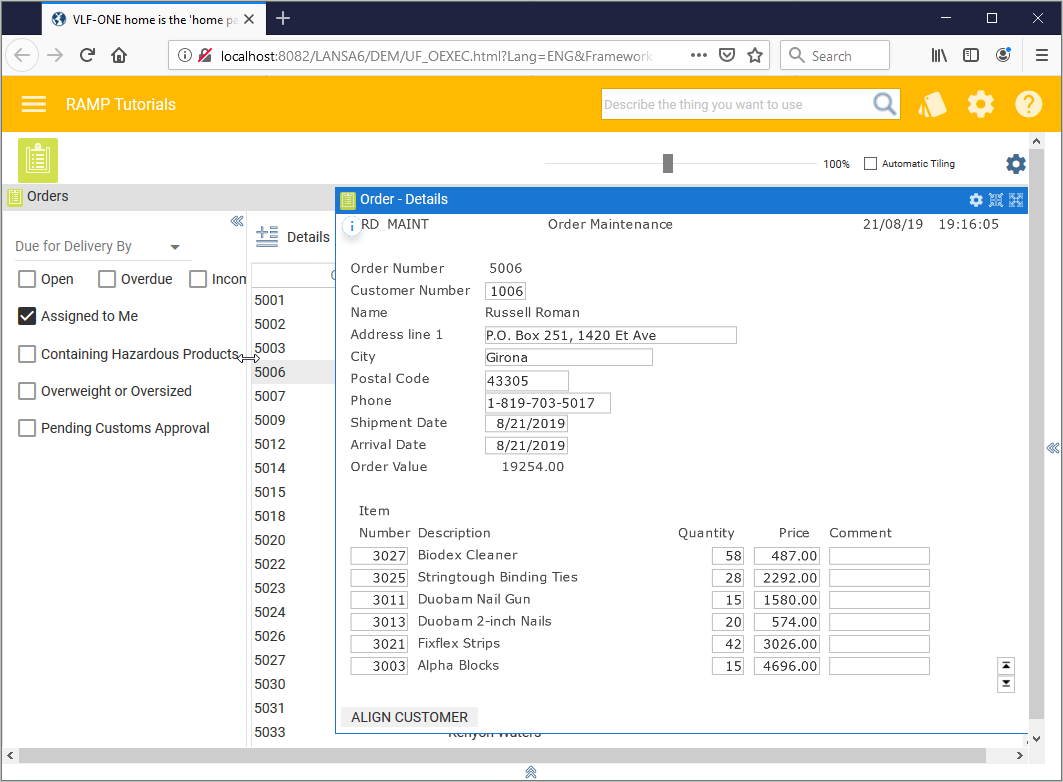
- Execute the Framework and verify that the Order Maintenance screen has been snapped in and the navigation works: