Page History
Selected Files
The Selected File area of the Query window shows you the file used to create a query, and any fields and linked files available to add to the query.
You can select fields & linked files individually by either double-clicking them or dragging them across to the Selected Fields area, or you can select the file in order to use all of its fields.
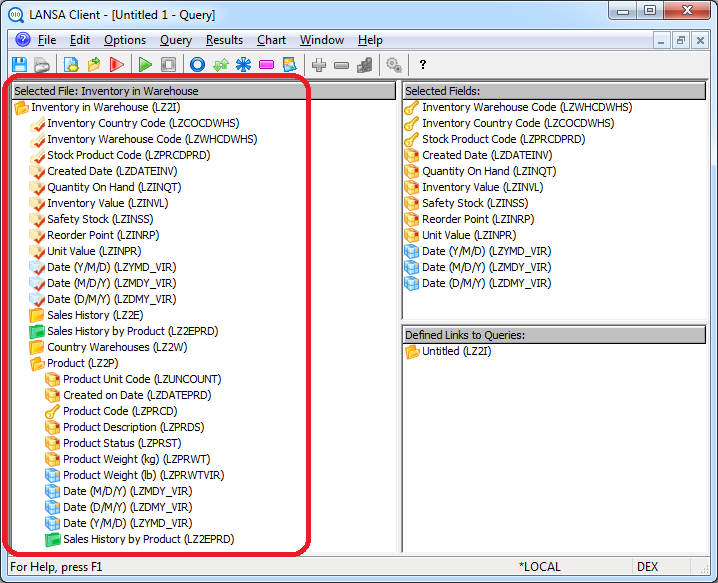
You can identify the different types of fields by their icons, which are:
| A key field |
| A physical data field |
| A virtual data field, usually calculated from values in other fields |


...
Linked Files use the following icons:-
| A key field. A file with a one-to-one record relationship with the parent file. When selected, its icon will change to |
| A file with a one-to-many record relationship with the parent file. When selected, its icon will change to |
| A logical file (or view) with a one-to-many record relationship. When selected, its icon will be |


...
When you click on either a file or field, the status bar will display descriptive information, such as (in the case of a field) its data type, maximum size and any format rules.
Selected Fields
The Selected Fields area of the Query window shows you all the fields that have been selected for the query.
Fields can be selected from a number of files. You do not need to know which file a field belongs to, because LANSA Client automatically handles this for you.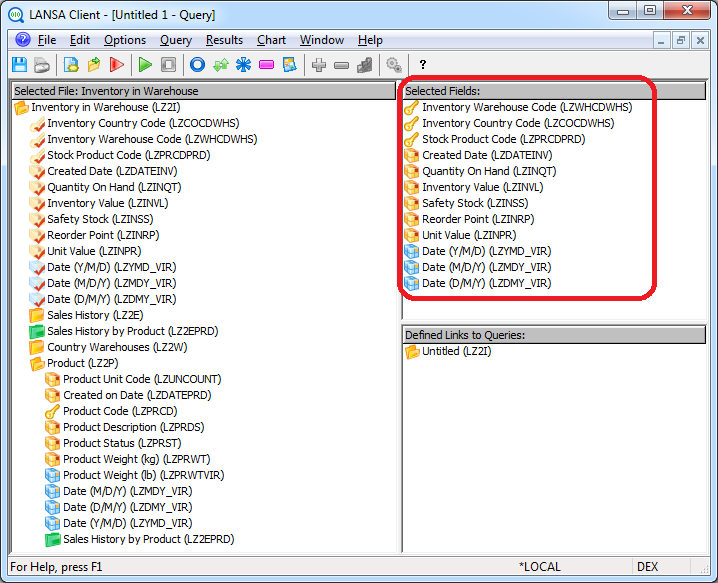
To remove a field:
- Drag the field out of the Selected Fields area and drop it.
- Double-click on the field.
- Press the Enter key while the field is highlighted.
| Note |
|---|
| Note: If you are removing a field which has a condition attached, remove the condition BEFORE you delete the field, otherwise you may find that any remaining conditions do not operate as expected. |
To re-sequence the fields you have selected in the Selected Fields area, simply drag each field from its current position and drop it into its required position.
When the query is run, the fields are retrieved from the host in the sequence that they are listed in the Selected Fields area.