Page History
...
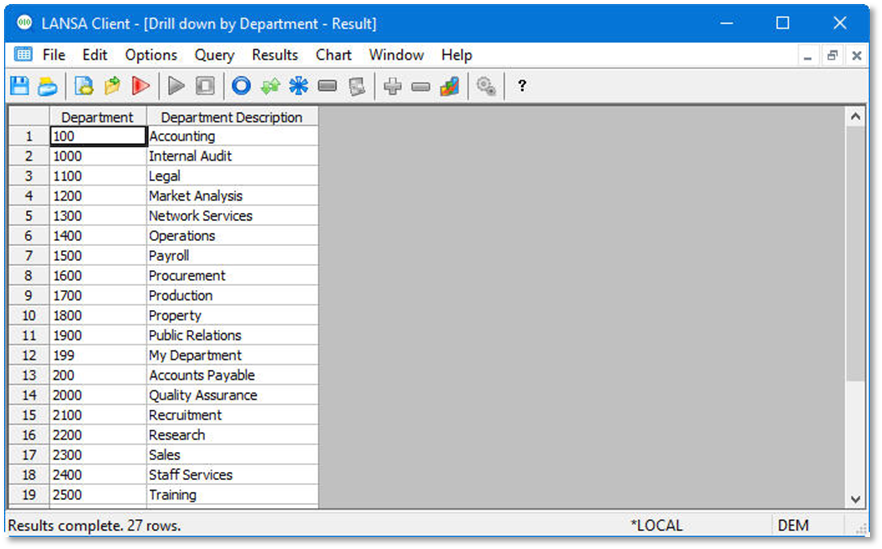
- Click on the Execute (run) the current query icon
...
-
 from the toolbar.
...
Alternatively, from the toolbar select the Query menu and then choose the Execute command, or use this command's accelerator keys (Ctrl + E).
...
...
- In the Results window, select the first department: 100/Accounting.
...
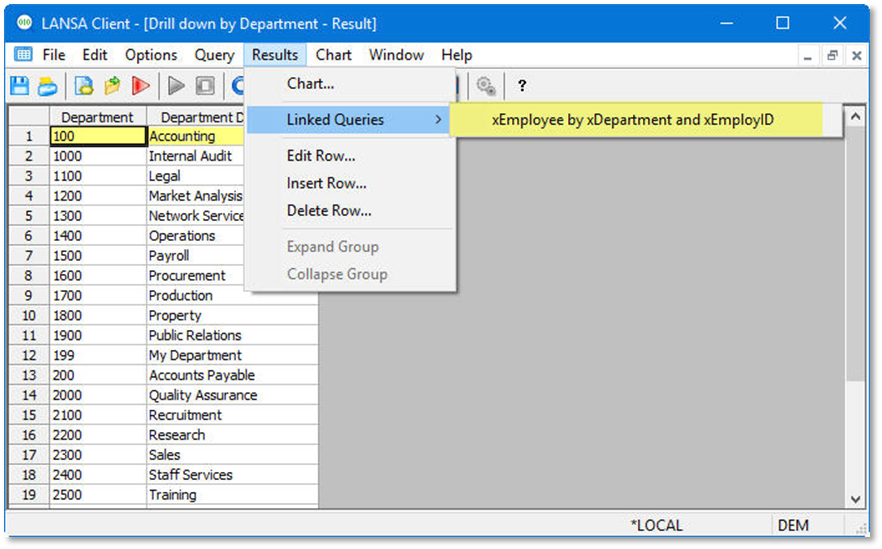
- To execute the linked query, select the Results menu and choose the Linked Queries command. This will display a drop down menu.
...
Alternatively, right mouse-click on the selected item and choose the Linked Queries command.
...
- Select the xEmployee by xDepartment and xEmployID command from the drop down menu. This will execute the secondary query using the department 100/Accounting as its selection criteria.
...
...
- A new Results window is displayed to show you the list of departments.
...
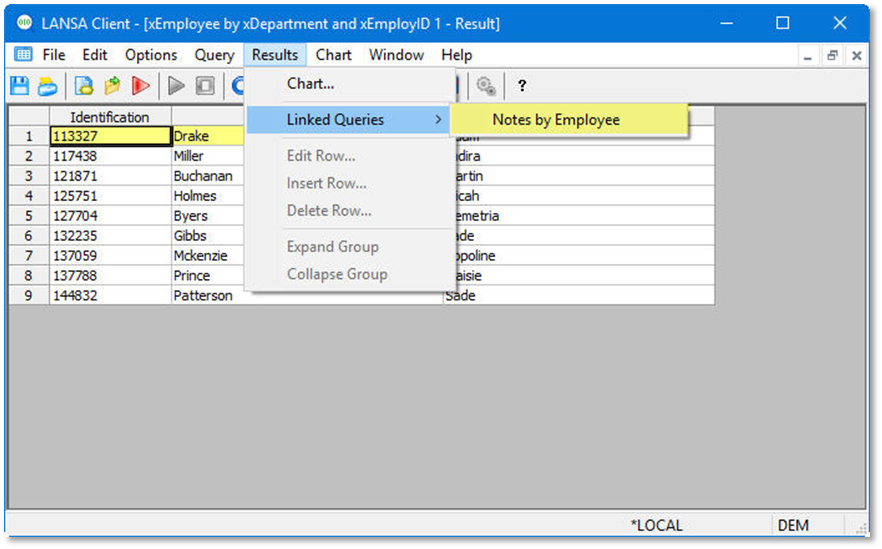
- In the Results window, select an Employee.
...
- To execute the linked query, select the Results menu and choose the Linked Queries command. This will display a drop down menu.
...
Alternatively, right mouse-click on the selected item and choose the Linked Queries command.
...
- Select the Notes by Employee command from the drop down menu. This will execute the linked query using the Employee as its selection criteria.
...
...
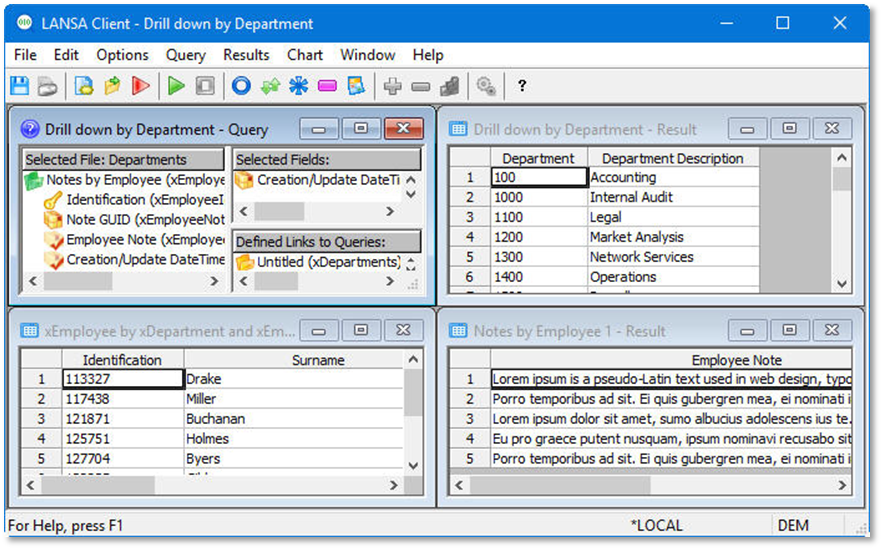
Cascade or Tile your windows to see all Results windows.
...
Tip Hint: Select the Window menu to find these options.
...
...
- Try a few more drill down paths for the same department, or start with another department.
...
- Close the query and result windows without saving.
...

...
Do not disconnect from this host.