Page History
LCE430 - Build & Execute a Generated Application
1. Highlight the menu item immediately below your new Drill down by Department menu item and click the Add button. A new entry will be added above the menu item you highlighted.
2. Type Salaries within a range in the Menu Text box.
a. Indent your new command beneath the Employees menu item by clicking the
...
 right arrow button at the bottom of the box.
b. Select the Salary values within range.LCQ from the Query to Execute list.
3. Highlight the menu item immediately below your new Salaries within a range menu item and click the Add button. A new entry will be added above the menu item you highlighted.
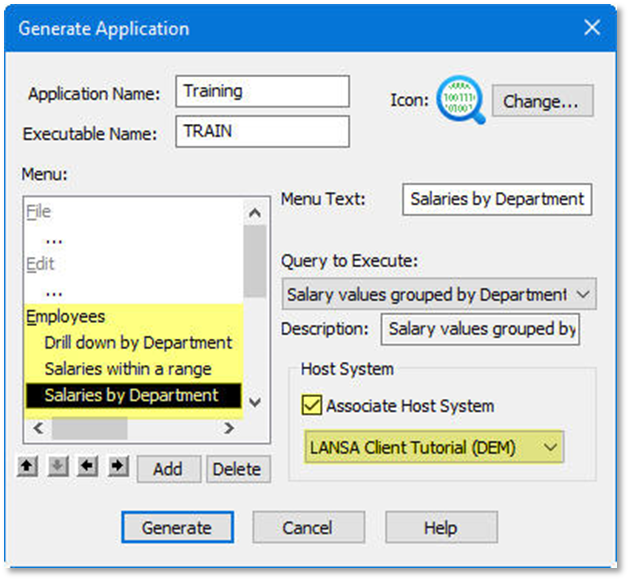
4. Type Salaries by Department in the Menu Text box.
5. If your commands are not in the desired sequence, re-arrange them using the  up and down arrows.
6. Select the Host System to be associated with this application.
a. Click the check box for Associate Host System.
b. Select the appropriate host from the list of hosts.
You are now ready to generate the LANSA Client application.
...
Check that you have selected a Query to Execute for each of your new menu items. If you have not done that, an error message will be displayed and the Generate will be cancelled.
7. Click the Generate button. LANSA Client will generate the application.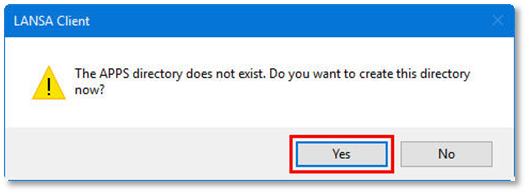
8. Reply Yes to the message telling you that your new applications will be stored in the APPS directory. (There is no option for you to choose or change the directory.)
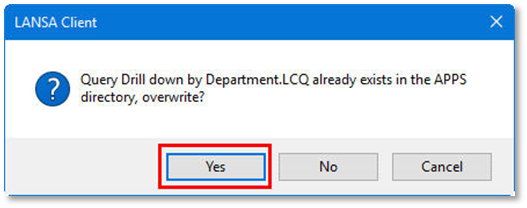
9. If you are prompted with a message similar to the following, click the Yes button, to overwrite any files in the APPS directory: