Page History
You can save the results displayed in the Results window in a variety of file formats. By doing this, you can extract data from your database to update a database on your PC. Most PC applications support the Database Format (DBF) file.
To save the results, from the Results window, select the File command from the menu bar and choose either
- the The Save command, to save new results.
- the The Save As command to save the results to another file.
The Results Save As dialog box is displayed.
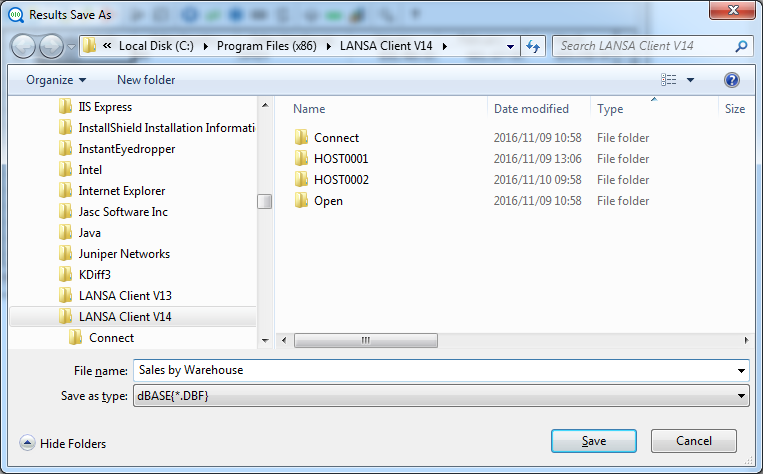
Save as Type
Select the format in which you want to save your data. The formats available include:
MS Access Format | .MDB |
Excel Format | .XLS |
Excel 2003 XML Format | .XML |
HTML Format | .HTM |
XML Format | .XML |
ASCII Text Fixed | .TXT |
ASCII Tab Delimited | .TXT |
ASCII Comma Delimited | .TXT |
dBASE Format | .DBF |
dBbase for SCR format | .DBF |
| Note |
|---|
| Note |
...
| : If you are saving a file in Excel 2003 XML Format, HTML Format, XML Format, ASCII Text Fixed, ASCII Tab Delimited or ASCII Comma Delimited the file will be saved using UTF-8 encoding if the results contain any Unicode fields. |
File Name
Enter a name for the file. The file name's length can vary depending on the file type:
DBF | Normal MS Windows file names. For example, Sales by Warehouse.DBF |
XLS | Maximum of 60 characters. This name must not start with a number or include spaces. |
TXT | Uses normal MS Windows file names. |
Save in
You can choose the location for the file by selecting from the folders listed. By default, the file will be saved in the LANSA Client folder.
Saving the File Details
Once you are satisfied with the entries in this dialog box, select the Save button or press the Enter key.
You can cancel the save by selecting the Cancel button or pressing the Esc key.Note
| Note |
|---|
Notes:
|