Page History
In this step, you will create a very simple index over the table iiiDepartments created in the last exercise. This index will sequence the table by the iiiDeptDescription column.
1. Use your dynamic list, iiiLIST to open the iiiDepartments table in the Editor.
2. Select the Indexes tab. It will list all of the defined indexes for the table (there are none yet).
3. Select the Add button on the Home ribbon and select Add Index from the list.
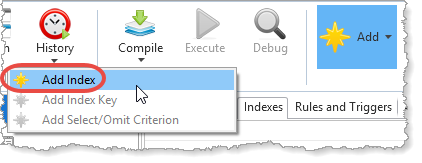
A new (incomplete) index definition is added for the table. You need to specify the index details and key fields.
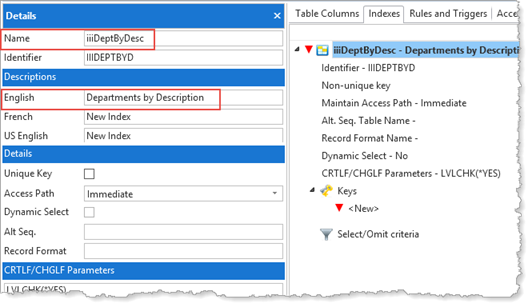
4. The Details tab should already be displayed. Enter the following details:
Name | iiiDeptsByDesc (where iii=your initials) |
Description | Departments by Description |
Your Details tab should now look like this:
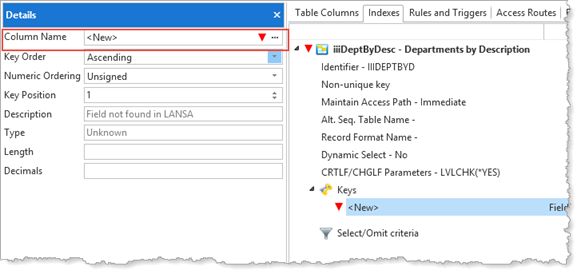
5. Click on <New> <New> under the Keys group so that you can specify the key for the index.
a. Place the cursor in the Column name field in the Details tab.
| Note |
|---|
| Note: A simple way to add a key field is to use the ellipsis button. This will show the Table Columns dialog, showing the fields which could be used as keys: |
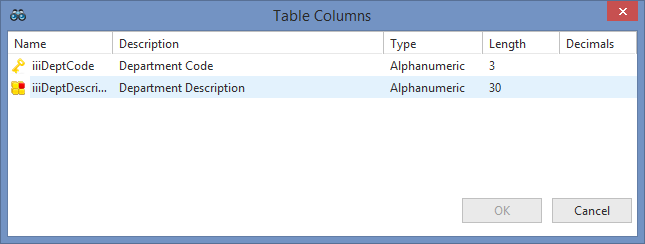
b. Select the iiiDeptDescription field, and click OK
Your completed Index will appear like this:
...
- Because you added an index to the table, you should select to Rebuild indexes and views and Rebuild OAMs.
- In other situations, such as when a new validation rule is added at field level, you will need to select the required Table Compile options (Rebuild OAMs in this particular case).
- If you have changed the fields which define the columns in the table and need to rebuild the table, the compile is capable of saving and restoring the data to the new table. Note the Save table data, Reload table data options available.
7. Check that the compile completed successfully.
...