Page History
In this step, you will learn how to use the Auto Complete prompter when entering a SELECT command to retrieve a number of fields from the xEmployee table. You will see how Auto Complete will show you all parameters for commands. You will begin by deleting the SELECT statement created with the Command Assistant and you will code the following commands:
     Select Fields(#xEmployeeGivenNames #xEmployeeCity #xEmployeeIdentification #xEmployeePostalCode #xEmployeeSurname) From_File(xEmployee)
     Endselect
1. From the File menu select Options. Select the Source options. Make sure that Auto Complete has been set to Prompter.
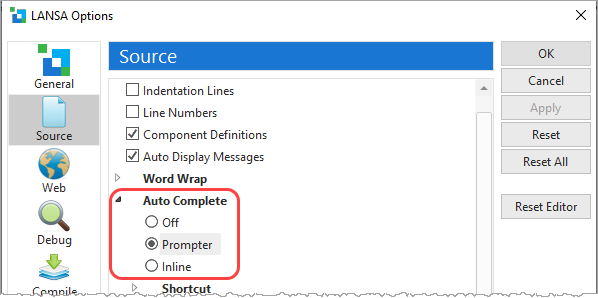
2. Click the OK button to close the LANSA Options dialog.
| Tip |
|---|
...
| Tip: The Visual LANSA status bar along the bottom edge of the window contains information such as Line and Column position in the editor, the install directory, partition and current user. It also contains setting information such as Audit Off, DirectX, and 2015Gray. These three items provide a direct link to open the Options Dialog. Clicking them will open the Options Dialog. |
3. In the GetData routine, delete the SELECT and ENDSELECT statements.
...
4. Within the GetData routine, type S on a blank line. Auto Complete shows a list of commands starting with S:
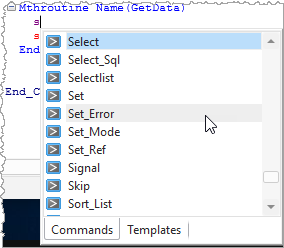
5. Position the cursor to SELECT and press enter to select the command.
The The Auto Complete Prompter adds the SELECT command with its mandatory parameters to the line. The ENDSELECT command is also added. The cursor is positioned to the From_File parameter.
6. Type xe in the From_File parameter.
Auto Auto Complete displays a list of files starting with xe.
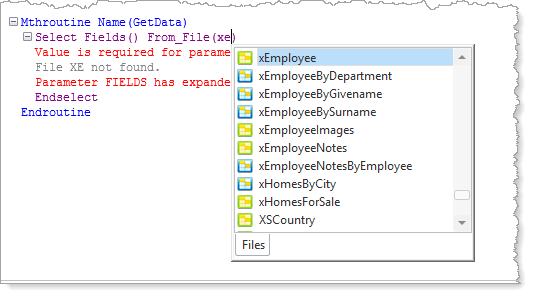
7. Position the cursor to the xEmployee table and press Enter. The FROM_FILE parameter will be completed.
8. Position the cursor in the Fields parameter. Type #xe. The Auto Complete drop-down will show the fields beginning xe.
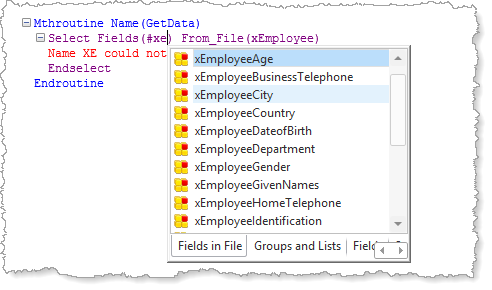
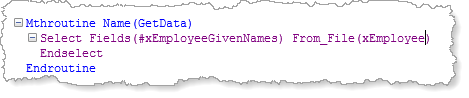
9. Position the cursor on the xEmployeeGivenNames field and press enter. The sequence of the fields in the Fields parameter is not significant. Your code should now look like the following:
10. Continue by adding a space followed by #xe in the Fields parameter. Select the field xEmployeeIndentification and press Enter.
11. Repeat step 10 to enter fields xEmployeeCity, xEmployeeIdentification, xEmployeePostalCode and xEmployeeSurname into the Fields parameter. Your code should look like the following:
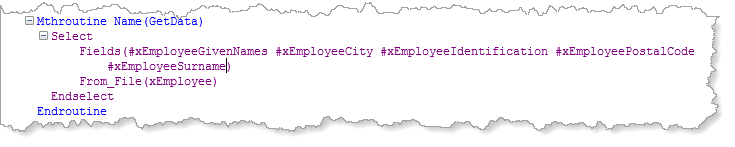
The The SELECT command definition is complete.
You You may want to try to use the AutoComplete setting Inline which completes your code on the same line as you type. When you are learning RDML, the recommended setting for AutoComplete is Prompter. You may find the Inline option faster once you
develop some RDML programming skills.
...
12. Delete the GetData method routine. Compile the form iiiDragandDrop.