Page History
...
1. Drag a push button onto the form, above the Working List entries field.
a. On the Layout ribbon, change its Alignment to Bottom Center and Flow to Up.
b. Change margin Bottom to 10.
c. Change its Caption to Create CSV File and Name to CreateCSV.
d. Create a Click event event for the push button.
e. Adjust the Width as needed.
2. The TRANSFORM_LIST BIF transforms a working list into a text file and has a number of file format options. The output file name will usually be defined, including a full path to control where it is written. LANSA
LANSA has a number of system variables which provide a path name which will be valid in both a development and production partition. For example, this assignment would place the file named EMPLIST.csv into the Visual LANSA partition \object folder.
#STD_QSEL QSEL := *part_dir_object object + 'EMPLIST.CSV'
For example, the output file path would then be:
c:\Program Files (x86)\LANSA\x_win95\x_lansa\x_ppp\object\
| Note |
|---|
| Note: The system variable *part_dir_object returns a path ending in "\". |
...
Built-In functions (BIFs) are executed using the USE command. The USE command has the format:USE Builtin
USE Builtin() WithWith_args() ToTo_get()
A A BIF is a called program, and the arguments it receives and returns, are defined in the Repository and supported by the editor. The Command Assistant supports BIFs showing the required input and output parameters. BIFs are implemented with the RDML USE command.
TRANSFORM_LIST - Arguments
With_Args | Description | Value |
|---|---|---|
1 | Working list name to transform | EMPLIST |
2 | Name of file to create or replace | STD_QSEL (path + file name) |
3 | Output file format | A - Normal Delimited File (default) |
4 to 8 | Optional parameters - see Technical Reference |
|
Your CREATE Click event logic should look like the following:
Evtroutine Handling(#CreateCSV.Click) If Cond(#LISTCOUNT > 0) #std_qsel := *PART_DIR_OBJECT + 'emplist.csv' Use Builtin(transform_list) With_Args(#EmployList #STD_QSel) To_Get(#io$sts) If (#IO$STS = OK) Message Msgtxt('File EMPLIST.CSV created in ..\x_' + *partition + '\object folder') Endif Endif
Endroutine Endroutine
| Note |
|---|
|
...
Notes:
|
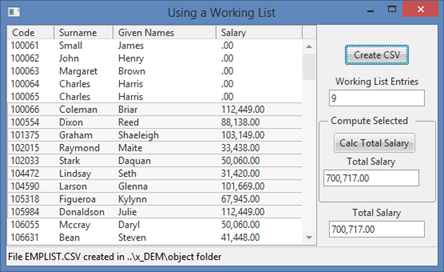
3. Compile and test your form. Select entries in the list view. The Create CSV File button will write a CSV file containing the working list's entries:
4. Use Windows Explorer to locate the output file. For example, in a standard Visual LANSA installation:
C:\Program FilesProgram Files\LANSA\x_win95\x_lansa\x_dem\object\EMPLIST.CSV
Where Where DEM is the partition being used for training.
...
The next step, will use the System_Command Built in Function to automatically display the CSV file in Notepad. The SYSTEM_COMMAND executes an operating system command. See the Technical Reference guide Guide for information.
5. Add the highlighted code to your CreateCSV.Click event handling routine
Evtroutine Handling(#CreateCSV.Click) Define Field(#RetCode) Type(*DEC) Length(7) Decimals(0) #std_qsel := *PART_DIR_OBJECT + 'emplist.csv' Use Builtin(transform_list) With_Args(#EmployList #STD_QSel) To_Get(#IO$STS) If (#IO$STS = OK) Message Msgtxt('File EMPLIST.CSV created in ..\x_' + *partition + '\object folder') Use Builtin(SYSTEM_COMMAND) With_Args('X' 'notepad.exe' ' ' #std_qsel) To_Get(#RetCode) Endif Endroutine
This will display the CSV file in Notepad once the TRANSFORM_LIST BIF has successfully completed:
...