Page History
1. With the Design tab open, select any component such as a field or push button.
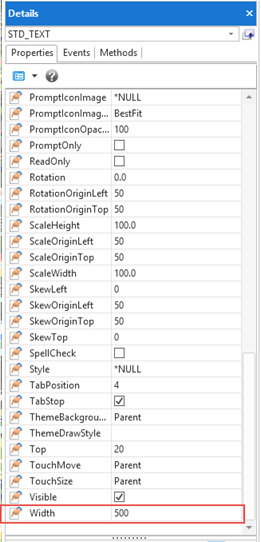
2. Select the Details tab and note that it is displaying properties, events, and methods for the selected component. Drag a component handle to increase its width. Note that the Width property has changed.
| Note |
|---|
...
Note: The Details tab has two views, which may be selected from a toolbar button:
|
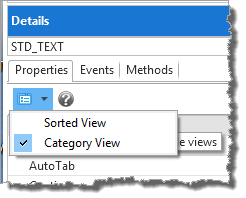
Sorted Sorted View lists all properties, events, and methods in alphabetical sequence.
Category Category View lists properties events, and methods in groups such as Common, Component, Layout, Style, and Other.
3. Select the Source tab.
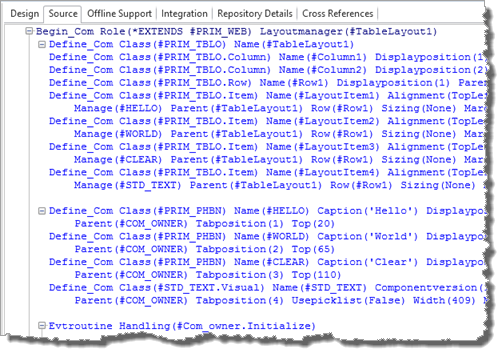
The The component is defined within the Begin_Com / End_Com statements.
The The Begin_Com statement includes the web page properties. For example, the web page has a Layout Manager of TableLayout1.
As usual, the editor does not show properties or command parameters which have a default value.
4. If necessary expand the component definitions. They may be compressed depending on your Settings (see File menu / Options).
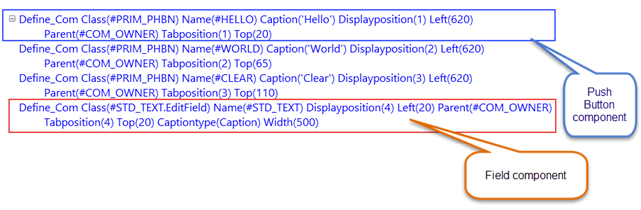
Component Component definitions are usually written at the top of the source code.
...
5. Click on the  icon against the Begin_Com, your source will now look like the following:
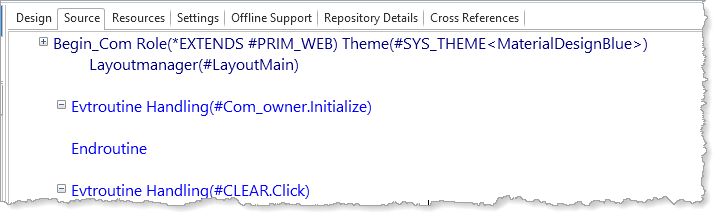
The Define_Com statements have been compressed to save space. The File Menu / Options / Settings dialog for Source can make this appearance the default.
...