Page History
...
The Server Module srvroutine will return the data required or process the data which you have passed into it.
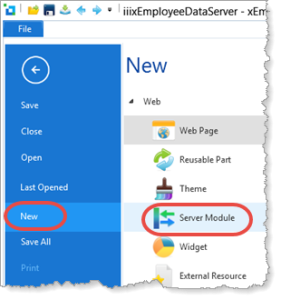
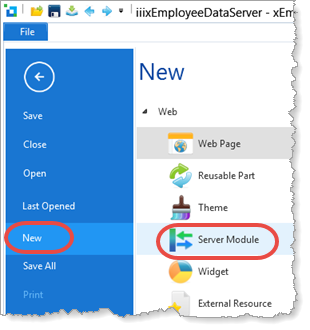
The File menu / New / Server Module dialog accepts a table name and generates a Server Module to service this table. The Server Module contains a number of srvroutines which support Find, FindAll, Save, and Delete, and srvroutines which supports each index over this physical table. Of course, if required, you can also add your own srvroutines to this Server Module.
1. Create a New / Server Module
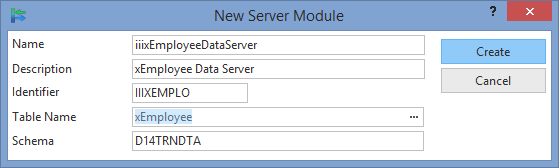
Name Name: iiixEmployeeDataServer
Description Description: xEmployee Data Services Table
Table Name: xEmployee
2. The Server Module will open in the editor at the Source tab.
Notice the following features:
...
3. Review the srvroutines which have been generated. You will probably readily understand their purpose.
4. Select the Go To tab. If necessary open it from the Home ribbon, Tabs menu. On the GoTo tab, expand Routines and double-click on the Save routine to position the editor to this srvroutine.
a. Notice the input Group_Map for xEmployee and output Field_Map for IO$STS, with Parameter_Name(Status).
b. Note also that the Save srvroutine handles update or insert, by using a Check_For command to test whether a record already exists.
...
d. The Find srvroutine fetches the Group_By fields from the table xEmployee with the key, xEmployeeIdentification
| Note |
|---|
Note: The FETCH command retrieves a single record from a database table. It will usually have this form:
|
...
#xEmployee is a Group_By statement, which defined the fields to be retrieved. |
Select Select the Fetch command in the Source and press F1 to the Fetch command's full details in the Technical Reference Guide.
| Note |
|---|
| Note: Throughout these exercises and presentations you may see the I/O Status field shown as IO£STS instead of IO$STS. These are equivalent. The Visual LANSA editor may display £ or $ for this ASCII character, depending on the code page selected during installation. |
5. Compile your Server Module.