Page History
...
1. Switch to the iiixEmployeeDataServer Server Module.
2. Create a srvroutine, with the name DownLoadCSV. In this case it should have a Response(*resource #xxx) keyword which defines the object it will return.
Your code should look like the following:
Srvroutine Name(DownloadCSV) Response(*resource #Response) Endroutine
3. In order to return the Response object, this routine needs to set two properties for the response object, ContentFile and AttachFileName. Note
| Note |
|---|
Note: Use F2 to discover this information, or use the Autocomplete prompter:
|
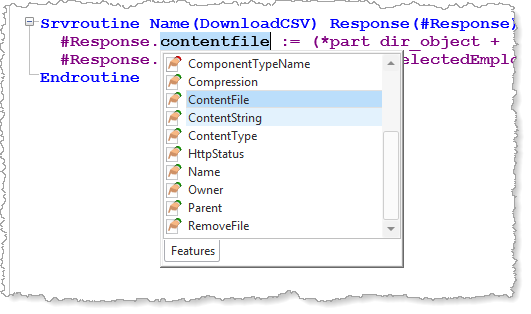
ContentFile ContentFile should contain the full path name and file name for the file to be returned. You defined this earlier in the CreateCSV srvroutine. Add the following code to your DownloadCSV method routine:
#Response.contentfile := (*part_dir_object + 'WListEmployees.csv')
4. The AttachmentFileName defines the file name to be used for the download. This enables a meaningful name to be assigned if necessary. This name is used by the response in the browser. For example, the ContentFile name may be an application generated name. The actual file name downloaded, will be WListEmployees.csv.
Add the following code to the DownLoadCSV method:
#Response.attachmentFileName := 'SelectedEmployees.CSV' Your
Your code should look like the following:
Srvroutine Name(DownloadCSV) Response(*RESOURCE #Response) #Response.contentfile := (*part_dir_object + 'WListEmployees.csv') #Response.attachmentFileName := 'SelectedEmployees.CSV' Endroutine
5. Compile your iiixEmployeeDataServer Server Module
6. In your web page, create a method routine with the name DownLoadCSV. Since this routine will always download the same file, it will not need to have an input parameter.
This routine needs to do the following:
Define the DownLoadCSV srvroutine as a component
Perform the Execute method for this component. This will download the file to the browser.
Your completed code should look like the following:
Mthroutine Name(DownloadCSV) Define_Com Class(#iiixEmployeeDataServer.DownloadCSV) Name(#DownLoad) #DownLoad.Execute Endroutine
| Note |
|---|
...
| Note: A download srvroutine must be called using Execute. |
7. Finally in on the web page, the CreateCSV method must be extended. You previously included a CreateCSV.Completed event routine, to which you will now need to add logic. The
The CreateCSV srvroutine returns field IO$STS which is the return code from the TRANSFORM_LIST BIF.
If If IO$STS is equal OK, invoke the DownLoadCSV, otherwise output a "failed" alert message.
Your code should look like the following, with the changes shown highlighted.
Mthroutine Name(CreateCSV) Define_Com Class(#iiixEmployeeDataServer.createCSV) Name(#CreateCSV) If (#LISTCOUNT > 0) #CreateCSV.ExecuteAsync( #WlistEmployees #IO$STS ) Endif Evtroutine Handling(#CreateCSV.Completed) If (#IO$STS = OK) #COM_SELF.DownLoadCSV Else #sys_web.alert( 'Create CSV file failed' ) Endif Endroutine Endroutine
| Note |
|---|
...
| Note: An Else clause has been included which uses #Sys_web.Alert to display a message box if IO$STS is not OK. |
8. Compile your Using a Working List web page.
9. Test the web page:
a. Select a number of employees in the list
b. Click the Create button. The browser should respond with Save / Open / Cancel options :

The response will depend on your default browser. The example shown above is for Internet Explorer.
c. Selecting the Open option will open the CSV file in Excel if available. Note that the file name is the FileName property set in the DownLoadCSV srvroutine.