Page History
1. Create a new WAM with:ç
...
Name: iiiEmpEnqMap
...
Description: Employee Enquiry with Map
...
Layout Template: iiilay01
Create the WAM by copying the following code into the default WAM source:
Group_
...
By Name(#empgroup)
...
Fields((
...
#SURNAME *OUT)
...
(
...
#GIVENAME *OUT)
...
(
...
#ADDRESS1 *OUT)
...
(
...
#ADDRESS2 *OUT)
...
(
...
#ADDRESS3 *OUT)
...
(
...
#POSTCODE *OUT)
...
(
...
#PHONEHME *OUT)
...
(
...
#PHONEBUS *OUT)
...
(
...
#DEPTMENT *OUT)
...
(
...
#SECTION *OUT)
...
(
...
#SALARY *OUT)
...
(
...
#STARTDTE *OUT)
...
(
...
#TERMDATE *OUT))
...
Define #ADDRESS Type(*string)
...
Length(1000)
...
Webroutine Name(begin)
...
Desc('
...
Select Employee')
     Web_
...
Map For(*output)
...
Fields(#empno)
...
     Endroutine
     Webroutine Name(DETAILS)
...
Desc('
...
Employee Details')
     Web_
...
Map For(*BOTH)
...
Fields((
...
#EMPNO *OUTPUT)(
...
#ADDRESS *hidden))
     Web_
...
Map For(*OUTPUT)
...
Fields(#empgroup)
...
Fetch Fields(#empgroup)
...
From_File(PSLMST)
...
With_Key(#EMPNO)
...
 Val_Error(*NEXT)
     If_
...
Status Is_Not(*OKAY)
...
Message Msgtxt('
...
Employee not found')
...
Transfer Toroutine(begin)
...
     Endif
     Endroutine
2. Compile the WAM.
3. Add a push button to the begin web page.
a. Open the begin WebRoutine in the Design view.
b. Add a column to the fields table.
c. Add a push button in the new column.
d. Set up the button with a caption of Details and an on_click_wrname of details.
e. Remove the * placeholder characters.
f. Save your changes.
4. Open the Details WebRoutine in the Design view.
a. Add a column to the fields table
b. With the top row in the new column selected, set its rowspan property to 14.
c. Click inside the new column and use the context menu to Insert HTML / Div. Your design should look like the following: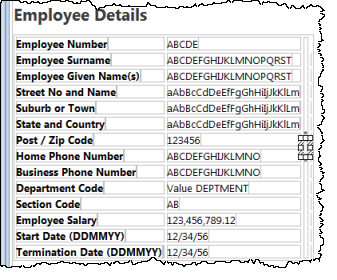
d. With the DIV still selected, select the Details tab. Expand its Style property and set the following properties:
Property | Value |
|---|---|
Height | 340px |
Margin-left | 50px |
Width | 340px |
...
Your design should look like the following: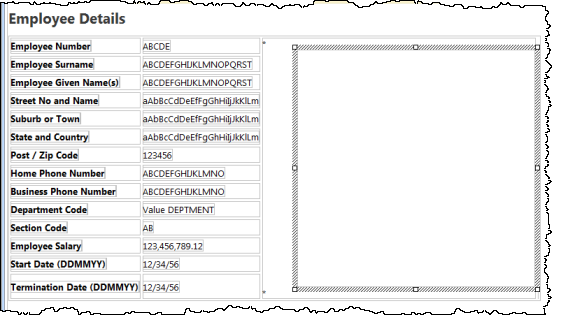
e. Delete the * place holder characters from this column.
f. Save your changes.
g. Drop a clickable image weblet into the DIV.
h. Select the clickable image and set its absolute_image_path to #ADDRESS.
Enter #ADDRESS in the XPath Expression window.
i. Save your changes.