Page History
In this step you will open your WAM layout in the editor and add your External Resource to this layout. This will apply the style sheet iii_style.css to all WebRoutines in this WAM only.
1. On the Outline tab, open your WAM layout in the Design view by double clicking on the WAM layout item.
| Note |
|---|
...
| Note: The WAM layout is named using the WAM Identifier for example iiiusi_2_layout.xsl. Your name may be slightly different. |
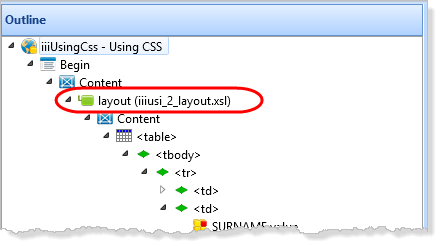

2. Select the Design ribbon and click the External Resources button, to open the Manage External Resources dialog.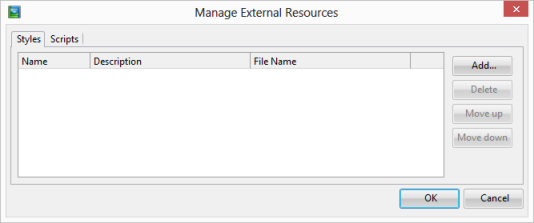
3. Click the Add button, select your external resource and click OK. Click OK to close the Manage External Resources dialog.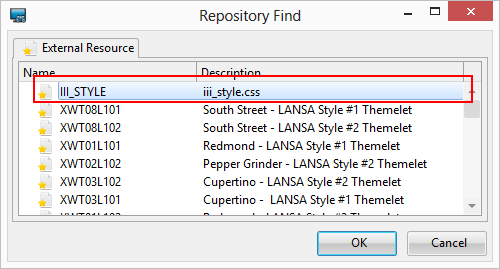
4. Save the WAM layout. The
The editor has added an entry to the WAM layout XSL to apply the style sheet defined in this external resource to the WAM layout.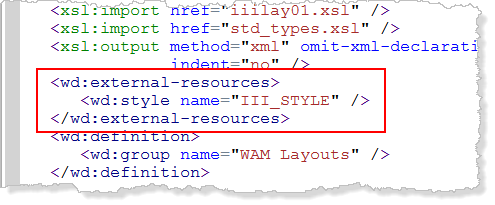
5. Close the WAM layout.
6. Execute the WAM iiiUsingCSS, WebRoutine begin in the browser.
a. Enter a partial surname and display the List page for the employees.
...
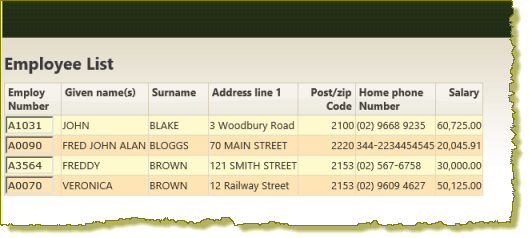
b. Use the browser back button to return to the begin page, enter a partial surname and display the Grid page:
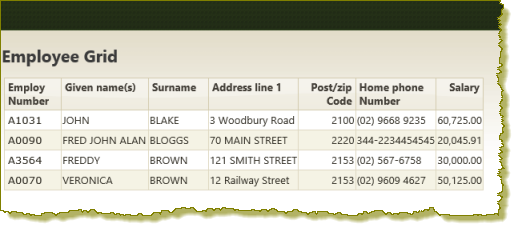
...
| Note |
|---|
...
| Note: The cascading style sheet has not been applied to the grid. At the moment it defines alternate background colors for a list only. |