Page History
...
where <property name> is the name of the installation-defined system property.
The Built-ins tab in the Processing Sequence Editor will show built-in variables for any system properties that you have defined here.
...
To reach the system properties, expand Administration and Housekeeping in the Navigator and then select the required function.
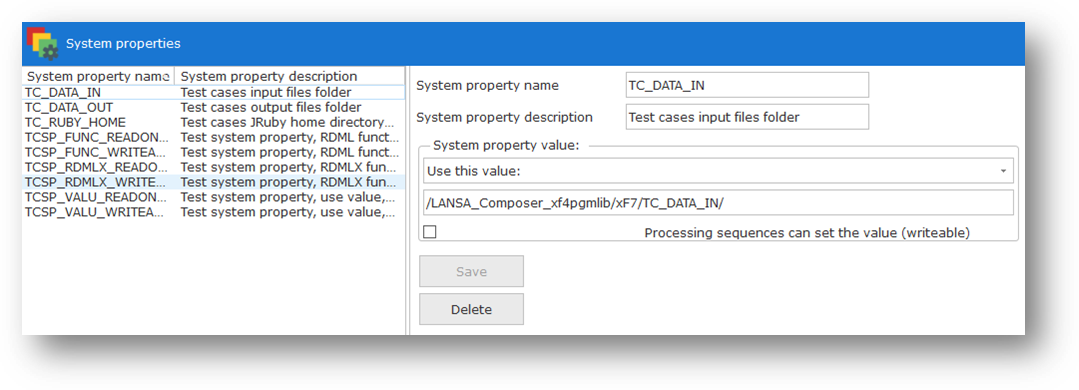
To work with system properties, select the required property from the list. You can use the New or Delete buttons to add or remove system properties, or you can complete the following details for new or revised system property. Remember to press the Save toolbutton (or press Ctrl+S) to save your changes.
System property name
...
In the drop-down list you can choose from three evaluation methods:
Use this value:
When you select this option, the second entry field specifies the value for the system property. It can be up to 1024 characters.
Evaluate / set by call to RDMLX function:
When you select this option, the second entry field specifies the name of a LANSA RDMLX function that will be called to evaluate the system property value each time it is referenced (and to set its value when a new value is assigned to a writeable system property).
For information on writing system property evaluation functions refer to System Property Evaluation Functions.
Evaluate / set by call to function:
This option is similar to the previous option, but provides compatibility with evaluation functions coded as RDML (not RDMLX). We advise that you use RDMLX for all new implementations. For further information of the differences applying to RDML functions, please refer to System Property Evaluation Functions.
...